How to easily create a Virtual Human with artificial intelligence (AI) in Virti.
It doesn't take long to create a Virtual Human with AI.
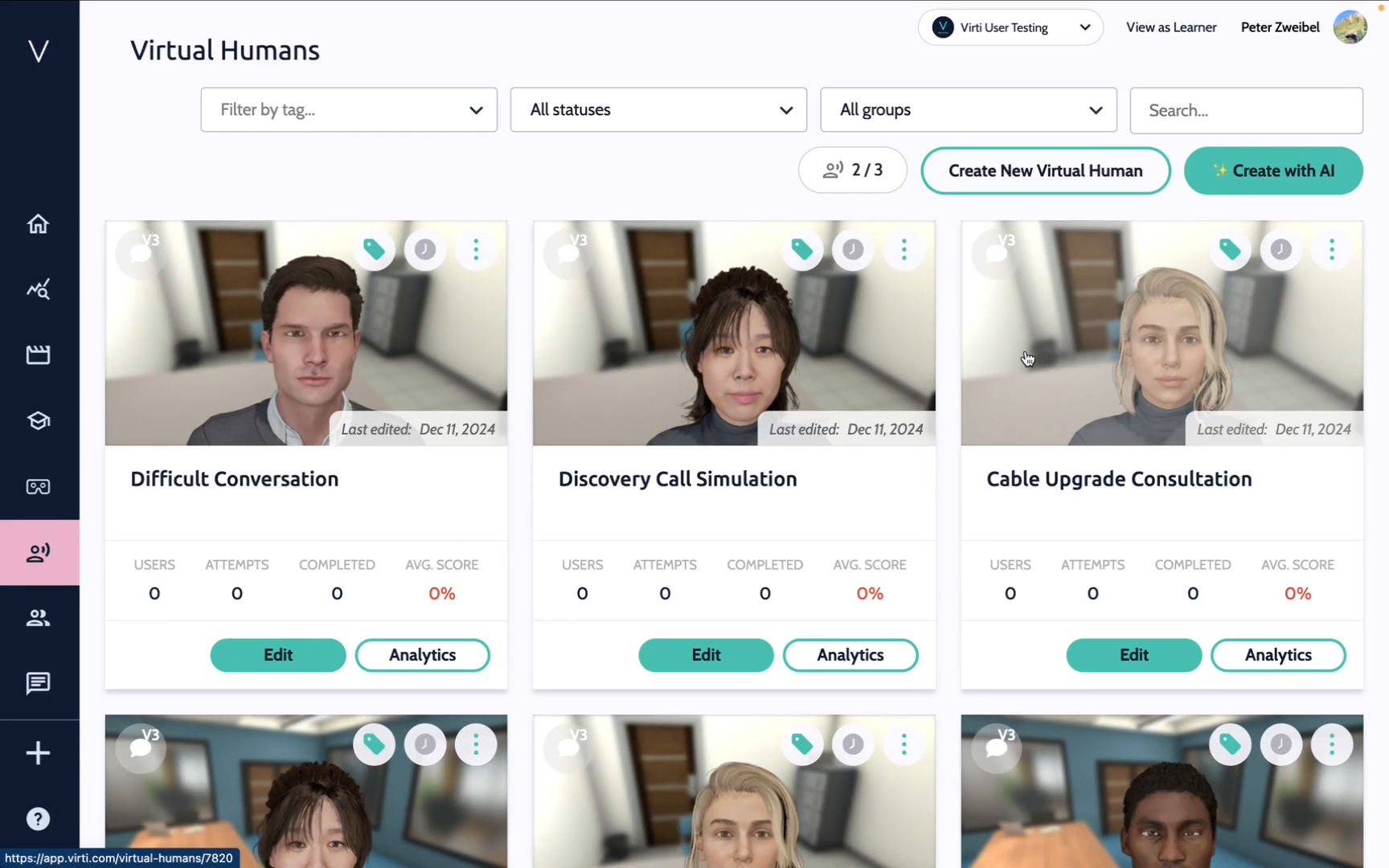
First, go to Virtual Humans by navigating to the sidebar and selecting the Virtual Human icon. This displays all the Virtual Humans in your platform.
Next, click on Create with AI to start the process of creating a new Virtual Human.
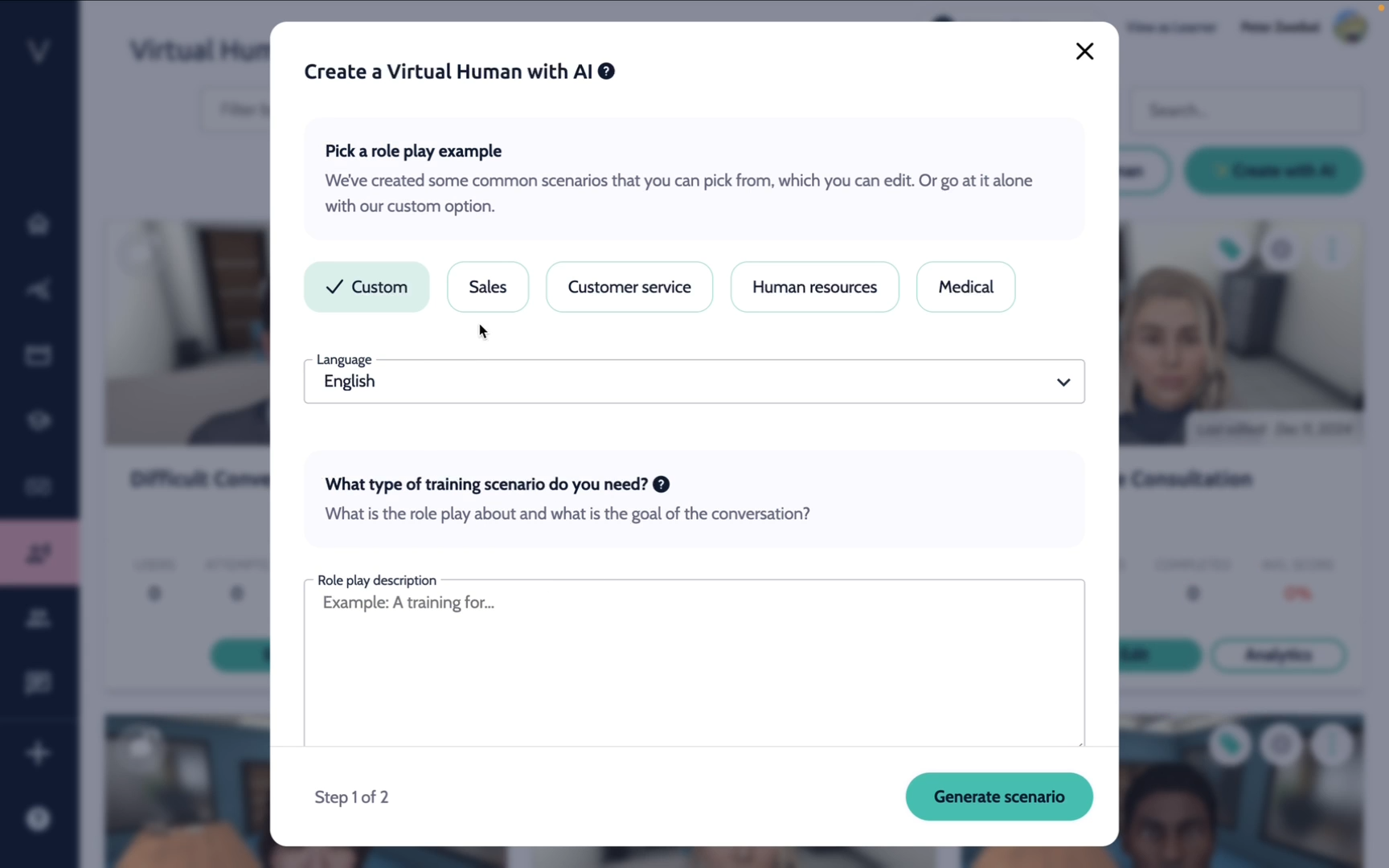
In the first step, you are telling the AI what type of training scenario you want to create.
There are three easy ways to do this:
You can choose from one of the pre-set prompts, Sales, Customer service, Human resources, or Medical.
Select custom, and use the text field to describe your training audience or goals. If you have a specific idea, you can provide detailed information, and the AI will create it. Alternatively, if you're unsure, you can provide a generic topic, and the AI will take it from there. For best practices see: Best Practices for describing your training scenario with Create with AI
If you already have documentation, a script, a brief, or a storyboard for a scenario, you can upload the document here. For best practices see: Best practices for uploading a training brief for Create with AI
You will also want to select a language for your Virtual Human. This will set what language your Virtual Human will use, and what language the design will be written in.
Next, click Continue.
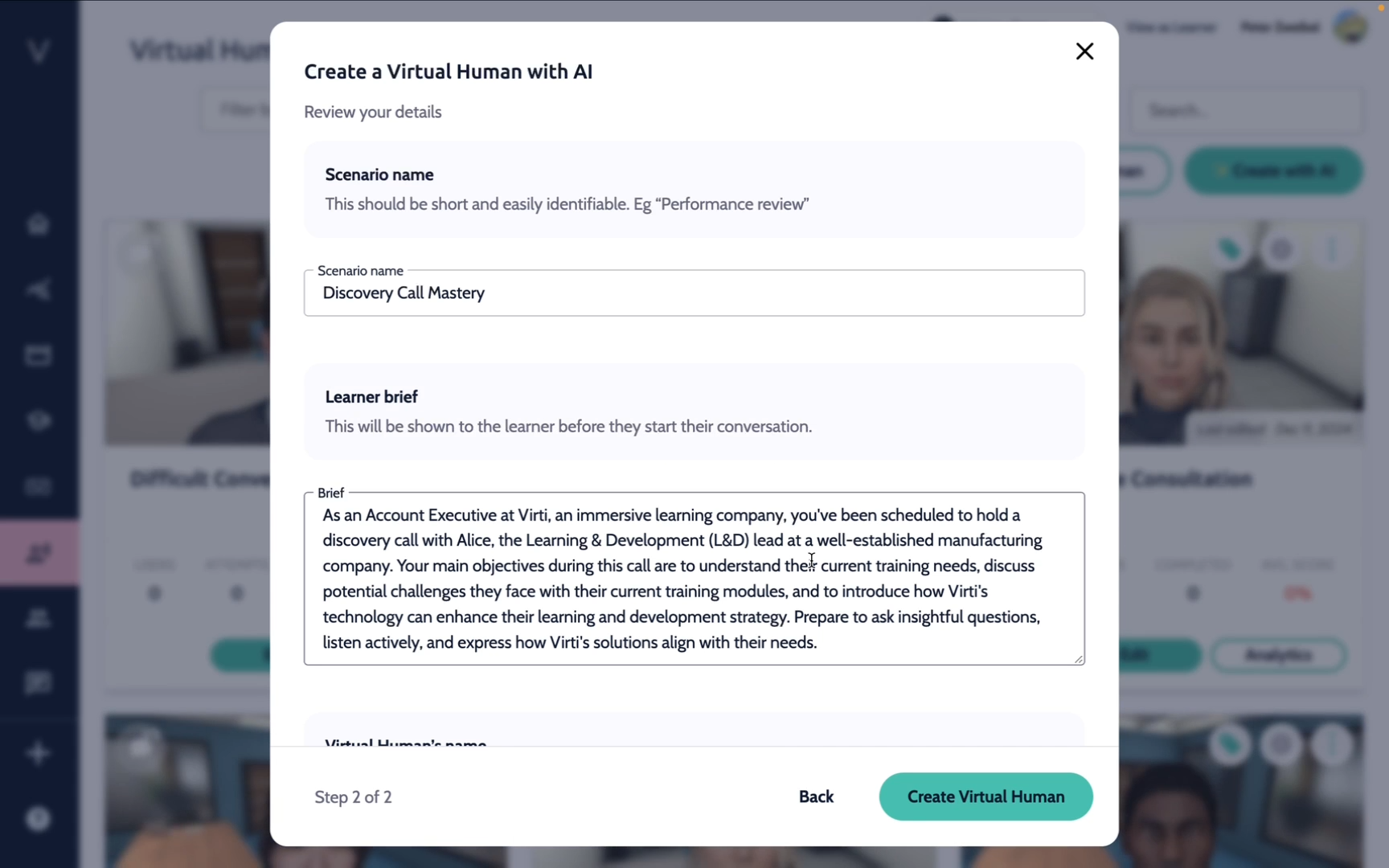
In the second step, you can review what the AI has generated.
First, we can see the generated title of the simulation, and the learner brief, which is displayed to the learner before the scenario.
In this next section, we can see the instructions that are given to the Virtual Human to tell it how to respond. We can see how the Virtual Human would open the conversation and then review the Virtual Human brief, which includes the character's background and behavior.
Feel free to edit anything obvious here, but you may want to wait to edit until after you've tried out the conversation. For full instructions on how to edit your Conversational Virtual Human, check out: Creating a Conversational Virtual Human
When you are happy with the Virtual Human, click Create Virtual Human.
Please note that this process may take a minute or two.
When this is finished you will land on the details page. For more information on how to edit the virtual human, including the environment, avatar, voice, and settings, check out Creating a Virtual Human
Click on Preview to start your virtual scenario role-play.
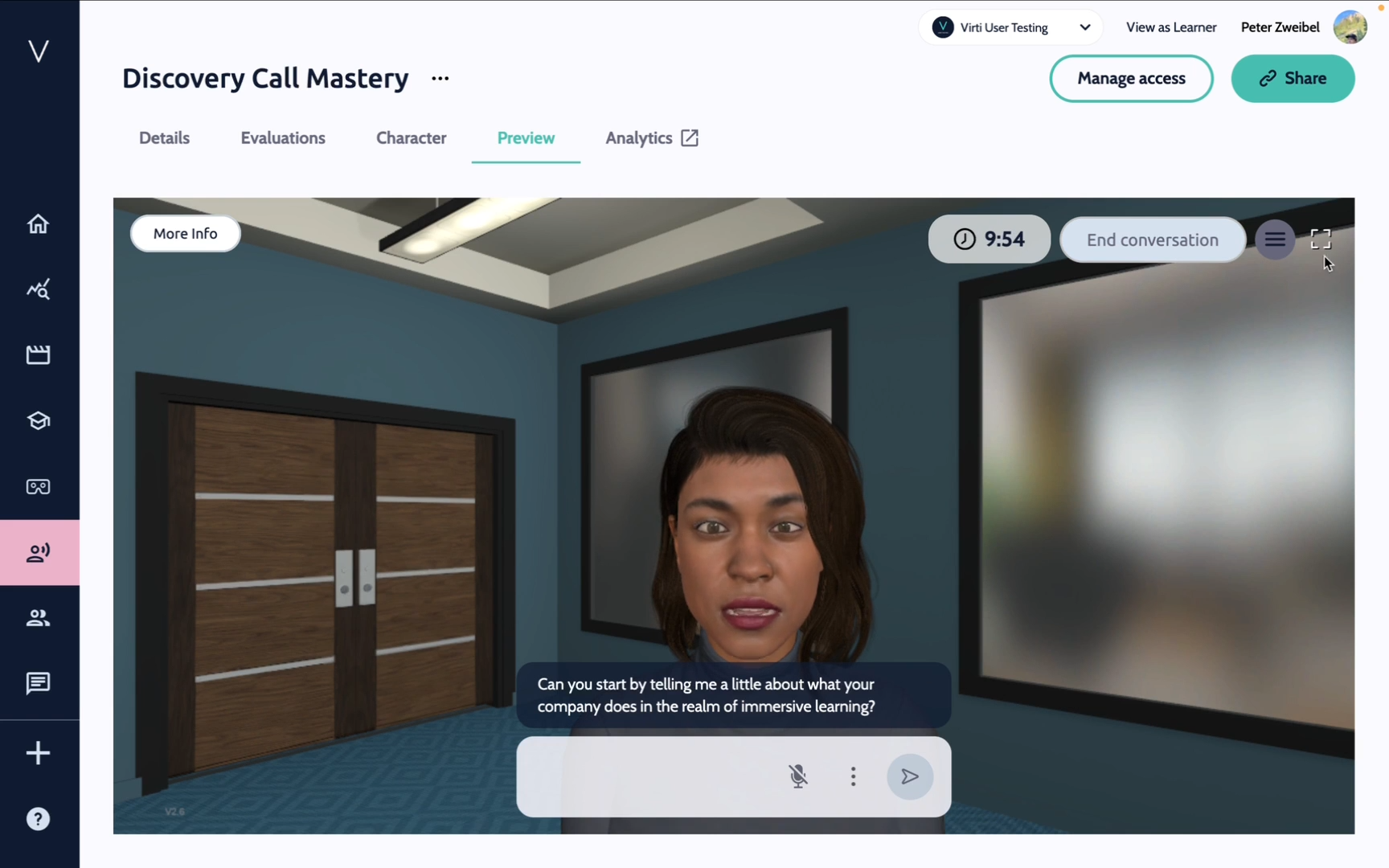
Here, you can interact with your Virtual Human and see how it responds. Pay attention to how they respond and if there is anything you would like to change. You can always go back and edit in the character page, to adapt the conversation to fit your goals. Once you are done, hit end conversation.
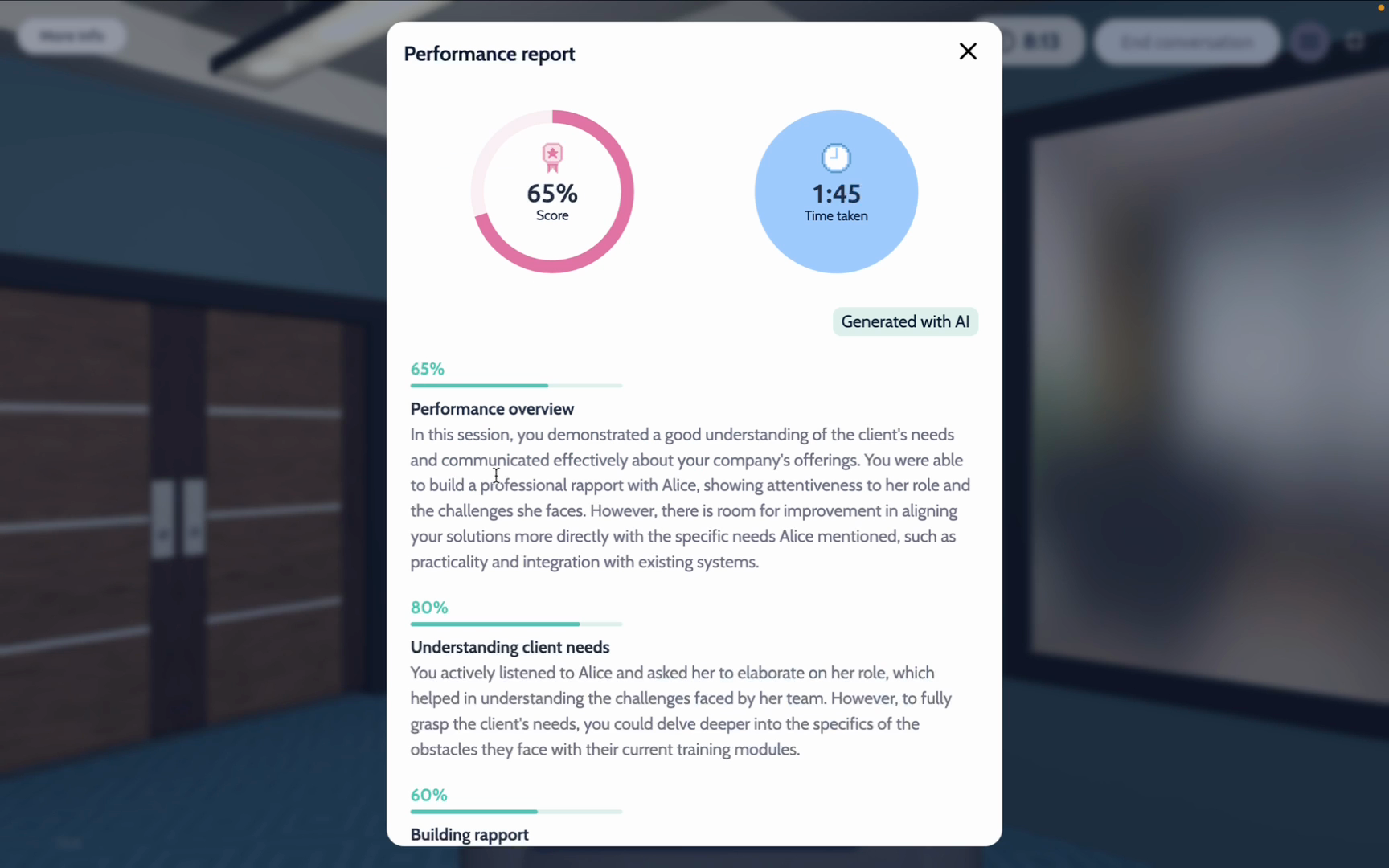
We can review how the system analyzed our performance against the evaluations. We get a score and detailed feedback on each one of our evaluation areas. This was a basic overview of creating a Virtual Human with AI.
For help editing and fine tuning your Virtual Human check out Building a Conversational Virtual Human.
Need more help? Contact [email protected]
