Learn how to create a Virtual Human in Virti.
Virtual Humans allow you to deliver interactive, custom, and standardized role-play training experiences.
There are 3 different types of Virtual Humans available, and scenarios can be fully customized to meet the specific needs of your organization or learning objectives.
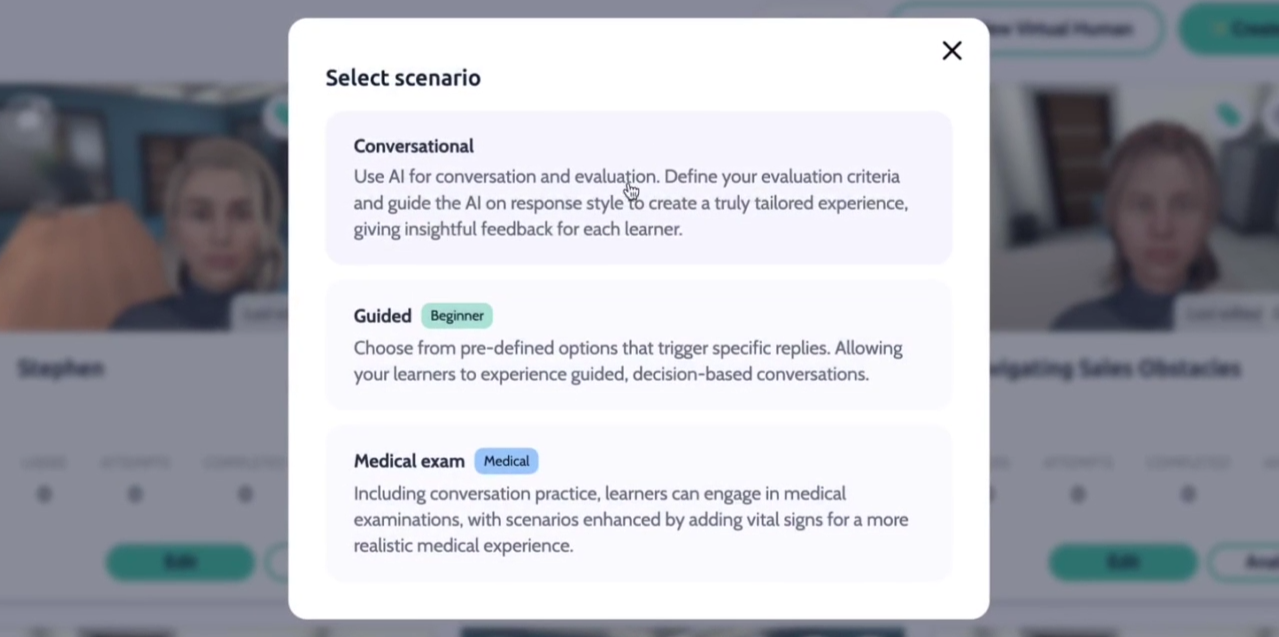
To create a Virtual Human, start by going to "Virtual Humans" in the main navigation on the left, and click "Create New Virtual Human".
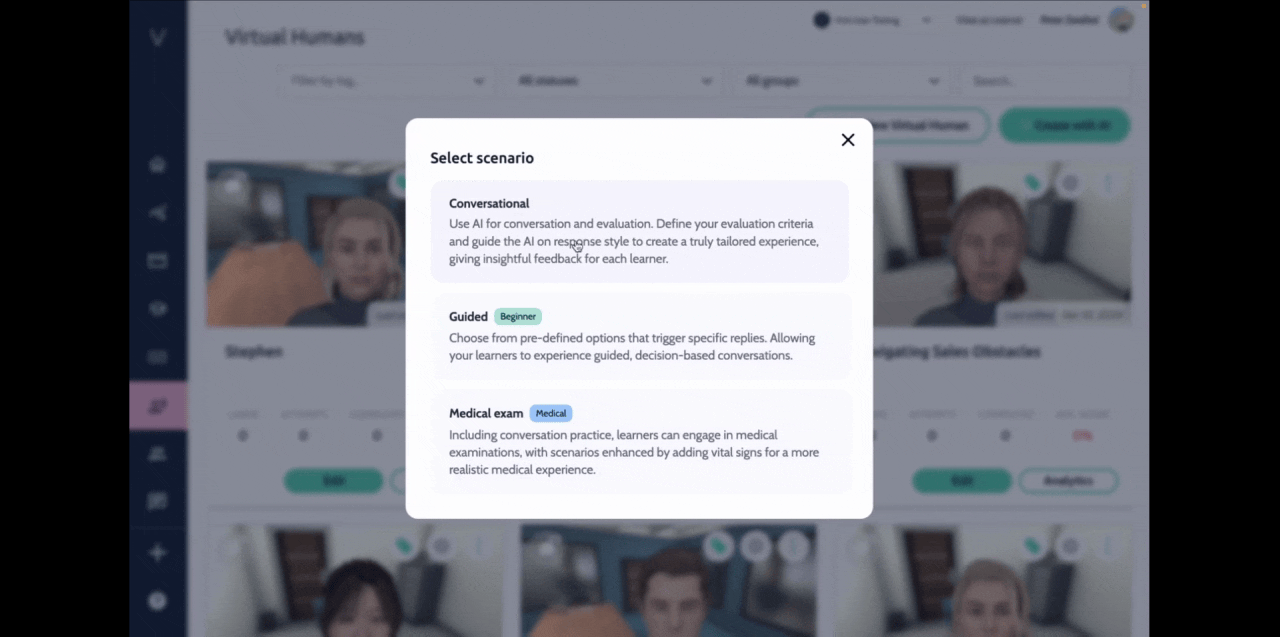
Choose a Virtual Human type, Branching, Freeform, or Medical Freeform. For more information on how to customize each type of Virtual Human, visit these guides:
Creating a Conversational Virtual Human
Creating a Medical Exam Virtual Human
Enter a name for the Virtual Human that describes the scene. This will be the name learners see when browsing content.
Select a language for your Virtual Human. This will be the language the Virtual Human will speak and the language your learner will speak. Virtual Humans are available in 18 different languages.
The details page is where we set the scene for our Virtual Human and manage settings.
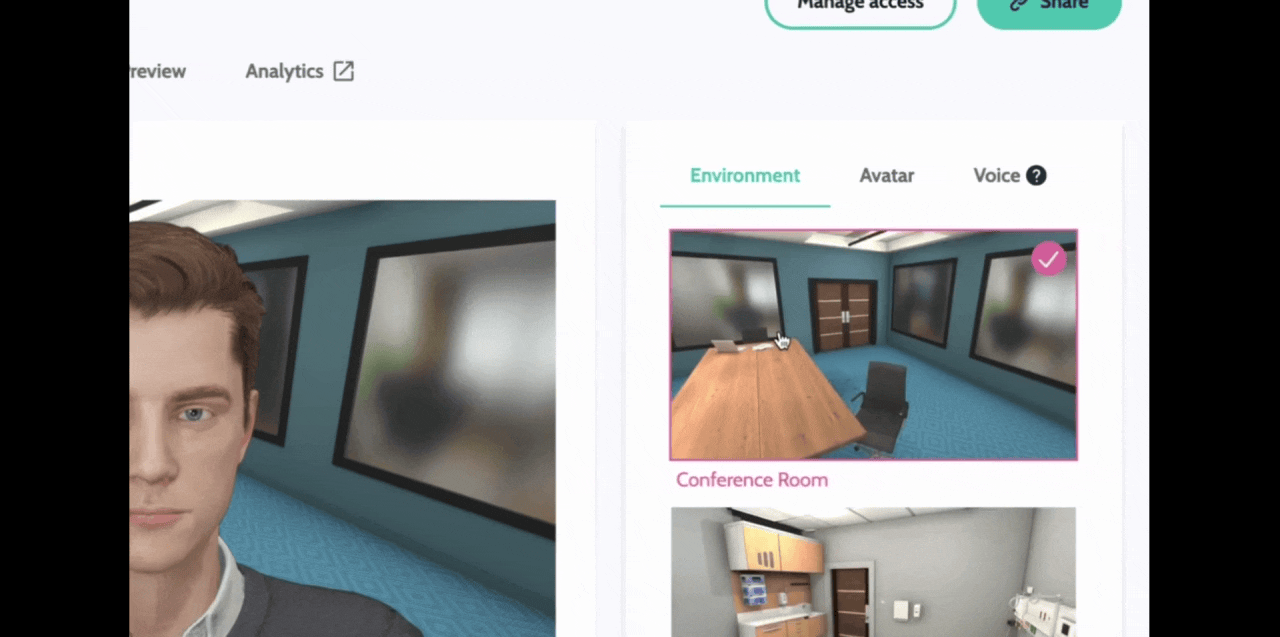
To pick a location for your scenario, navigate to the Environment tab in the center of the screen. Here you can select from a set of pre-set environments where your learner will interact with the Virtual Human
Next click the Avatar tab to select the character that will play your virtual human. There's a wide range of avatars to choose from and we are consistently adding avatars to better represent people of different ages, genders, ethnicities, body types, and professions.
Finally, Select a voice that best suits your Virtual Human. Click preview to listen to a short sound-byte. Voices labeled realistic will sound more natural but may cause the response to be slower. Voices labeled high performance will sound less natural, but the responses will be quicker.
Add a description to your Virtual Human. This description is the brief shown to the learner before they complete their scenario. It should inform the learner about their role, the scenario, and the objective.
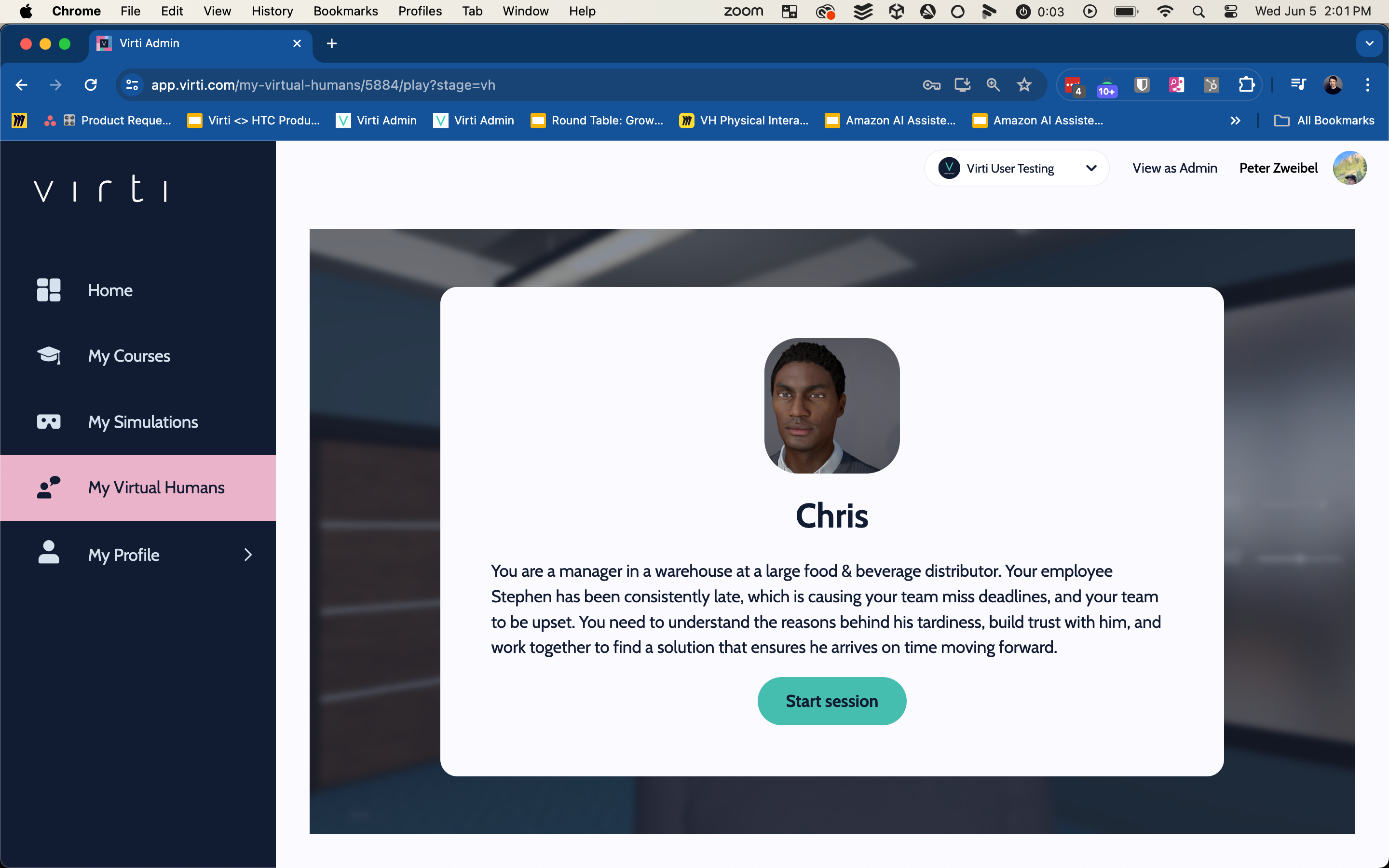
Finally, there are a few settings, you can adjust.
Enter an Admin Title that will be used for your L&D team's reference.
Example:
Virtual Human Name: Meeting with Chris
Admin Title: Unconscious Bias Lesson 1.
By giving the Virtual Human these two titles, you avoid revealing too much information about the scenario to learners, but also can stay organized internally.
You can set a time limit for your scenario. This will show a countdown for the learner, and end the session when the time expires.
Tip: Set a time limit to give learners a sense of urgency and keep them on task.
Example: Setting a time limit can be helpful in sales scenario or a nursing scenario, where time is limited and efficiency is critical.
Best Practice: We recommend keeping your scenarios to about 5-15 minutes so they are short and engaging, especially if your learners will be using a VR Headset.
Toggle on Hide Scores from Users if you don't want your learners to be stressed about getting a high score.
Our Virtual Humans are forever evolving, here are the currently supported languages available:
English
Chinese (Taiwan)
Chinese (China)
Czech
Dutch
Spanish
French
German
Italian
Japanese
Korean
Portuguese
Russian
Danish
Finnish
Norwegian
Polish
Swedish
Turkish
Ukranian
That's it! You now know how to create and set up a Virtual Human.
Check out Create a Conversational Virtual Human with AI
Need more help? Contact us at [email protected]
