
As your library of scenarios grows, tags make it easy to keep everything organized and easy to find. Assign whatever tags make sense for your organization — by topic, team, brand, or anything else and then filter and sort your library in seconds.
What are Tags?
Tags are labels you can attach to any Virtual Human scenario or Interactive Video. Unlike folders, a single piece of content can carry multiple tags at once, so you can group content in more than one way without duplicating it.
Adding a tag
Find the Virtual Human scenario or Interactive Video you want to tag.
Find the Tags icon on the scenario.
Type a new tag name and press enter to create it, or select an existing tag from the list.
Add as many tags as make sense, there's no limit.
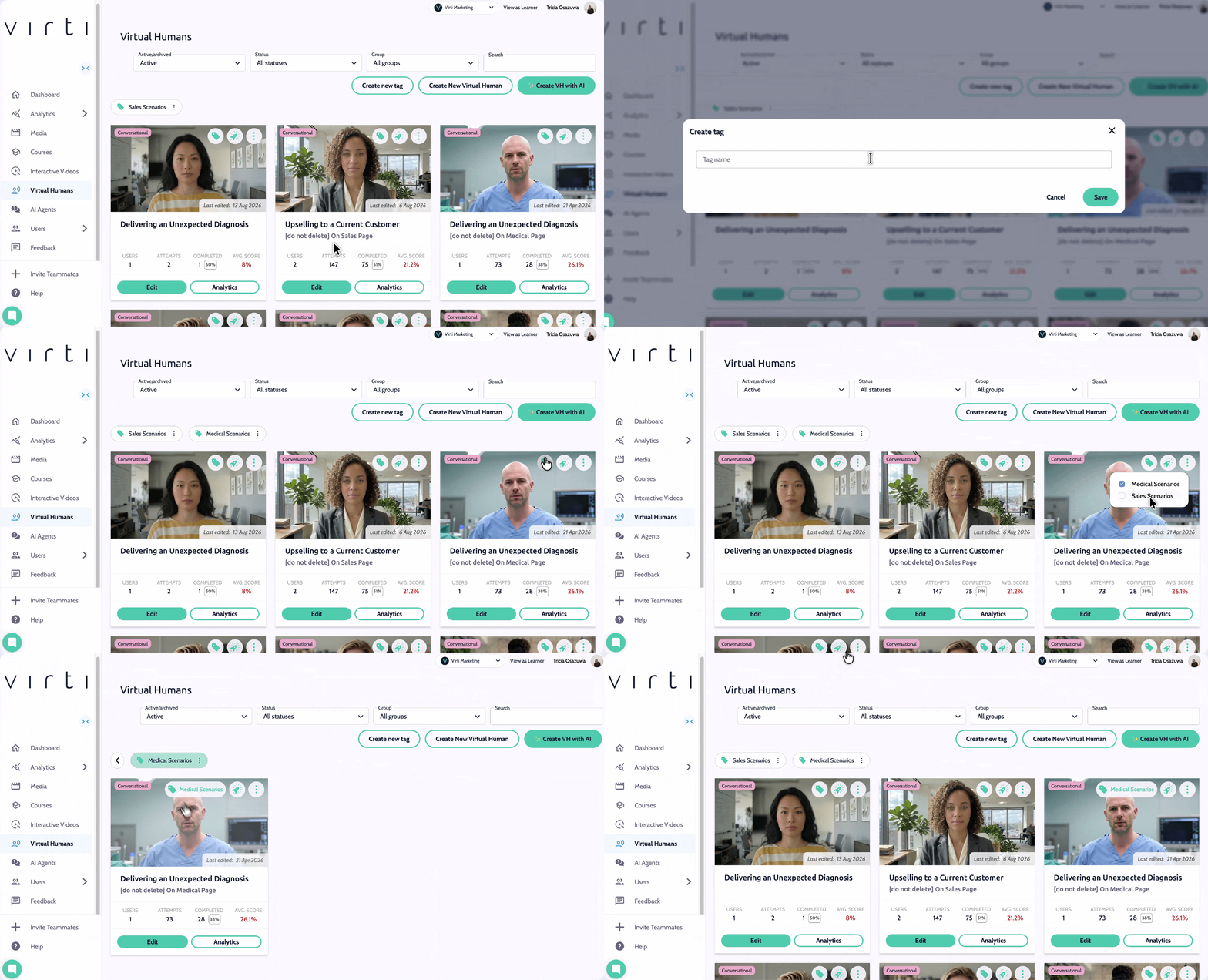
Filtering and sorting your library
Once your content is tagged, they appear at the top of your Virtual Human or Interactive Video screen. Click on the tag names to narrow the view down to exactly what you need.
Open your Virtual Humans or Simulations list.
Select the tag name
Your library updates instantly to show only matching content.
Best Practice: Agree on a simple tagging convention with your team early on, for example, tag by department, by customer, or by training topic, so tags stay useful as your library grows.
💡 Tip
Need more help? Get support from our Virti Support Team via [email protected]