
Virtual Humans can now support learner language selection with translated text, options, feedback, and voices. This makes it easy to deliver the same scenario across multilingual teams, without rebuilding the experience from scratch.
How it works
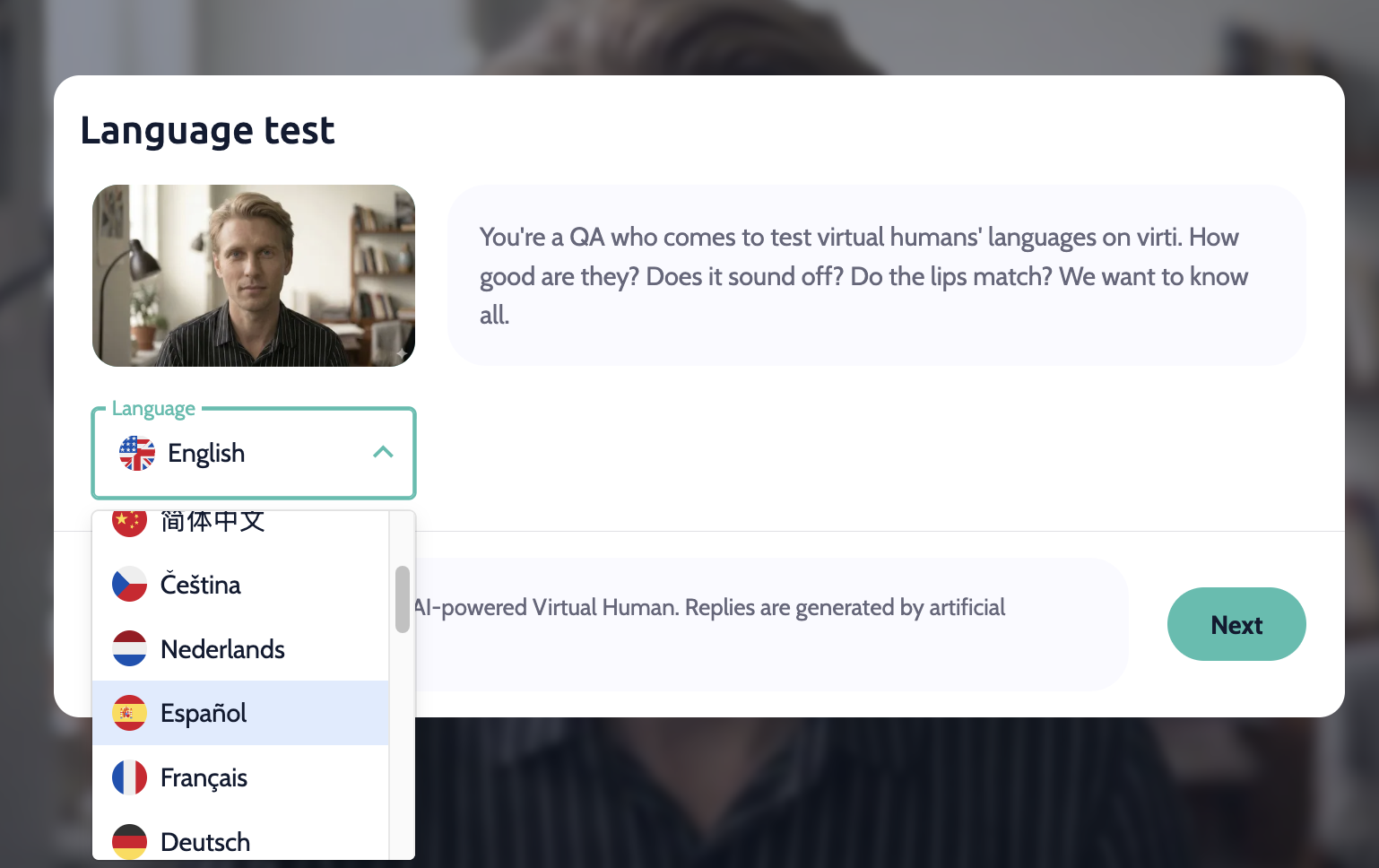
When enabled, learners see a language selector before starting the scenario. Once they pick a language, all of the branching conversation, the Virtual Human's dialogue, the learner's response options, in-scenario feedback, and spoken audio are translated automatically.
Turning on language selection (admins)
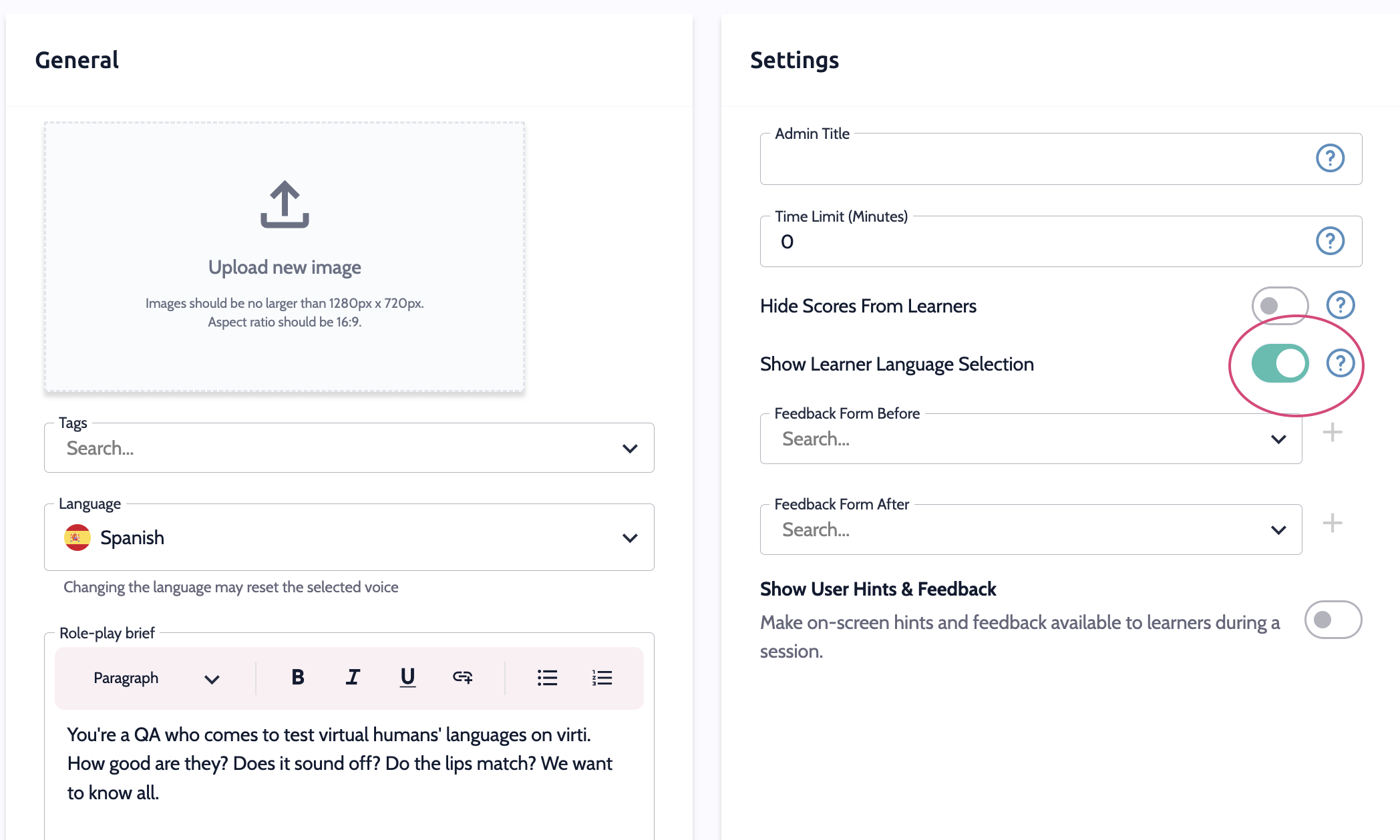
Open your Virtual Human and scroll down its settings.
Find the Show Learner Language Selection toggle.
Switch it on to make the language selector available to learners.
What gets translated?
Conversation text and response options
In-scenario feedback
Spoken audio for each node
Translation happens the first time a learner reaches a given point in the conversation in a new language, after that, it's cached so every learner after them gets the same fast experience.
Best Practice: Review a translated run-through of your scenario in each language you plan to offer before rolling it out to learners, and let us know if there are any hiccups.
💡 Tip
Need more help? Get support from our Virti Support Team via [email protected]