
Overview
Archiving lets you remove content from active use without deleting it. This is useful when a course or scenario is no longer needed right now, but you want to keep it for reporting, future use, or reference.
Archived content:
Is not visible to learners
Cannot be launched or assigned
Is not deleted and can be restored at any time
You can unarchive content at any time to make it active again.
What Can Be Archived?
Depending on your permissions, you can archive:
Virtual Humans
Interactive Videos
Courses
Archiving helps keep your workspace clean, organised, and focused on current training.
How to Archive Content
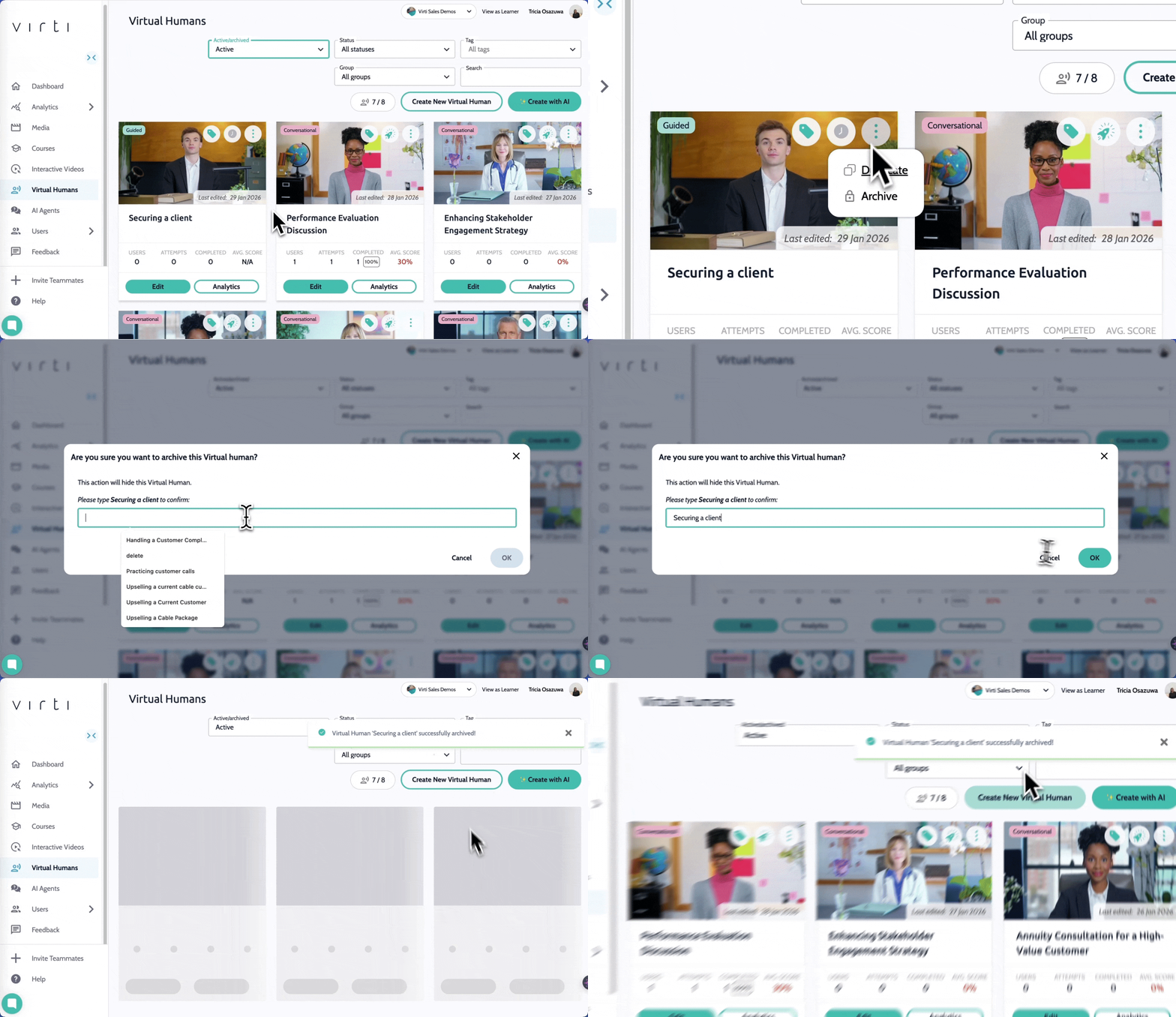
Go to the content area (Virtual Humans or Interactive Videos).
Find the scenario you want to archive.
Click the three dots (⋯) menu next to the scenario.
Select Archive.
Confirm archiving by typing in the scenario name and click ok.
The content will be moved out of your active list and into the archived view.
How to View Archived Content
Go to the relevant content area (Virtual Humans or Interactive Videos).
Use the Active/Archive toggle to switch to Archived items.
You will now see all content that has been archived.
How to Unarchive Content
Go to the Archived view.
Find the learning content you want to restore.
Click the More options (⋯) menu.
Select Unarchive.
The content will return to your active list and can be used again.
Best Practices
Archive old versions of courses before publishing new ones
Archive seasonal or campaign-based training when it’s no longer needed
Use archiving to keep your workspace clean and easy to manage