
The Virti application needs a Wi-Fi connection to work on a VR device. If it is not connected, some features of the Virti app won't load or update.
Tip: You can quickly check if you're already connected by looking for the 'Wi-Fi' symbol on the bottom right of the toolbar. If the icon appears with a white Icon, then it is connected. See below:
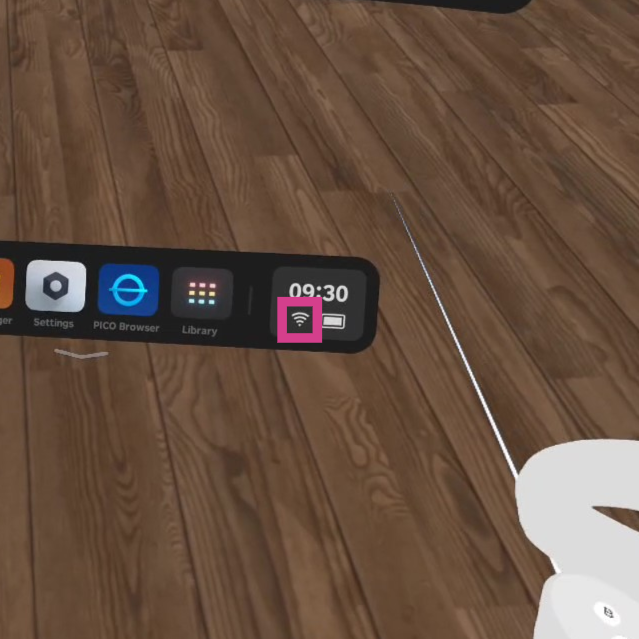
To connect your VR device to Wi-Fi, follow these steps:
Connecting a Pico device to Wi-Fi
First, turn on your device and set up the boundaries.
Next, select the Settings icon from the toolbar menu.
Then, go to the WLAN tab at the top of the list of options opened on the left.
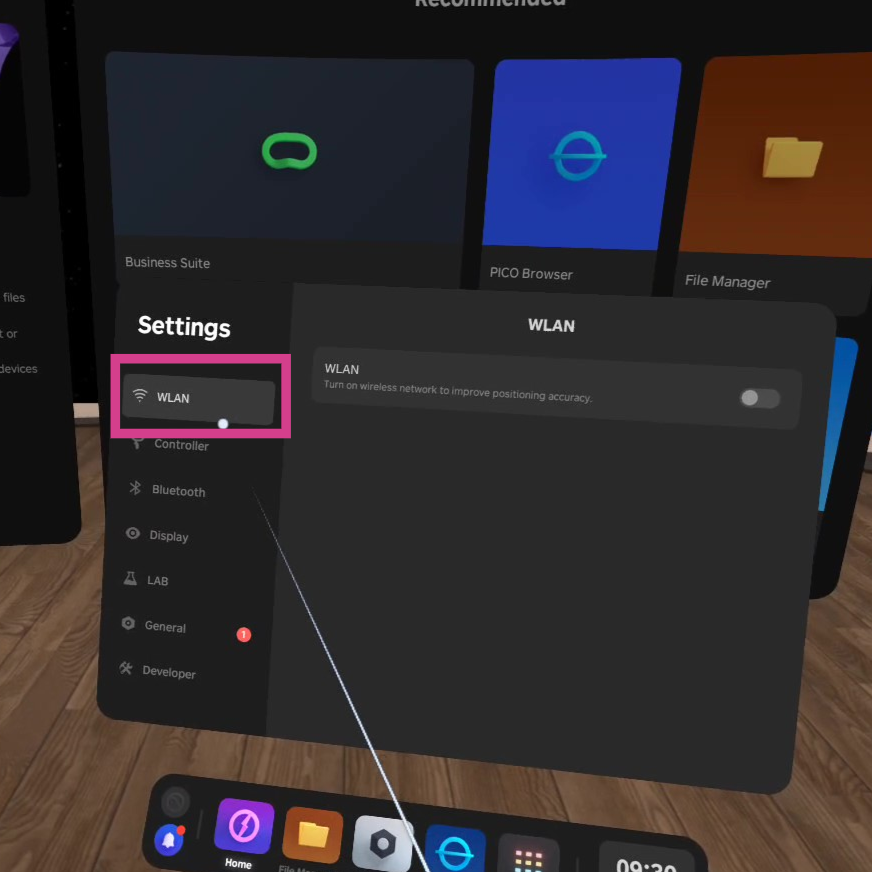
Next, turn the Wi-Fi toggle on.
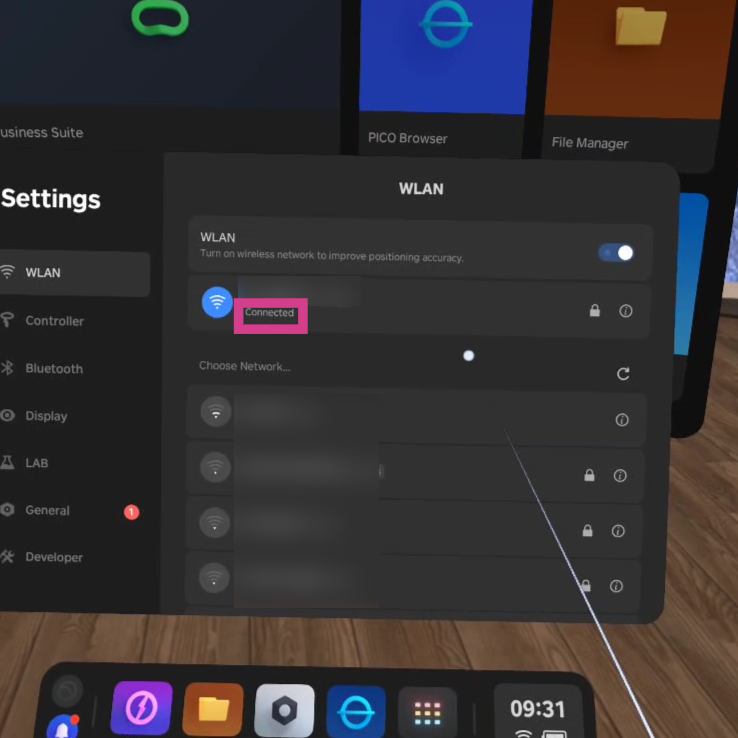
Note: Wi-Fi is turned on when the toggle icon is blue. (See below).
Here, you will see a list of Wi-Fi connections available, select the one you want and enter the password (if required).
When the chosen Wi-Fi is connected, the Wi-Fi status will change to Connected.
Still having trouble?
If the VR device isn’t connecting to Wi-Fi, contact our support team via [email protected] and we’ll be happy to help.
💡Tip
Need more help? Get support from our Virti Support Team via [email protected]