There are a few ways of checking which version of the application is being used.
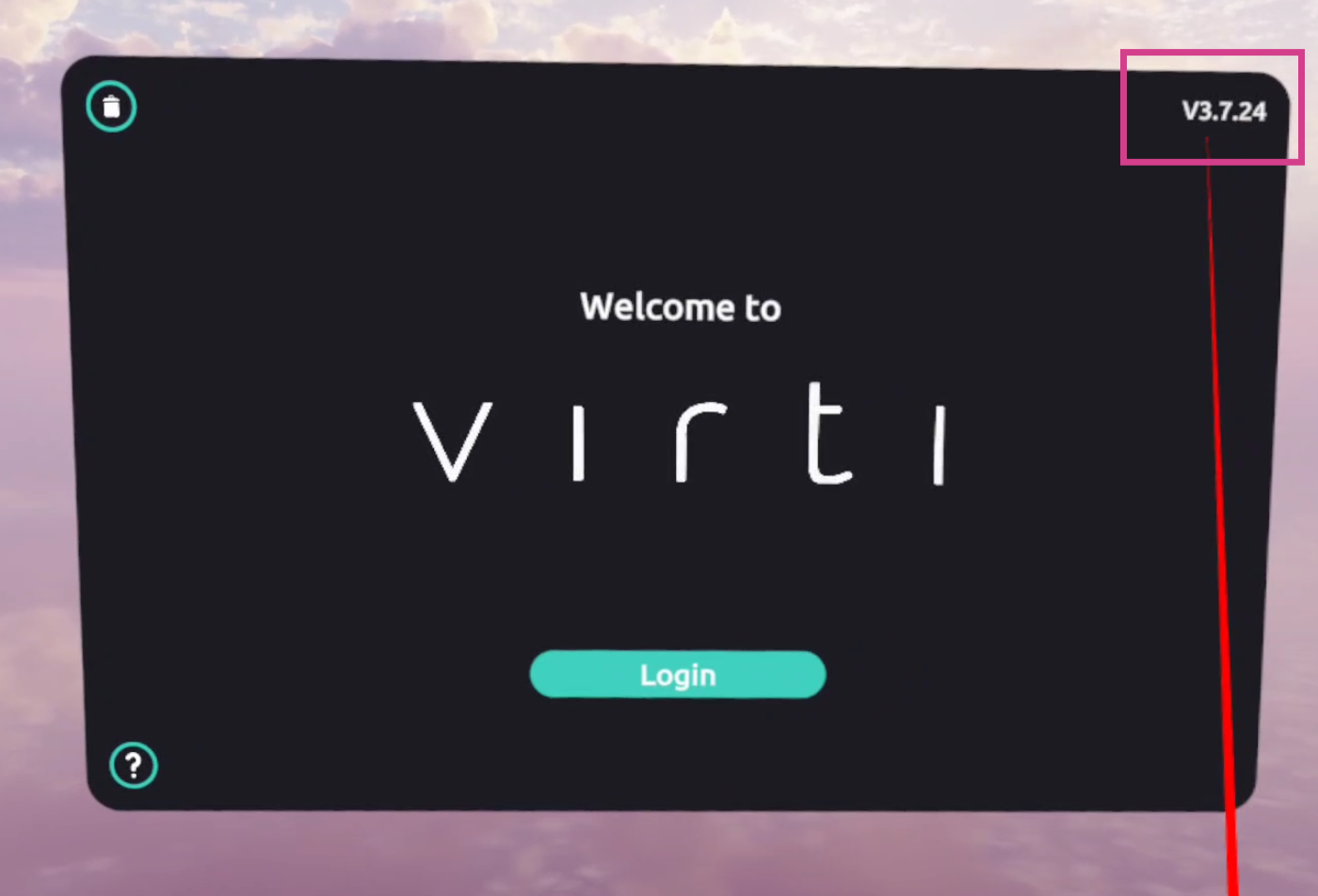
First, you can launch the application by selecting the Virti Application Icon. Once the application loads, you can see the version number on the top right of the login screen:
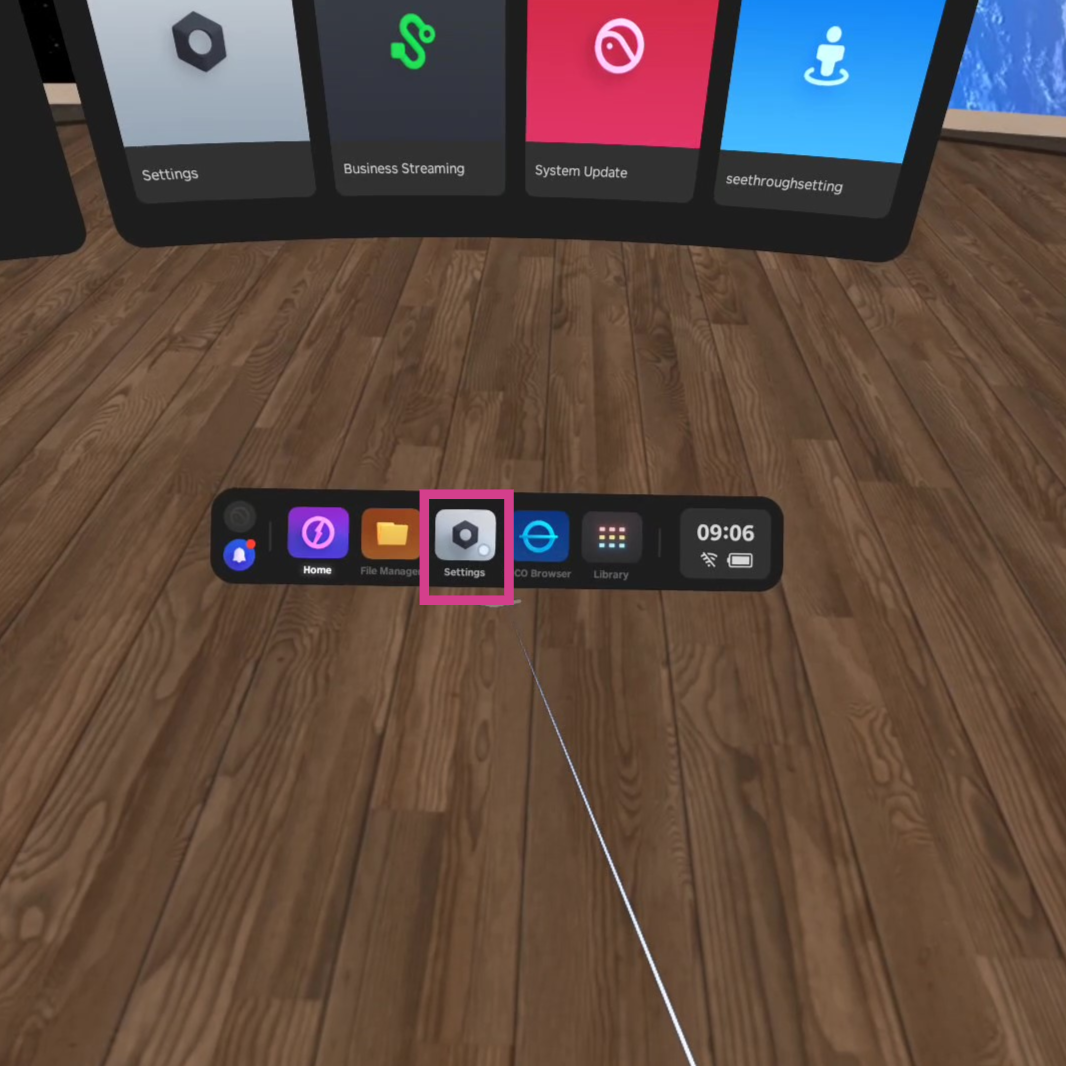
Another simple way to check this would be to select the Settings tab on the toolbar:
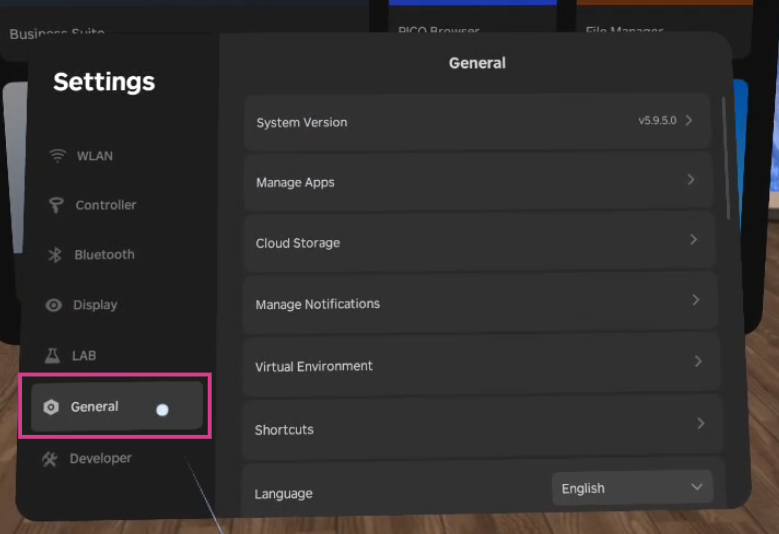
Then, select General from the list of tabs on the left.
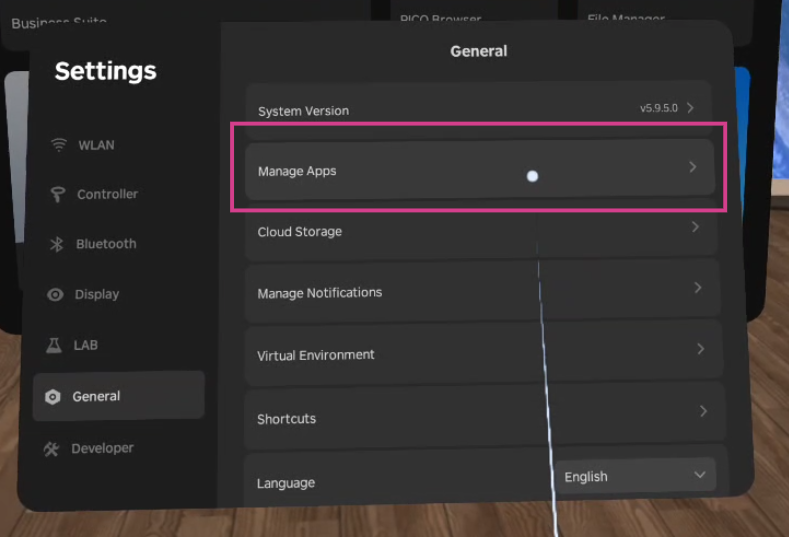
Once selected, select Manage Apps.
Scroll down until you find Virti from the list of applications.
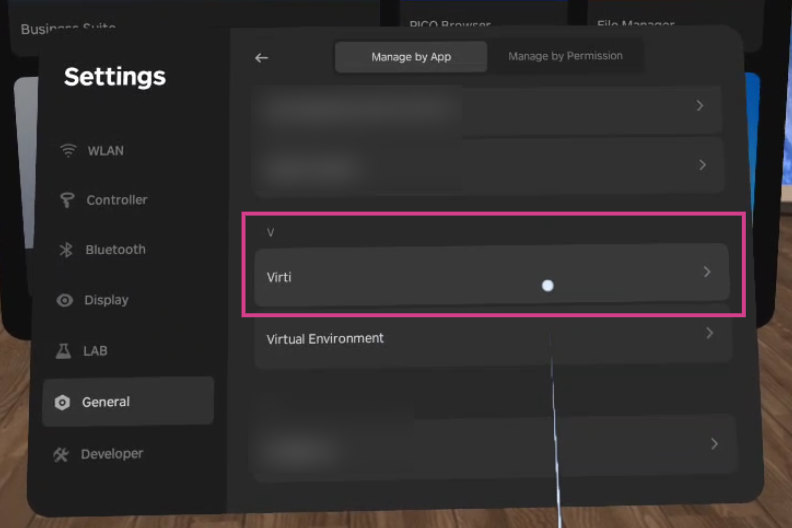
Now you will be presented with the Application Version at the top, with some other application options.
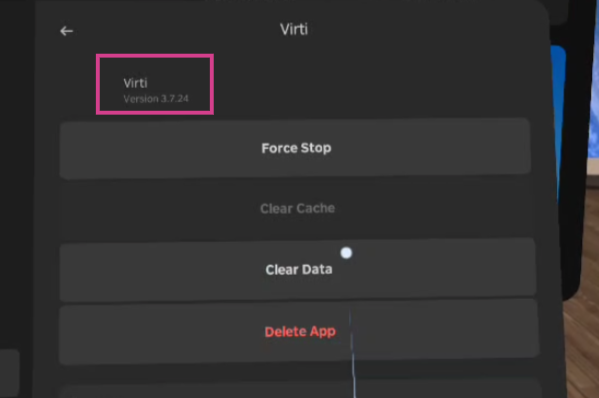
IMPORTANT: If you're unsure if your application is up to date, a safe option would be to uninstall and re-install for the latest version by selecting Delete App in the list of options above, please note that doing this will remove all downloaded content within the application.
Installing or Updating your application version is a simple process.
To start, open the Pico Application Library from the toolbar present.
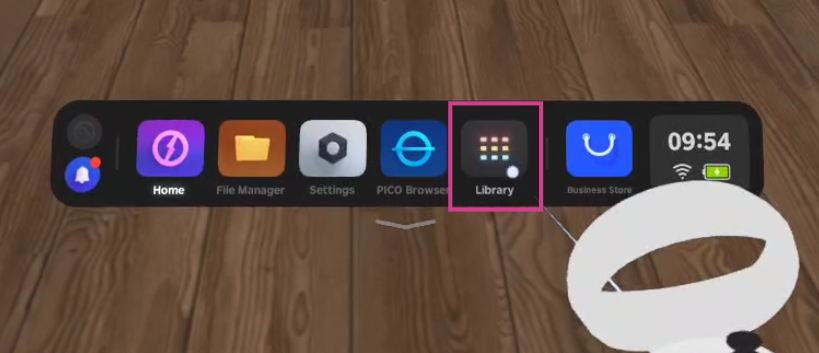
Second Locate Pico Business Store app:
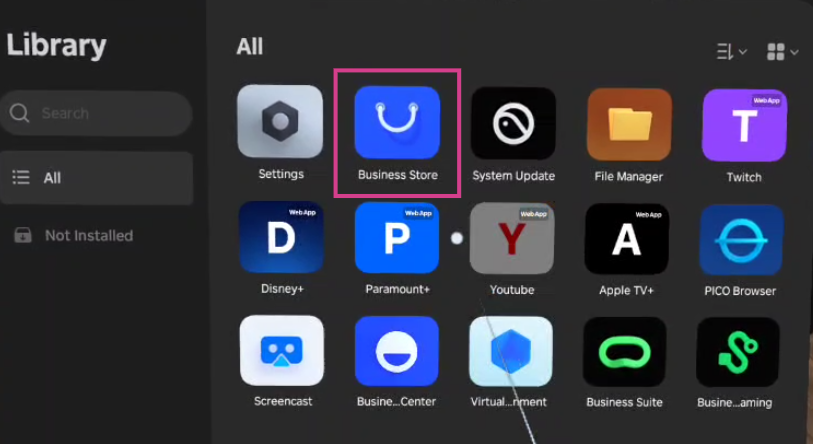
Once selected, search for Virti in the search bar at the top left, and the application will appear in the list.
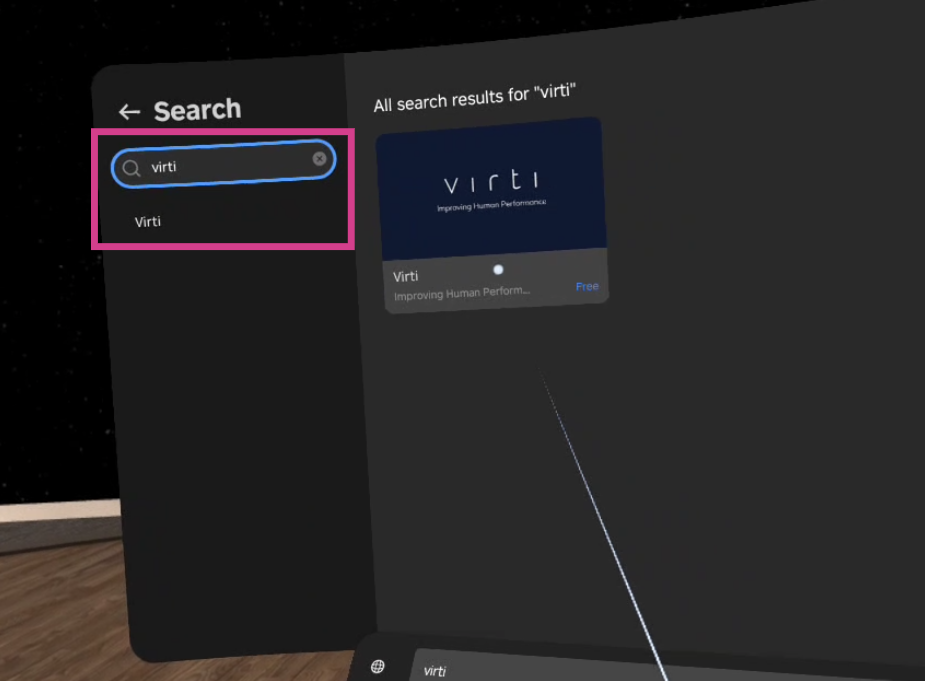
Note: You may be required to double click on the search bar for the keyboard to display within the device.
Now, Select on the Virti application. At the top, you will see one of three options on the top of the panel:
Free - When selected begins installing the latest available version of the application.
Update - This will prompt you to update to the newest version of the application.
Open - This will launch the Virti Application.
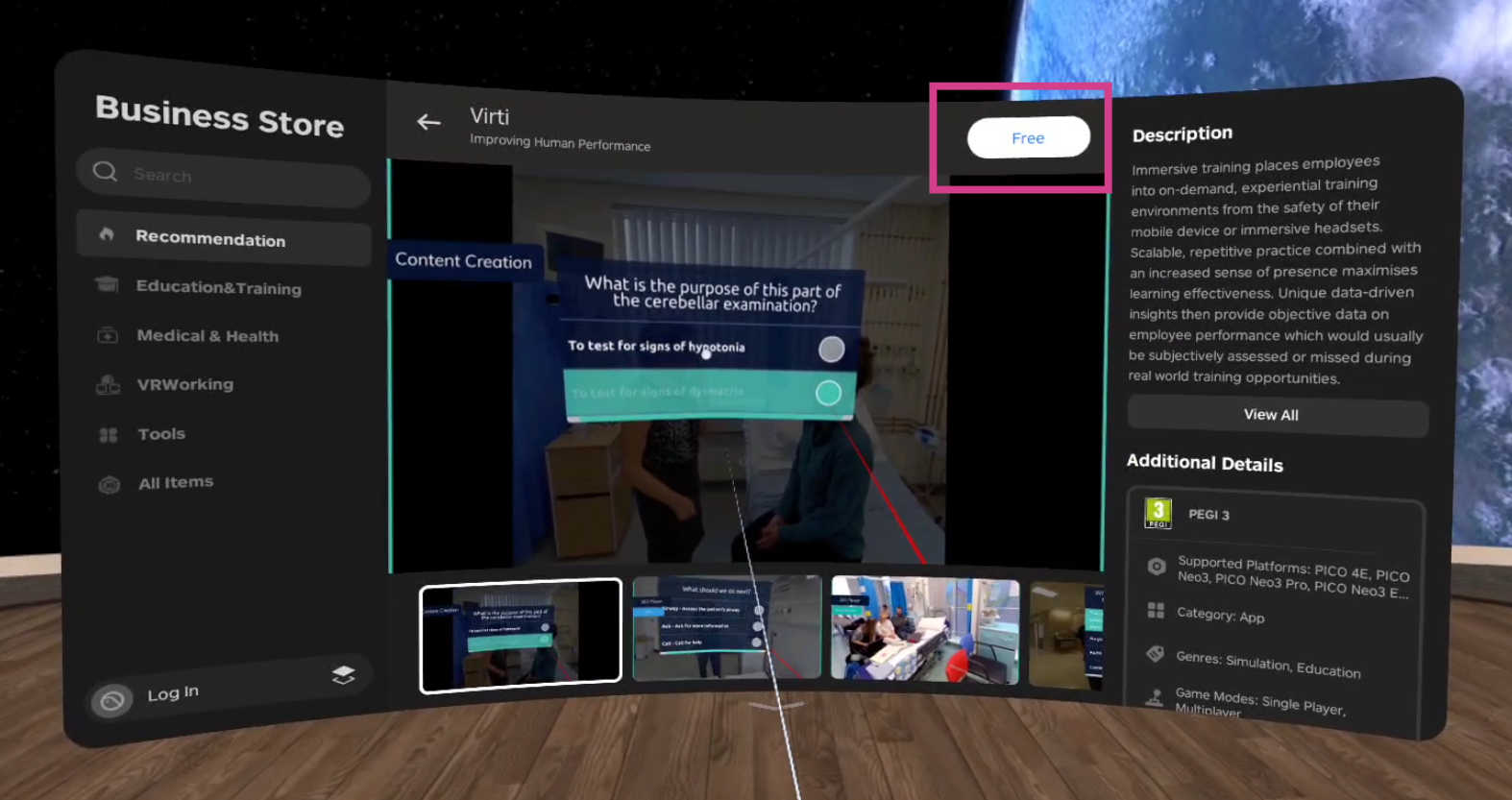
IMPORTANT: If there is a newer version available, this will appear when you are connected to a stable Wi-Fi connection. If you're unsure, uninstall and re-install for the latest version, please note that doing this will remove all downloaded content within the application.
If the VR device isn’t connecting to Wi-Fi, contact our support team via [email protected] and we’ll be happy to help.
Need more help? Get support from our Virti Support Team via [email protected]
