
Keeping your OS up-to-date minimizes potential issues.
If you'd like to update your OS on an HTC VR device, follow these steps:
Checklist before you update your OS:
The VR device will need to be connected to a power supply and it needs to have over 50% charge
You will need to ensure your VR device is connected to a stable Wi-Fi connection throughout the update
Ensure that all boundary and safety requirements are followed appropriately
Allow time for the VR device to complete the update process. It may take time and can vary depending on the update required
Make sure you don't turn off, restart, or unplug the device during the update process.
Updating your HTC device to the latest OS
Start by turning on your headset and setting up the boundaries in the main lobby of your device.
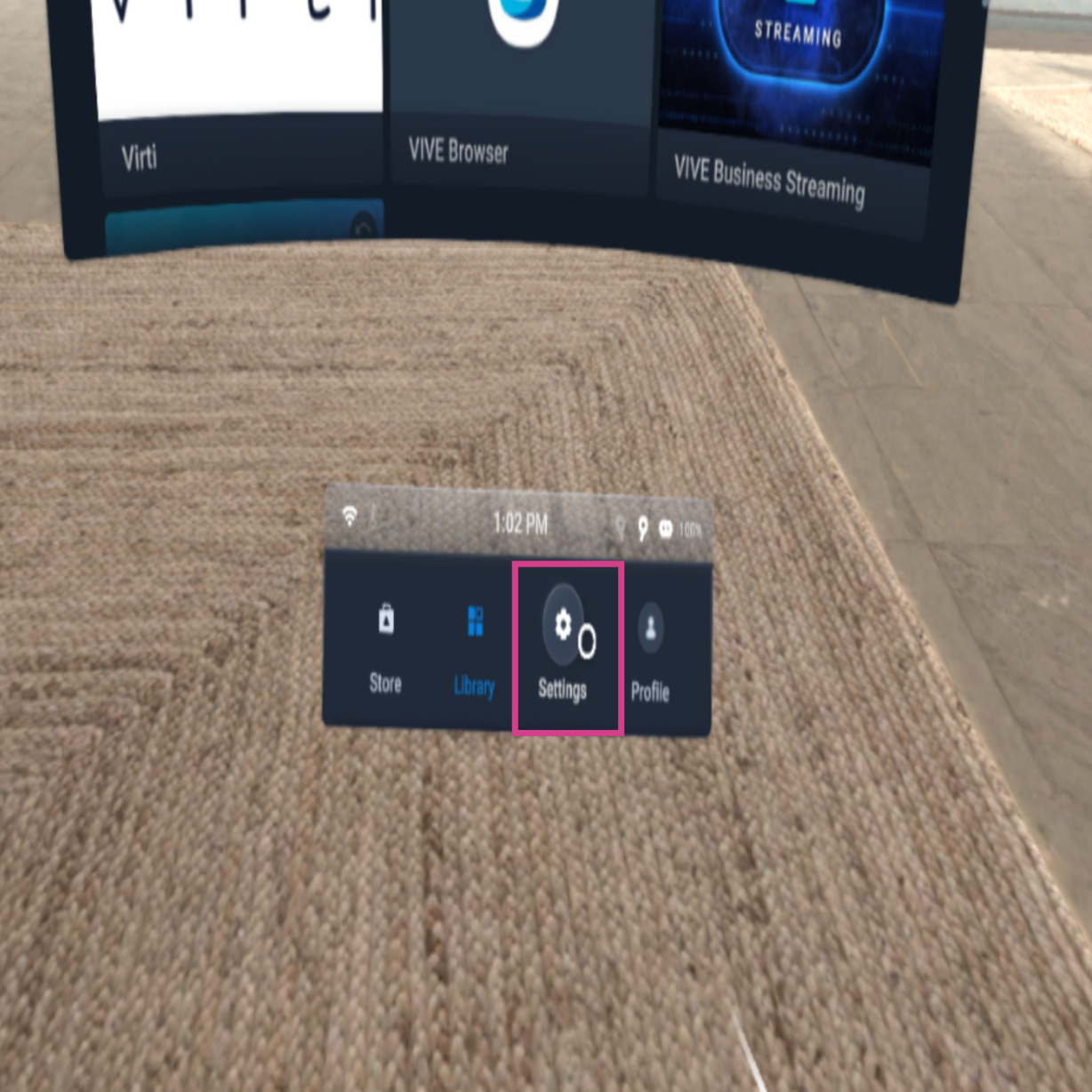
Then, select the Settings tab on the toolbar menu.
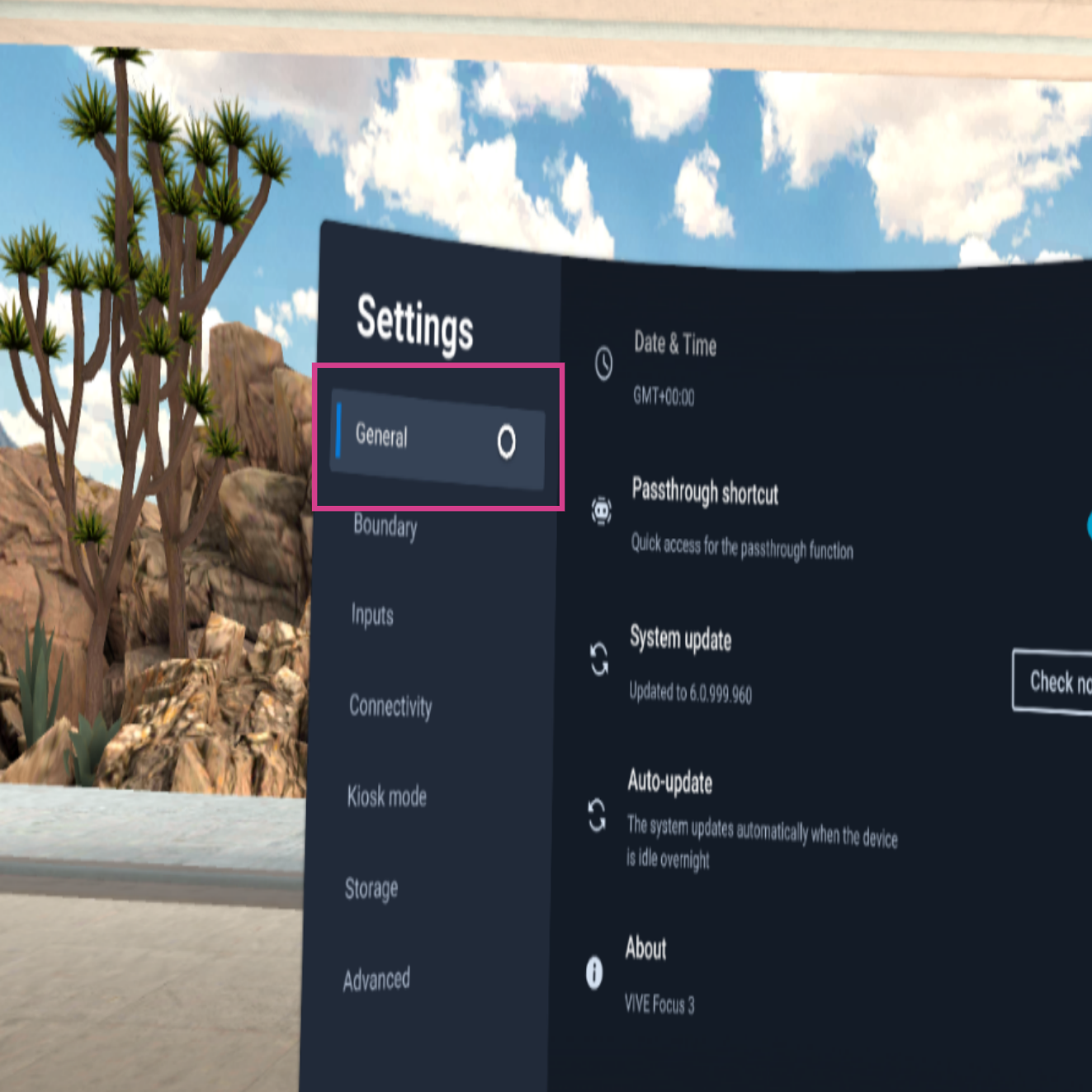
Next, select the General tab on the left.
Find the System update option and select Check Now to see if there are any new updates available.
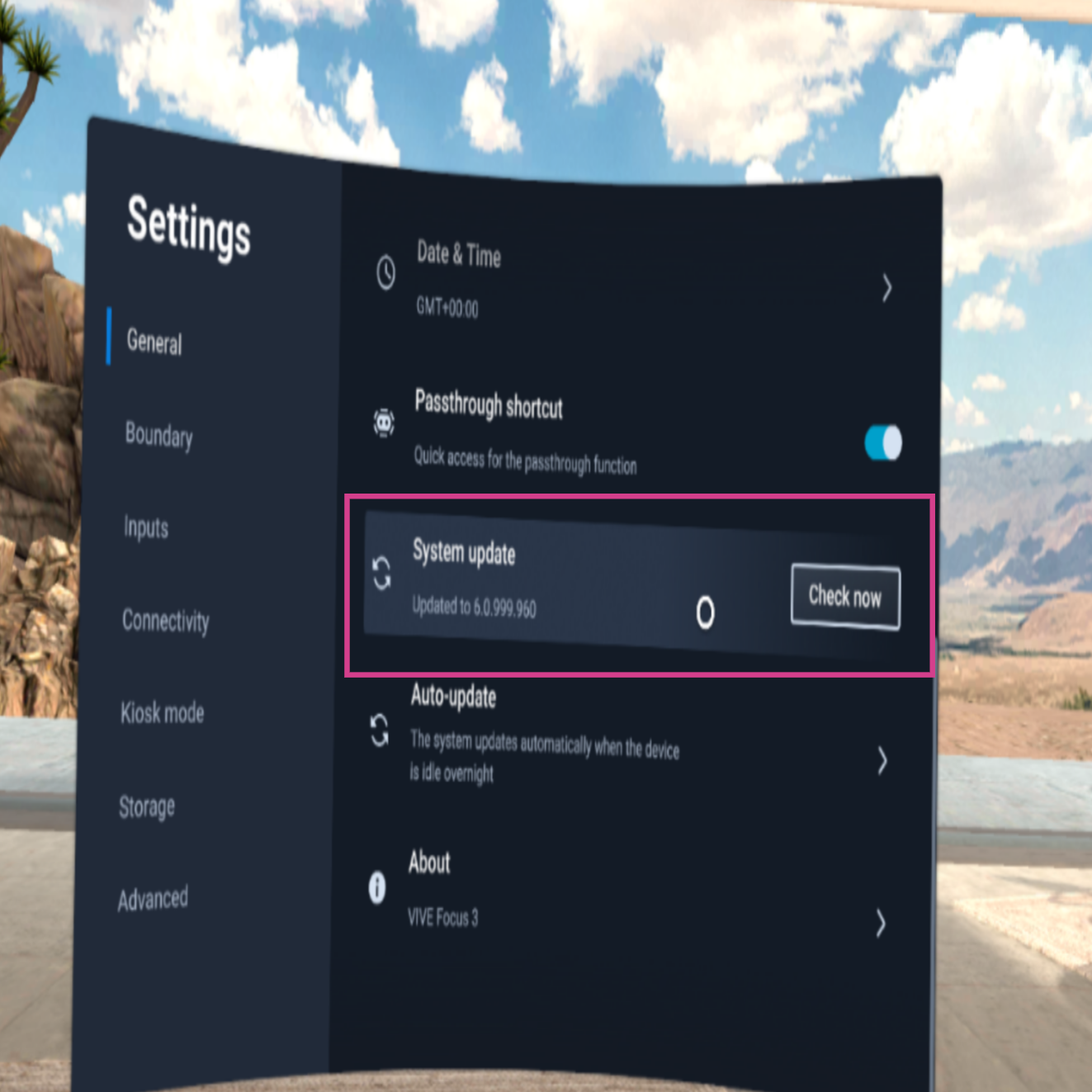
Your device will prompt you to continue if there is an update available.
Note: Your device may restart several times while it is updating. You can monitor its progress by placing the device on your head as usual.
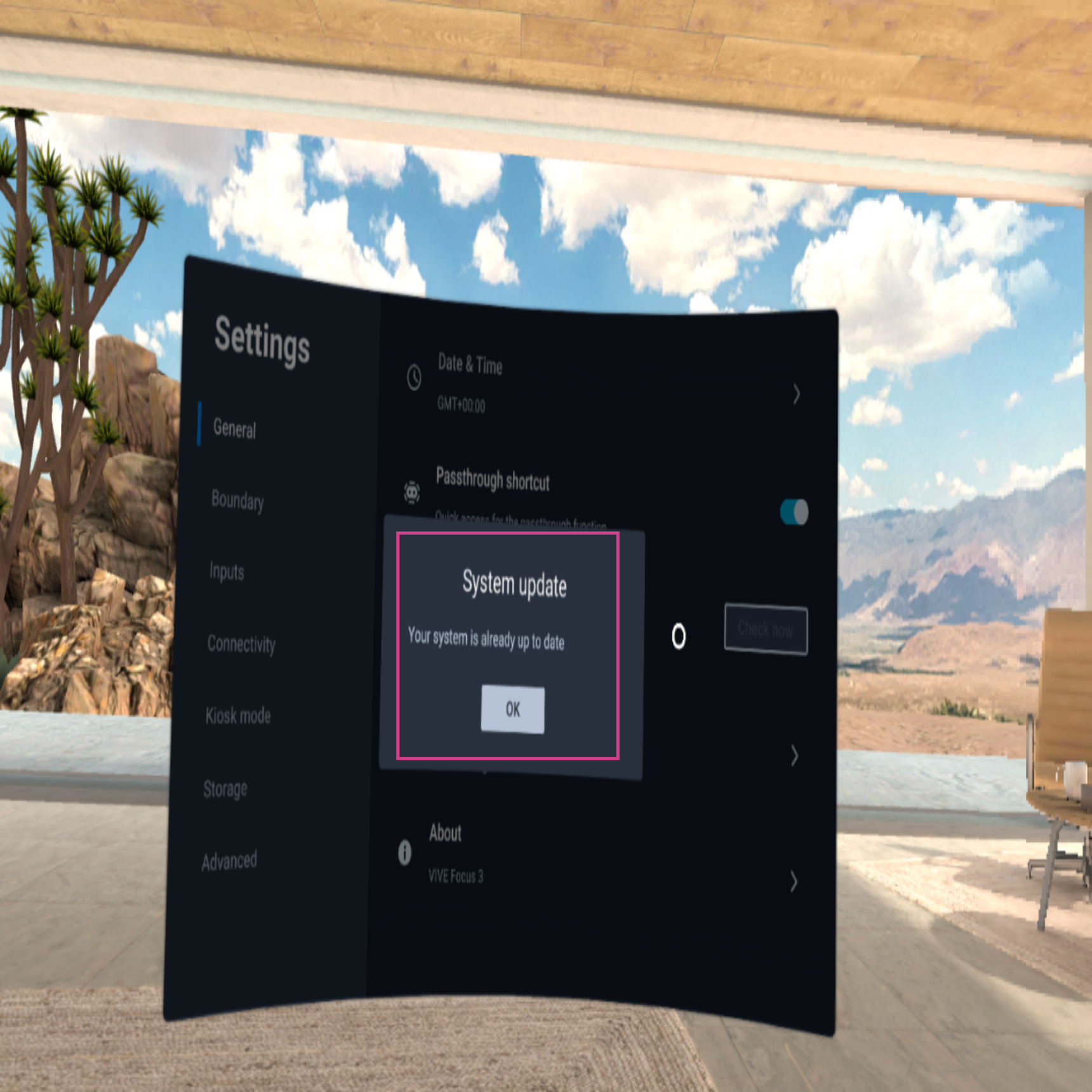
If there are no updates available, you will receive the following notification:
Tip: Check for updates regularly to minimize any issues, many applications will require the latest OS.
💡Tip
Need more help? Get support from our Virti Support Team via [email protected]