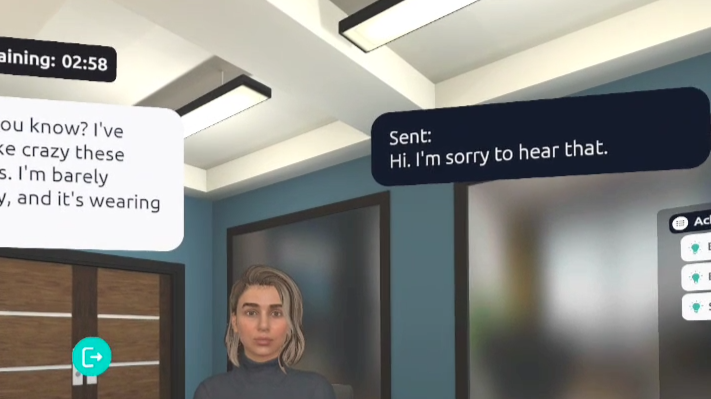
Voice activated mode is the default voice interaction, which detects when your voice and allows for natural flow of conversation. In this mode, the microphone stays active, and starts recording when you speak and sends the message to the Virtual Human when you stop.
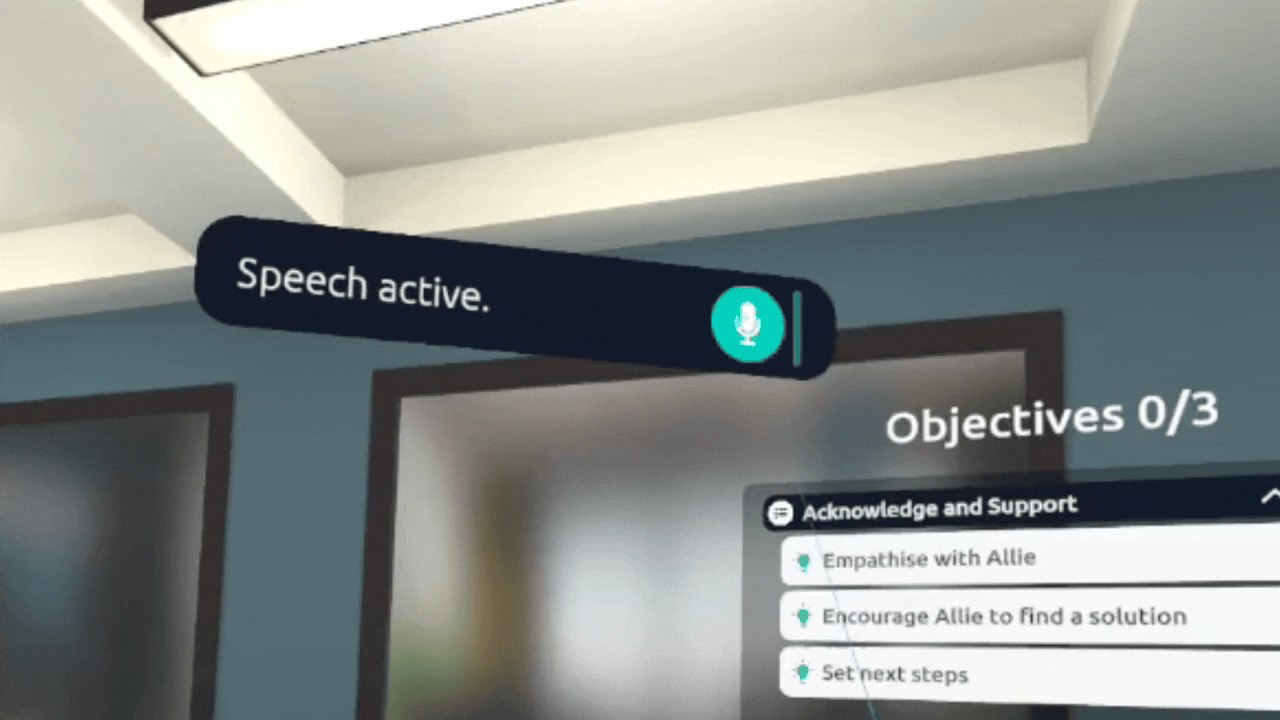
Best Practice: When conducting a training session with multiple learner in the same room, connecting headphones and a microphone to the VR headset ensures that each learner can interact with the virtual human without interference.
Push-to-Talk mode gives learners more control over when the microphone is recording, which allows learners to interact more easily in a noisy setting, or take more time to think about their answer. In this mode, the microphone starts recording when you press the A button on the controller, and then sends the message to the Virtual Human when you let go.
Step 1: To switch to Push-To-Talk mode, look around and click on the help menu marked by the "?" on the wall.
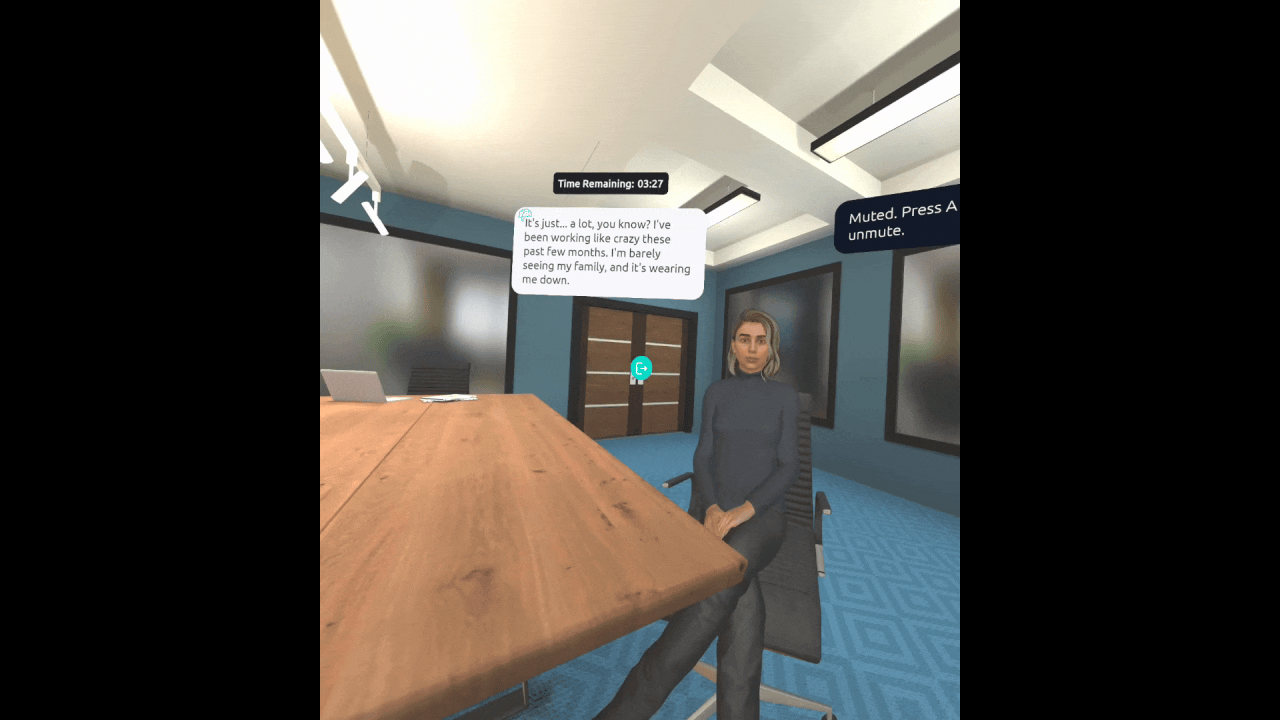
Step 2: Select the 'Speech Mode' button option.
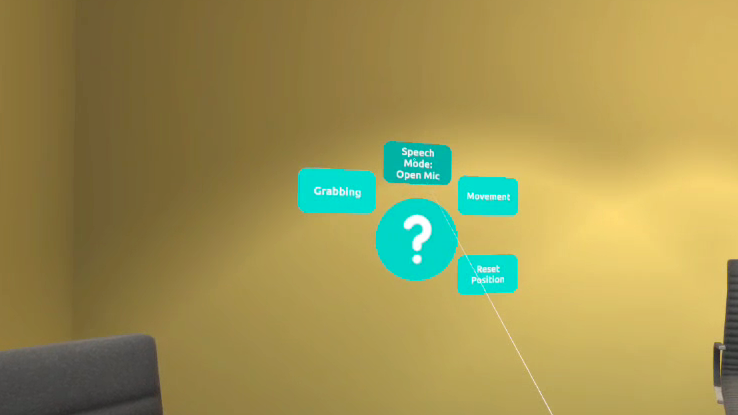
Step 3: The setting has been changed, notice the instruction 'Hold A to record'.
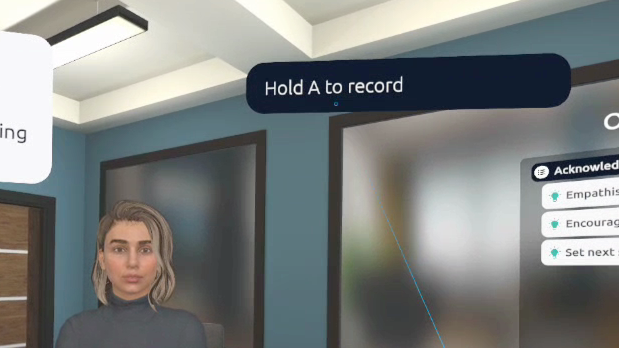
Step 4: Press the 'A' button on the controller to start recording.
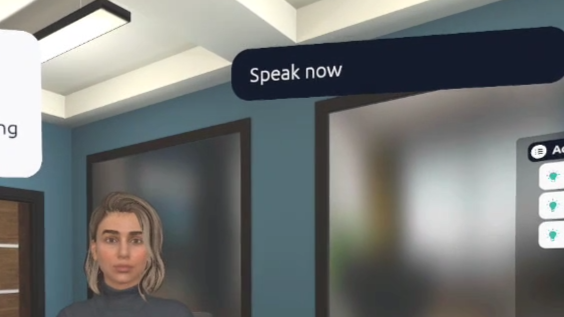
Step 5: Release the 'A' button to send the message.
Best Practice: Use Push-To-Talk mode when you are demoing in an environment where people are speaking in the background, like at an event or at a meeting.
Important: Your chosen setting will be saved and used for every Virtual Human you interact with until you change the setting.
If you are still experiencing issues, contact our support team via [email protected] and we’ll be happy to help.
