In this article, you'll learn how to play a virtual human simulation in Virti.
Step 1: Select the virtual human you wish to play through.

Step 2: Read and understand the background information, objectives, and goals for the roleplay.
Note: You might have a timer to complete the roleplay.
Step 3: Choose your preferred language from the drop-down menu.
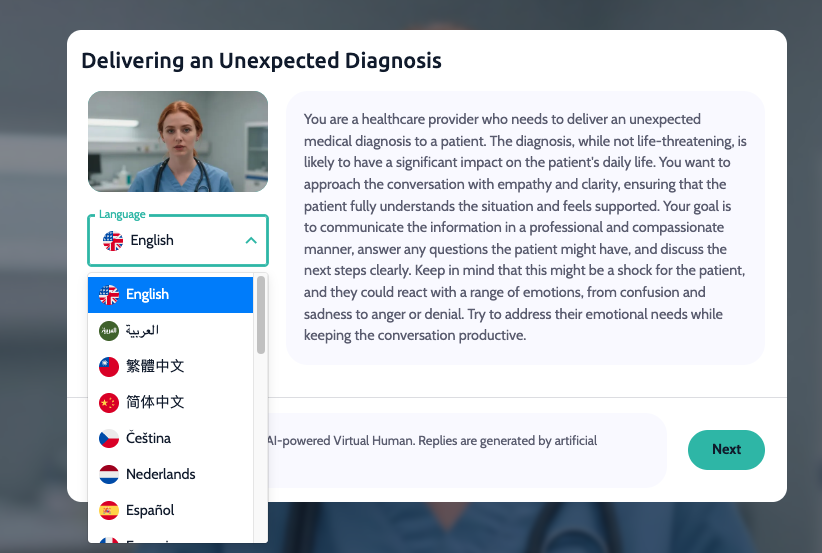
Step 4: Click the Start session button.
Step 5: Open the sidebar to view the ongoing chat log of the conversation.
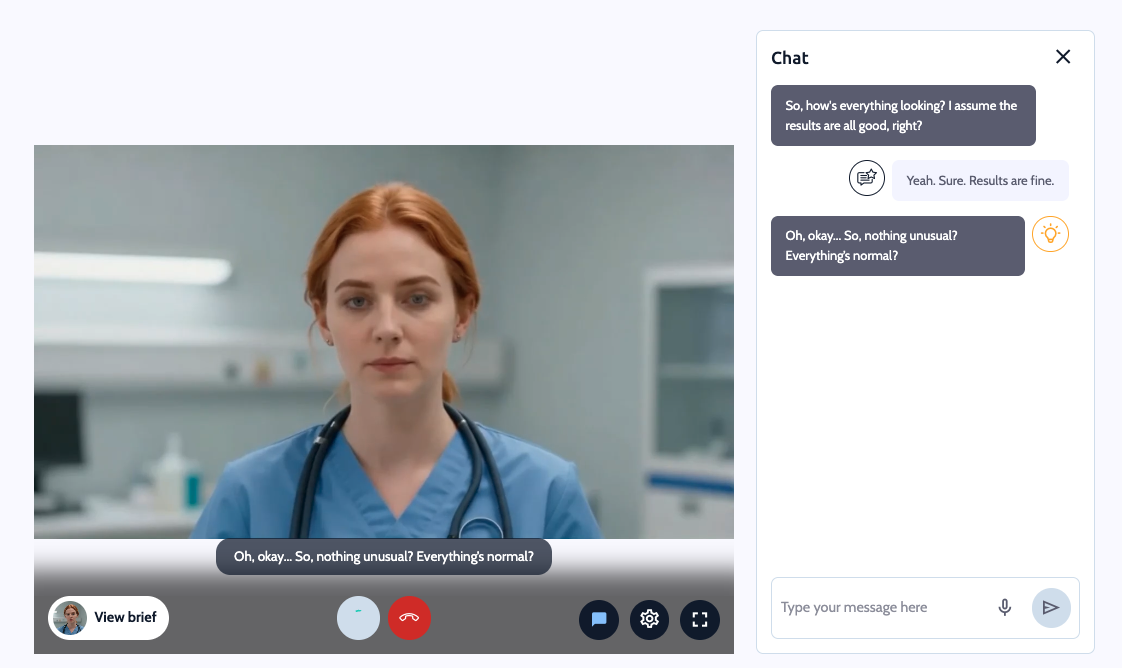
Step 6: Use the microphone function to speak to the avatar in your natural language.
You have three options to communicate with the virtual human:
1. Voice Activated Mode: This mode listens to your speech, transcribes it live, and sends the message when you finish your sentence.
2. Push to Talk: This mode also transcribes your speech live, but allows you to edit the message before sending.
3. Record and Send: This mode lets you record your speech without live transcription, then provides a more accurate speech-to-text translation before you send the message.
Step 7: When you finish the roleplay or the timer ends, click the red button.
Step 8: Click Exit.
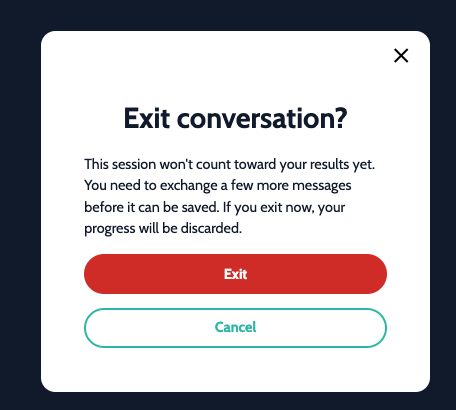
The system will generate a coaching report to provide feedback on your performance. You can also rate the roleplay scenario from 1 to 5 based on its effectiveness. The report will include your overall score, time taken, overall analysis of your performance, and a breakdown of specific evaluation points.
Step 9: After reviewing your coaching report, click the Cross button to return to the start of the course.
We hope this guide helps you navigate the virtual human simulation in Virti. We look forward to hearing your feedback.
