Apart from the actual quality of the camera and lenses, there are three primary factors that determine the quality of a video file:
Resolution
Bitrate
Encoding.
Resolution refers to the number of pixels that make up an image or video, typically measured as width x height in pixels. Having more pixels allows for more detail to be shown in an image. However, simply having a higher resolution does not necessarily guarantee better video quality. It's more accurate to think of resolution as the upper limit of what is possible. More pixels means more data to be displayed within the image.
Some normal video resolution include Full HD (or 1080p), 4K and 8K formats.
It's important to note that while 4K and 8K refer to the horizontal resolution, the vertical resolution is also doubled. This means that the total increase in pixels is about four times as large, rather than doubled.

Bitrate refers to the amount of data that is transmitted per second, typically measured in kilobits per second (kbps) or megabits per second (Mbps). To calculate the bitrate, you simply divide the total size of the video file with the total length. All video consumed online is heavily compressed, but a higher bitrate means more data is available to improve the quality. When encoding video files, it is important to strike the right balance between resolution and bitrate. Simply put, increasing the resolution without increasing the bitrate does not improve the quality of the video (it will just “smear” the image across a bigger canvas, and similarly, a very high bitrate with a low resolution won't make a significant difference either.
Encoding is the process of converting data from one format to another; for example, compressing a video file to reduce its size or converting audio from analog to digital format. In addition to resolution and bitrate, the type of encoder used can also affect quality, as certain encoders may be better at working out how to fill in gaps in the data. The most common encoding for online video is h264, but other better-performing encoders such as HEVC are starting to gain more widespread support.
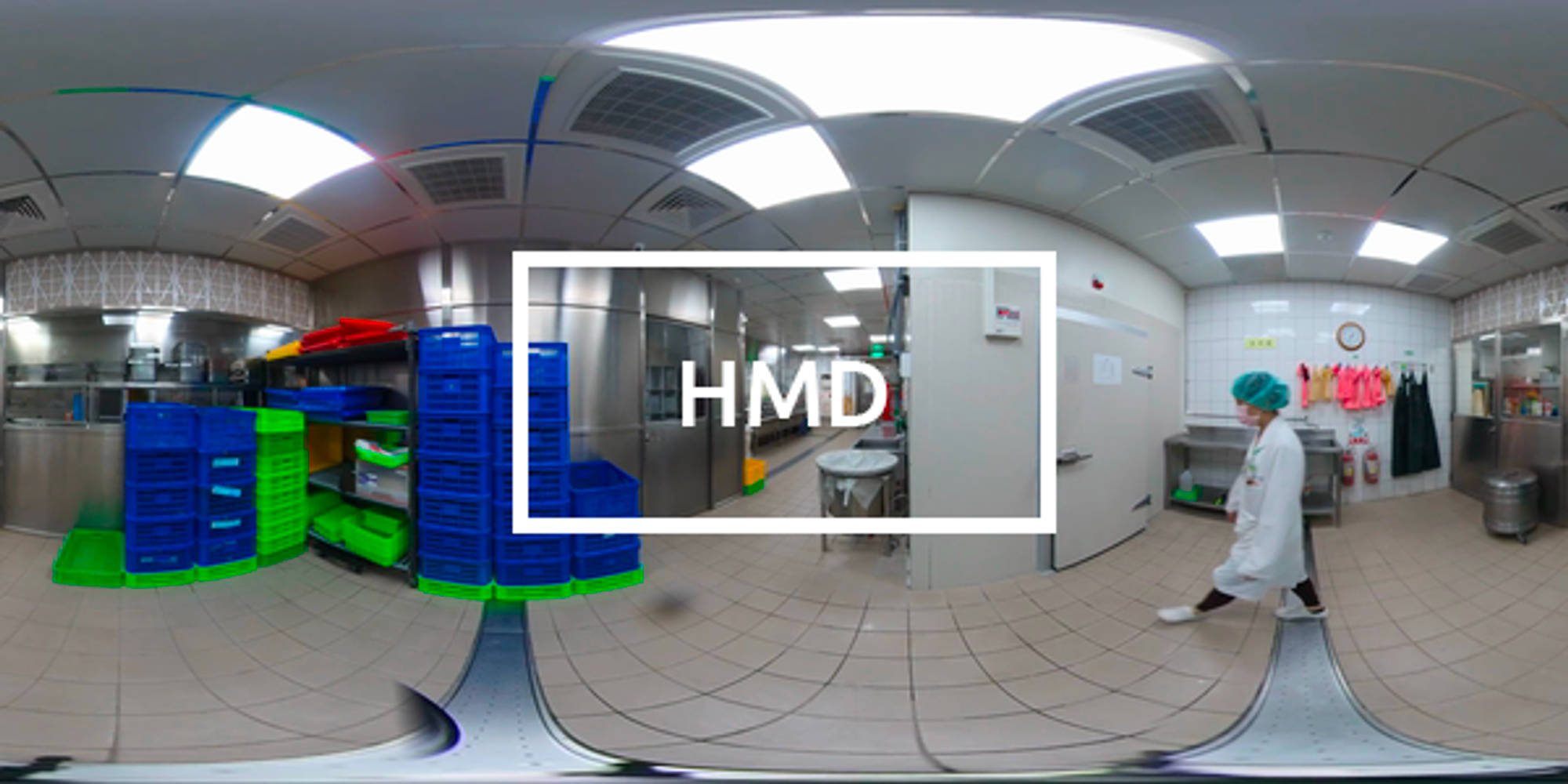
One issue with 360 videos is that, unlike 2D videos which simply fill up the screen, 360 videos must be stretched around the user as a sphere. This stretching causes the video to lose quite a bit of quality. Even if you use a 4K video, the user will only see a small window of the video at any time, depending on where they look. This means that if we wanted actual 4K resolution the full video file would have to be somewhere around 16K in total, which would result in 16 times larger files.
All videos uploaded to Virti are encoded to ensure control over both file sizes and video format, enabling playback on all devices. Currently, we encode all videos into three different qualities, which are automatically selected by the video player based on connection speed. We use different bitrate settings for 360 video and 2D video.
All videos are encoded using the H.264 video codec and AAC audio codec.
Quality | Resolution | 2D Bitrate | 360 Bitrate |
Low | Full HD (1920x1080px) | 1.5 Mbps (1 min=11.25MB) | 5 Mbps (1 min=37.5MB) |
Medium | 1440p (2560x1440px) | 3 Mbps (1 min=22.5MB) | 10 Mbps (1 min=75MB) |
High | 4K (3840 x1920px) | 6 Mbps (1 min=45MB) | 20 Mbps (1 min=150MB) |
Highest | 6K (5888x2944px) | 40 Mbps (1 min = 300MB) | 40 Mbps (1 min = 300MB) |
Because you always lose a bit of quality with each encode, and to future-proof any uploads, we recommend our users to upload their video in a format that exceeds the current encoding settings. We save a copy of the original file so we can re-encode it later if we decide to support higher resolutions and bitrate.
Format | Resolution | 2D Bitrate |
2D | 2K (1440p) or higher | 16 Mbps or higher |
360 | 4K or higher | 60 Mbps or higher |
The supported maximum resolution and bitrate vary depending on camera.
Download Insta360 Sticher for Pro2 and Titan cameras from here (You will need the serial number from the camera)
Install the software on Mac or Windows
Basic editing tips
Trim footage at the start and finish
Insta 360 Studio desktop app for Insta360 One X, One X 2 and One R cameras
Insta360's own tutorial
1 Download and install - ONE X2 Support
Insta360's own Export guide
Camera | Video Codec | Video Bitrate (Mbps) | Resolution (Pixels) | Fps | Container (file extension) |
Insta360 One X | H265 | 60 | 5760 x 2880 | 29.97 | mp4 |
Insta360 One X 2 | H265 | 60 | 5760 x 2880 | 29.97 | mp4 |
Insta360 Pro 2 | h265 | 60 | 7680 x 3840 | 30/60 | mp4 |
GoPro Max | H264 | 60 | 5.2K | 24 | mp4 |
GoPro Hero 9 | H264 | 20 | 4K | 24/60/120(if slow motion only) | mp4 |
Qoocam 8K Enterprise | h264 | 8K | 60/120 | mp4 |
Software | Resolution high end computer | Resolution lower end computer | Bitrate (Mbps) | Container (file extension) |
Premiere Pro | 5760 x 2880 | 3840 x 1920 | 60 | mp4 |
Davinci resolve (Paid version) | 5760 x 2880 | 3840 x 1920 | 60 | mp4 |
