This guide explains how to share your Virtual Human with your team.
There are two ways to share your simulation: sharing and publishing. Sharing allows you to send your simulation directly to a colleague or a learner via email, a link, or an embedded link on a website or in an LMS. Publishing determines whether the simulation is visible for learners in the Virti library, and allows you to limit access to certain user groups.
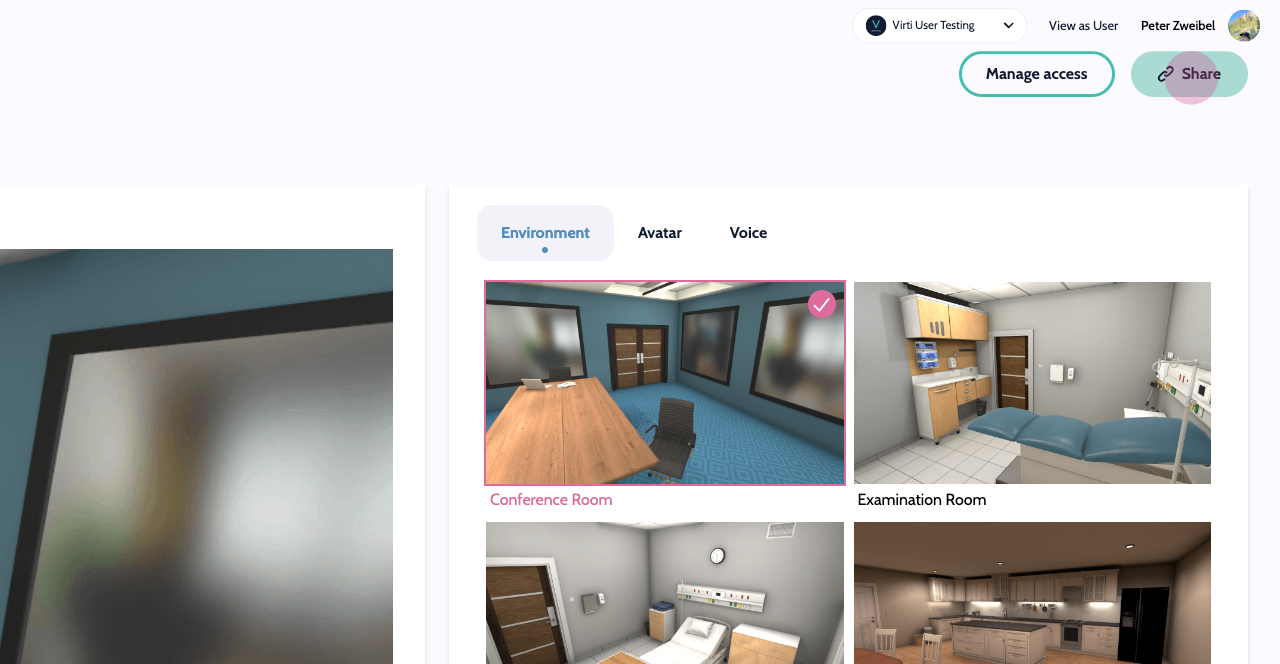
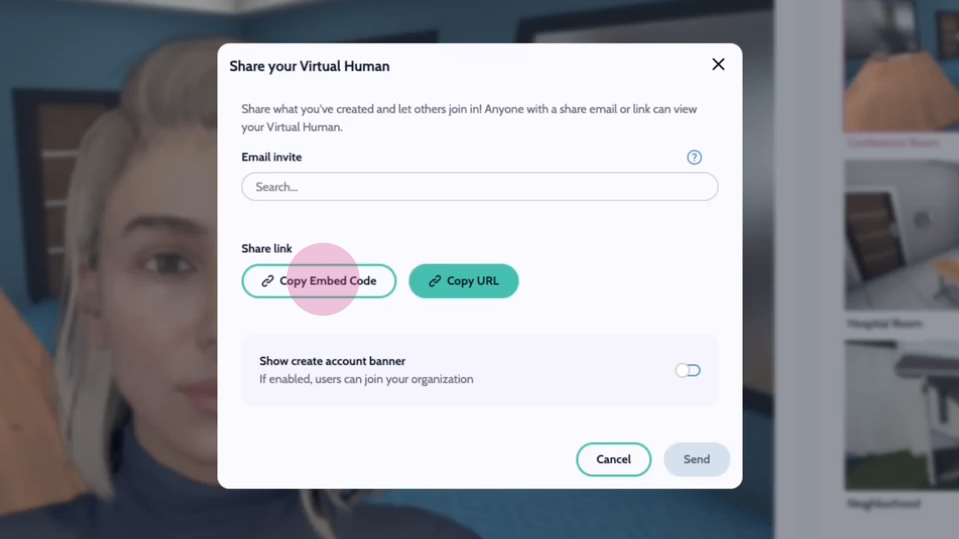
Navigate to the top right corner of the screen and hit Share to reveal several sharing options.
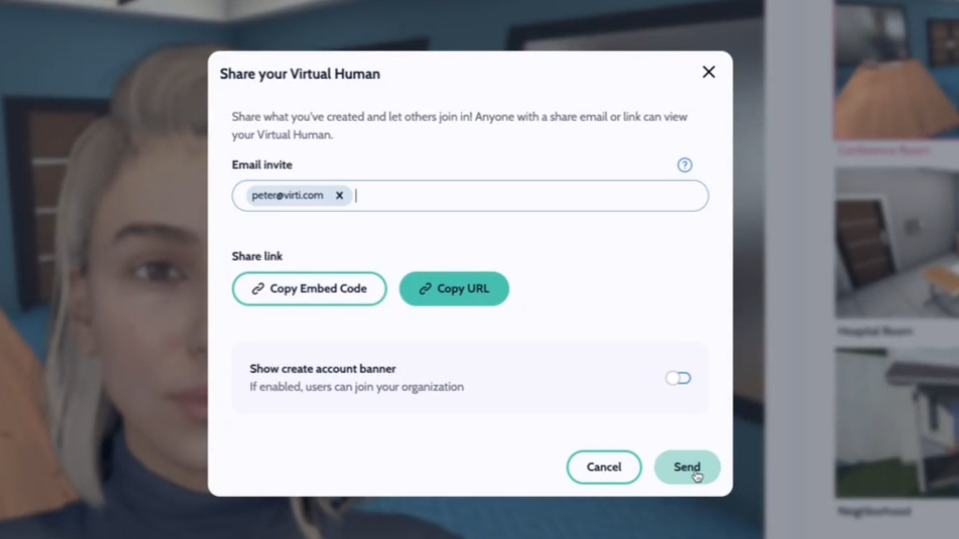
To share via email, enter in 1 or more colleagues' email addresses and hit Send.
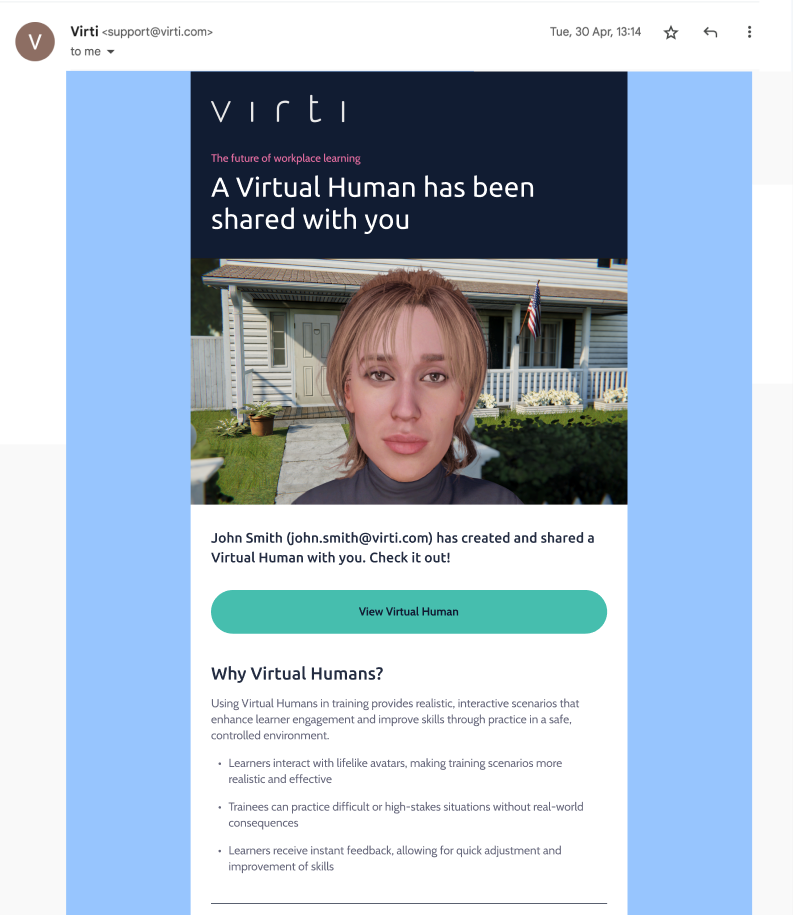
They'll receive an email that looks like this:
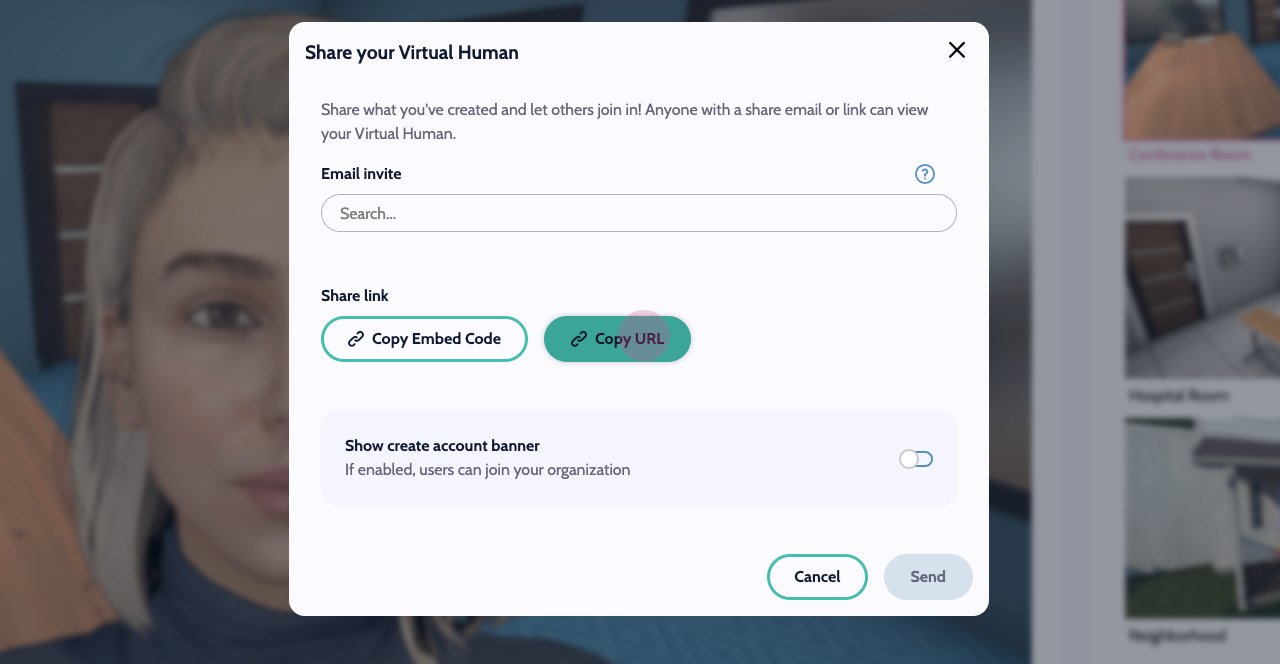
To share via a link, simply copy the link and distribute it through any email, Slack, Teams, or paste it anywhere.
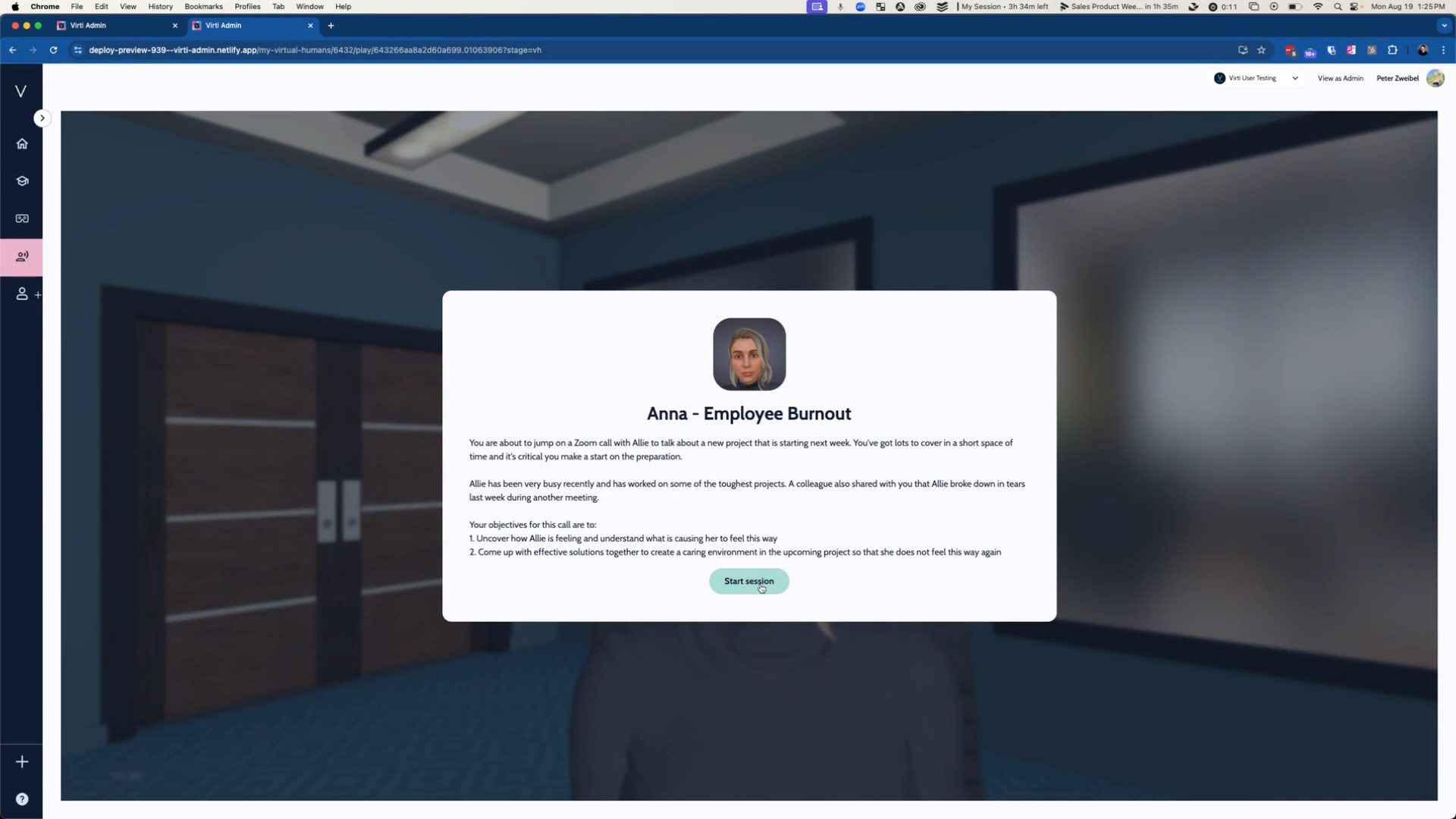
When the user opens the link, they'll be directed straight to the simulation and can play it right away, like this:
To embed your simulation on a web page or an LMS, copy the embed code.
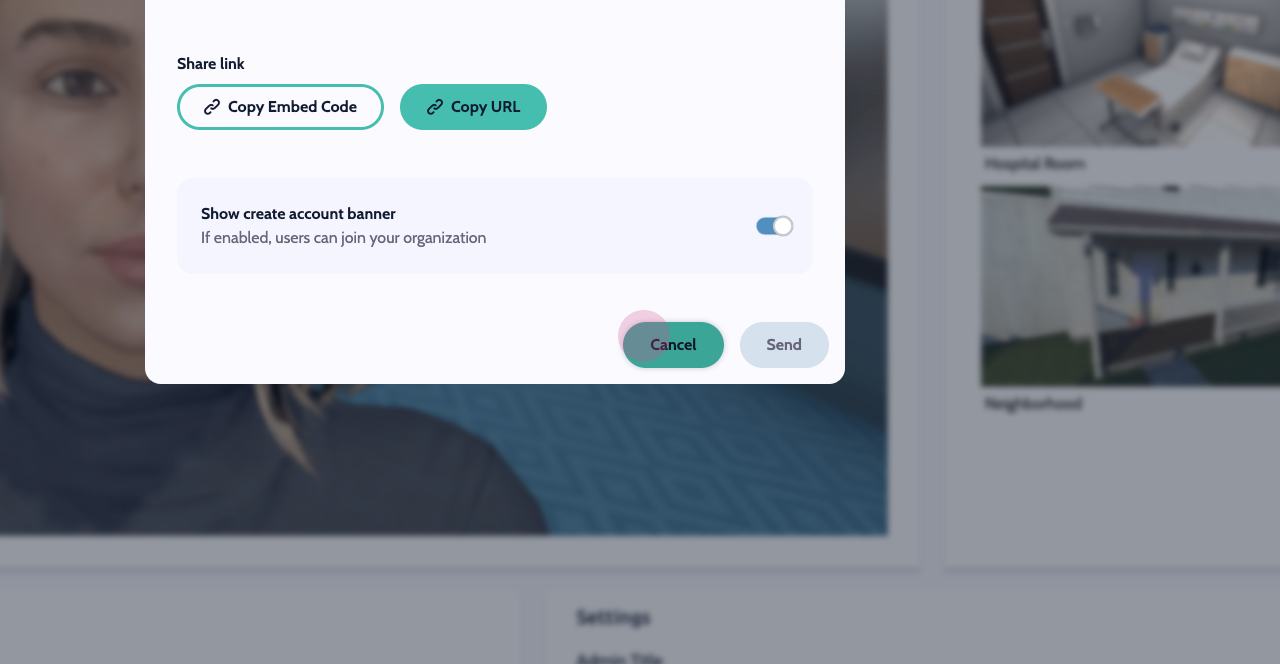
To enable users who follow your link to register an account in your organization toggle on Show create account banner
Best practice: Are you just getting started with Virti? Share your content with the rest of the team to show off and allow them to register so they can start creating content too!
Best practice: If a user is logged in to an account when they view your content, their session data will be tied to their user account. Otherwise session will appear as a "public user" and remain anonymous.
To access the publishing settings, hit the "Manage Access" button.
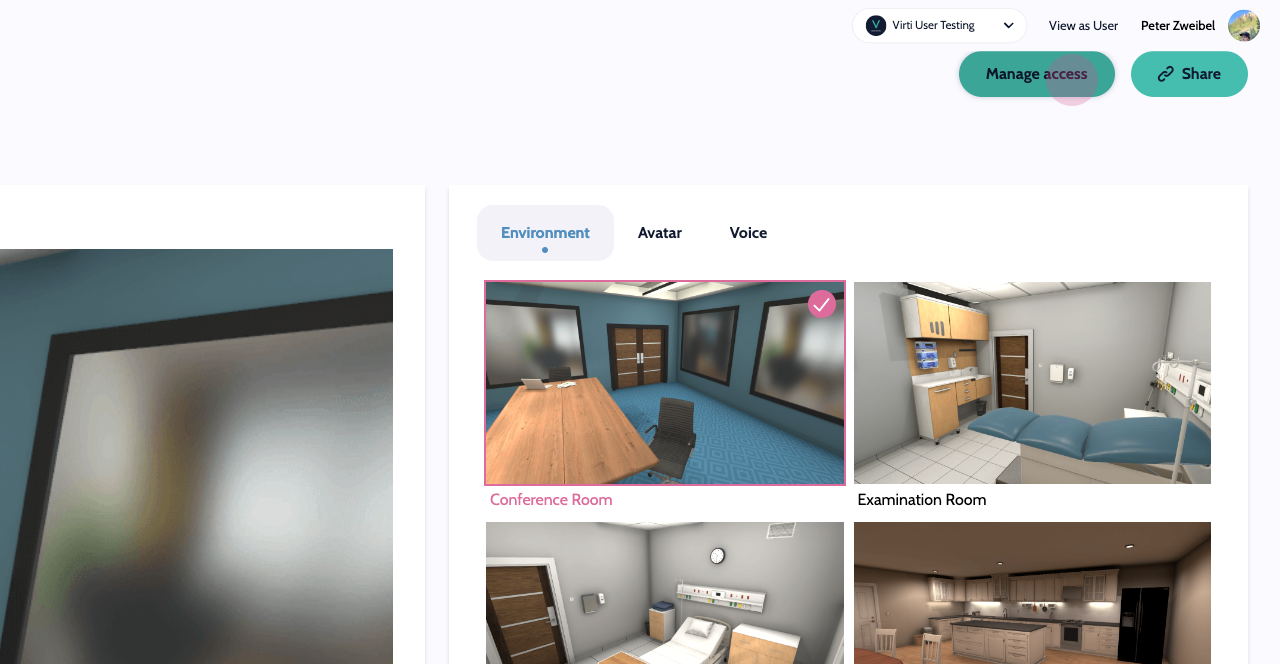
To make your simulation visible to learners when they log in on the web, on the mobile App, or VR app, click the Manage Access button click the Status dropdown and set the status to Published.
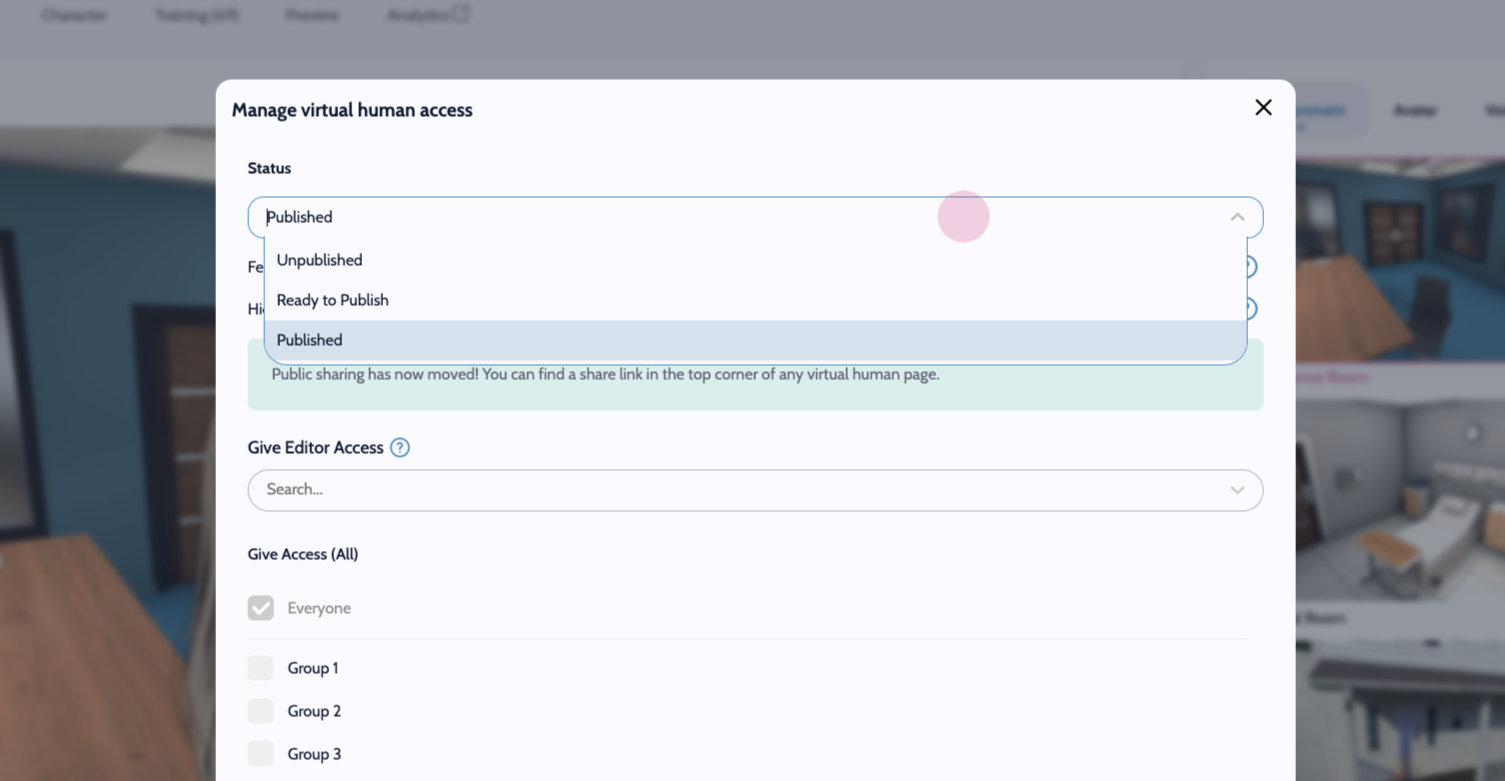
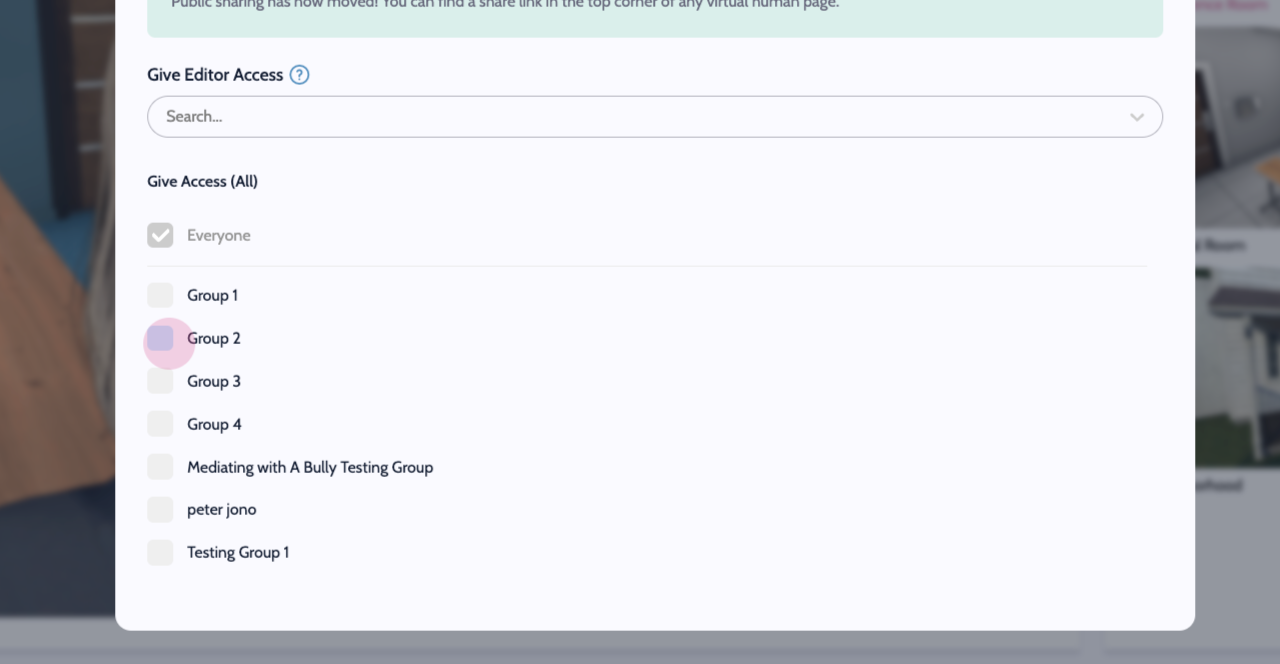
Select user groups to control who has access to the content. This ensures that only specific individuals receive the content.
That concludes this tutorial on sharing and publishing a virtual human.
Need more help? Contact us at [email protected]
