
So you've created your simulation, and added all of your hotspots, questions, and branching storylines and are doing your final preview before publishing, and wait a minute… you forgot to remove the tripod! Don't worry, you don't need to start over. All you need to do is go back to your editing software of choice, make the necessary change, upload the new media, and use the "replace media" feature to add the latest version of your video into your simulation.
Here are a few other reasons you may need to create a new version of your media:
Adding a voiceover
Removing unwanted background noise
Blurring out faces, personal info, or logos
Edit the color, contrast, or sharpness
To replace your media, follow the steps below:
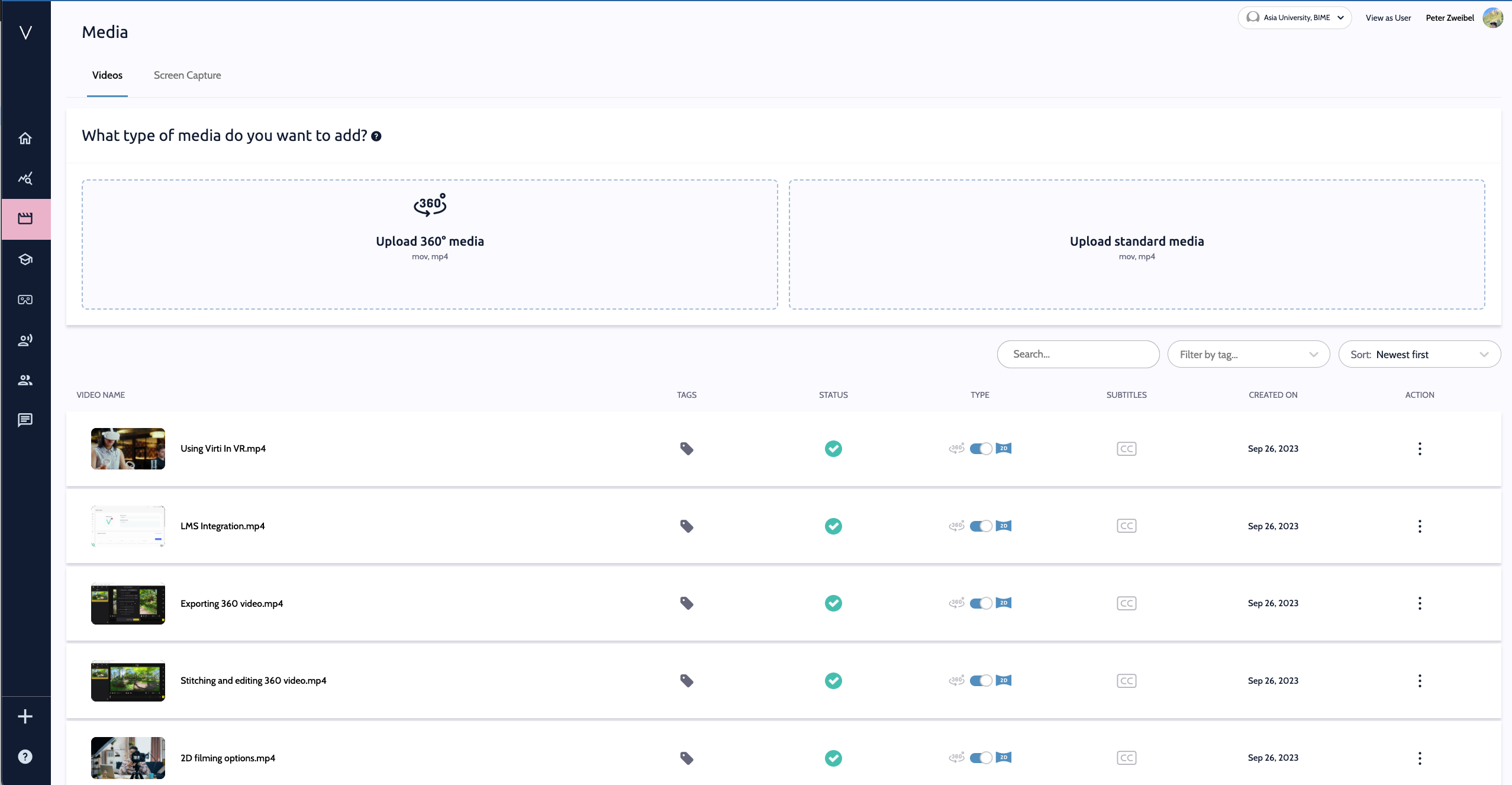
Step 1: Upload the new version of your video in the Media section.
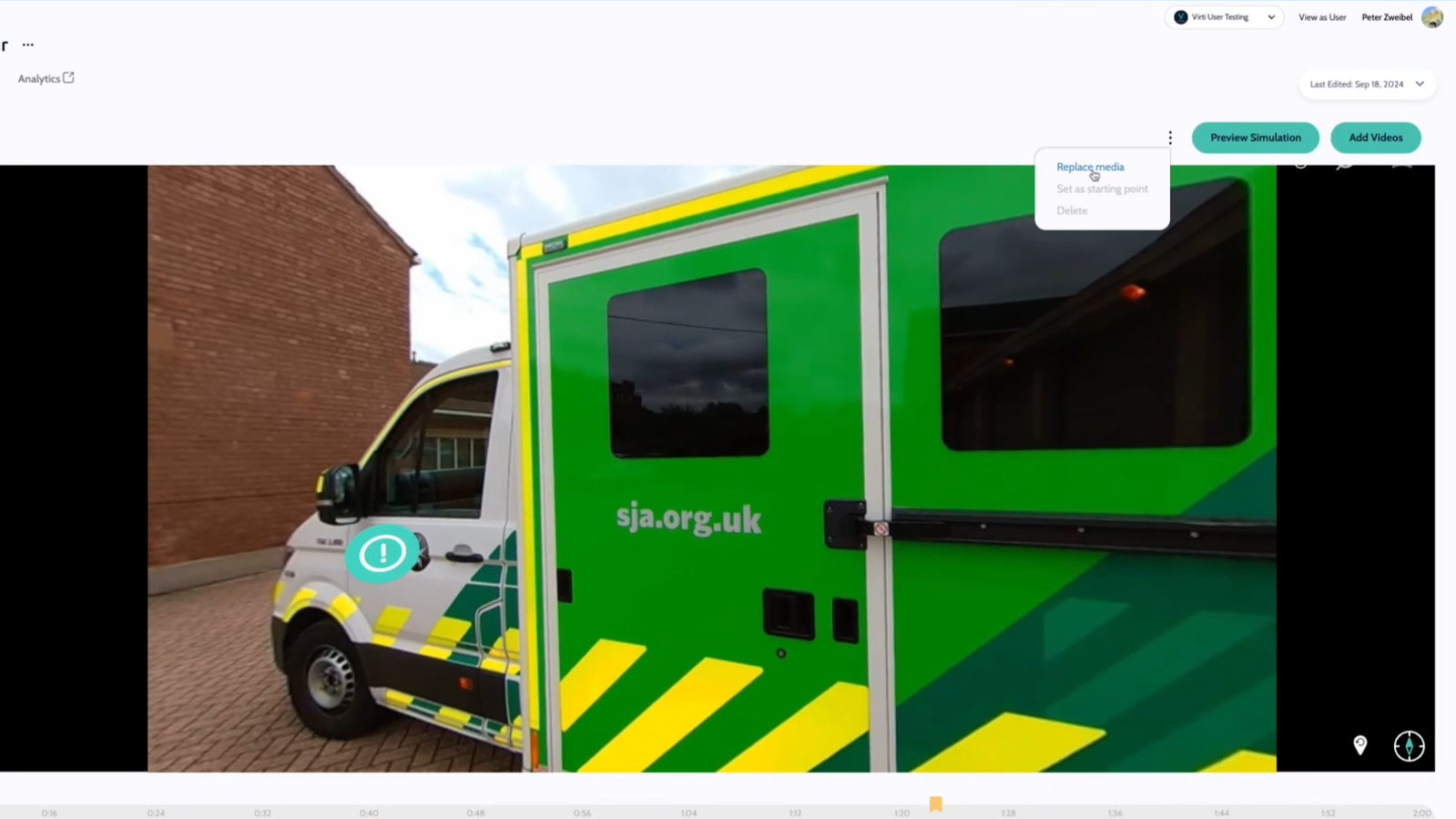
Step 2: Navigate to the top of the screen and select Replace media.
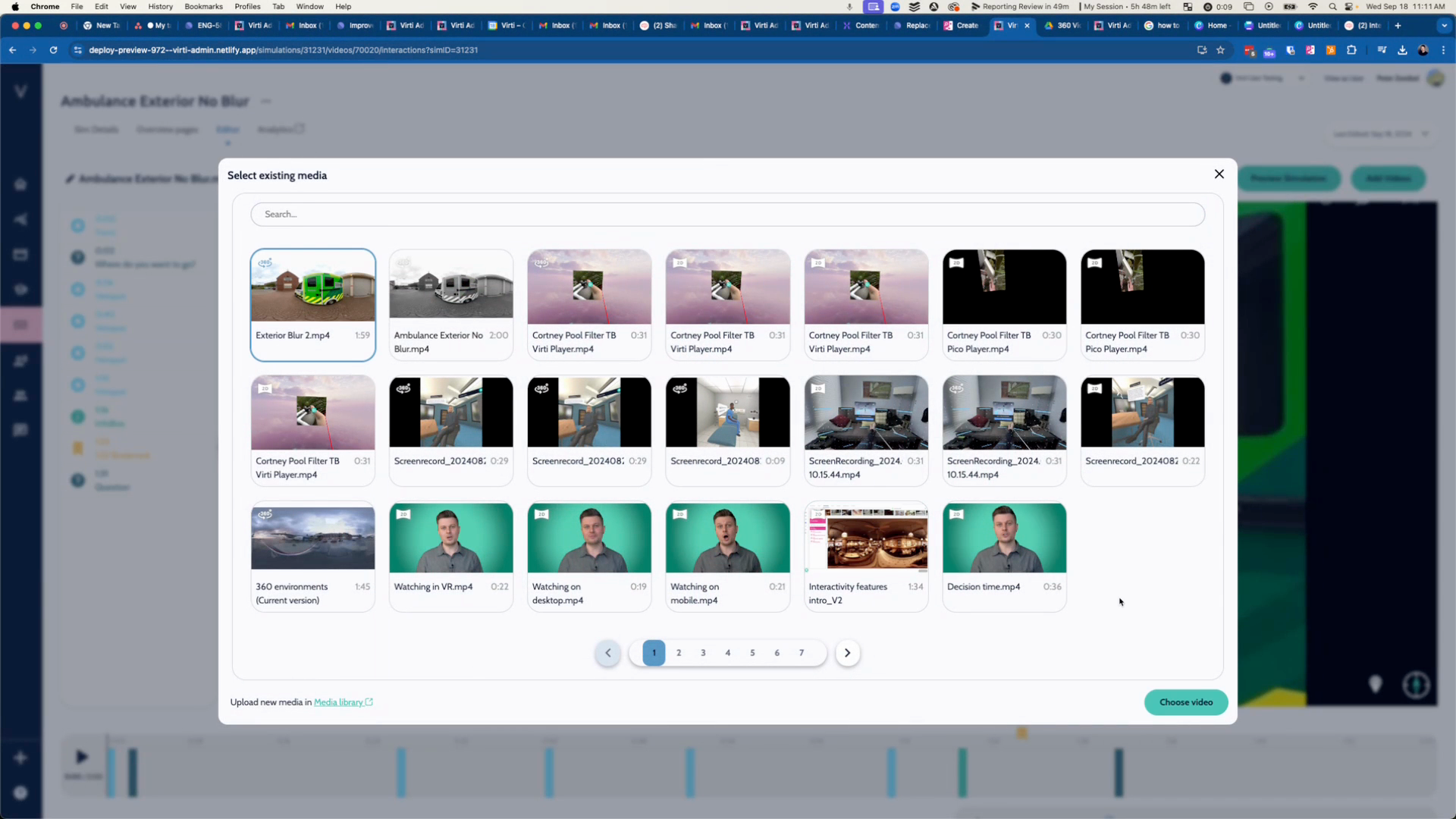
Step 3: Select the new media file from your media library. In this case "Exterior Blur 2.mp4", and hit Choose Video
All done! The file has been replaced!
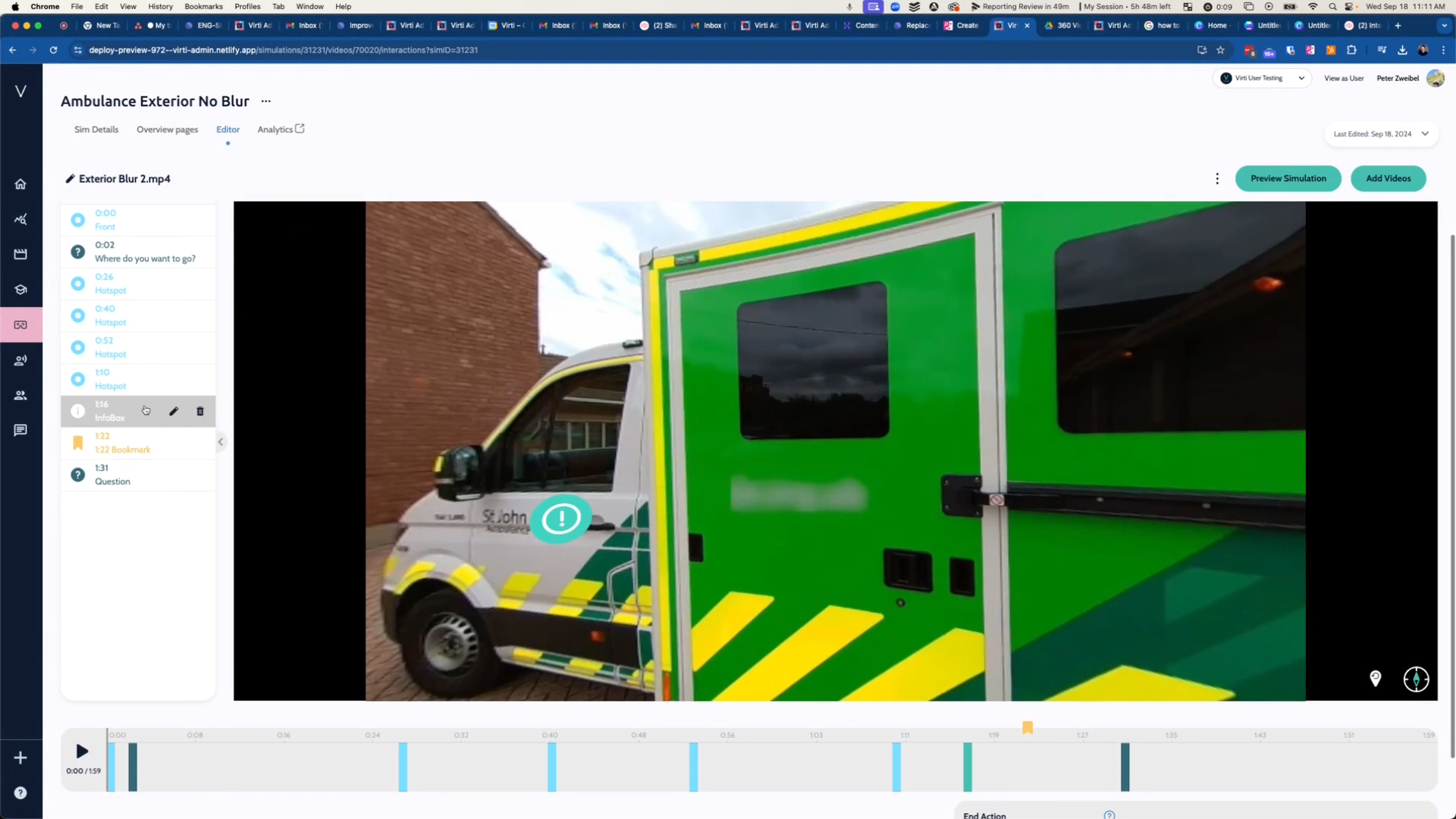
The new media file will now appear in place of the old one, with all the interactivity intact. The replaced video might be blurred out or have other changes, depending on the selected media file.
Tip: Interactions will stay remain at the same timestamp. If your your new version is a different length, you may need to adjust the timing of your interactions.
That's it! You now know how to replace media.
Need more help? Contact us at [email protected]