Learn how to invite new learners to your organization, create groups for departments or areas of focus, and keep account information up-to-date and secure.
Managing users and user groups in Virti is essential for maintaining an organized, secure, and efficient environment. By following this guide, you’ll be able to add, edit, and manage users and groups effectively, ensuring smooth operation and collaboration within your team.
Note: Users and user group management features are exclusively available to Admin roles within your organization. Admin roles will be assigned to you during the initial setup of your organization.
Users and user groups can be easily accessed through the main navigation on the left, under the "Users" tab.
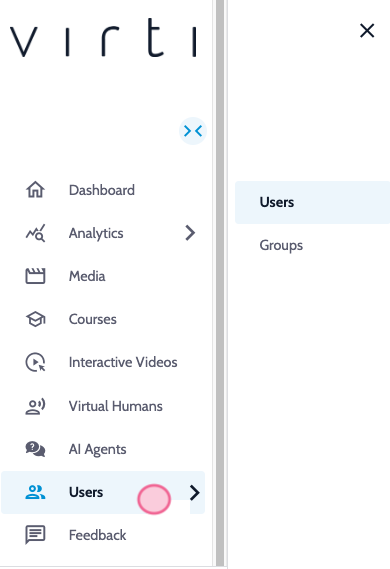
Log in to Virti: Access the Virti platform with your administrative credentials.
Navigate to user management: in the navigation menu under "Users" click on the
"User" option.
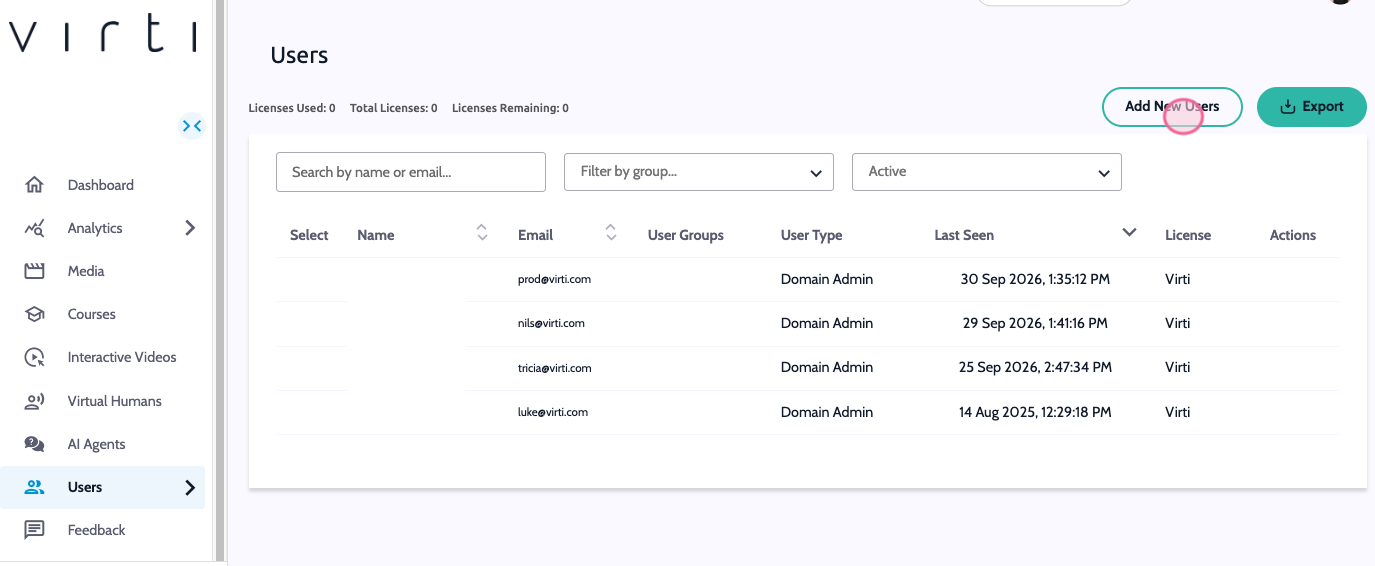
Add user:
Click the "Add New User" option.
Fill in the required details such as Email, Role, and Group (optional).
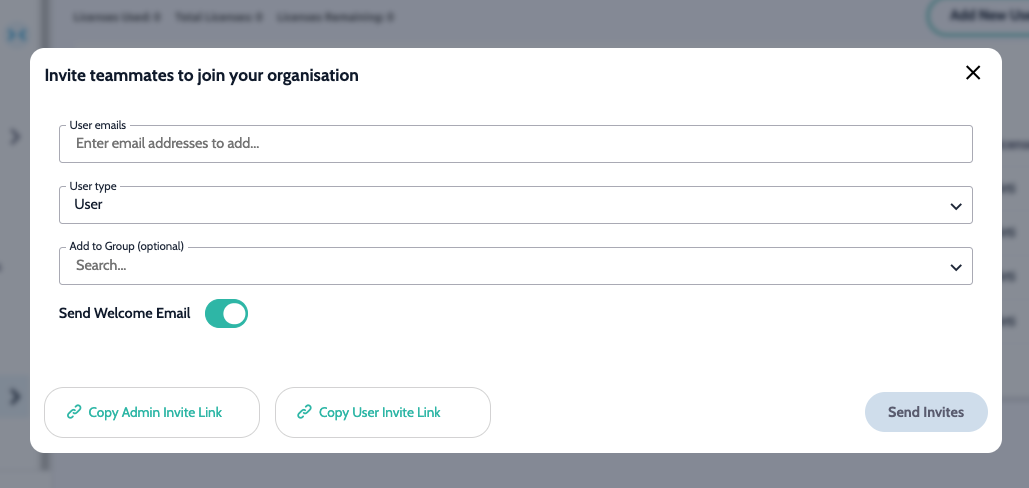
Toggle "Send Welcome Email" on or off.
Click "Send Invite" to create the new user.
Tip: Send an invite link to your team to join as Admins or Users by copying the "Copy User/Admin Invite Link" in the top right of your screen.
Access users: in the navigation menu under "Users" click on the "User" option.
Select User: Click on the user you want to edit.
Edit Details:
Update the user's personal information as needed.
Modify access if necessary.
Change a user's password if needed.
Click the three dots next to the user's name to deactivate or delete a user
Save changes by clicking "Save".
Access users: in the navigation menu under "Users" click on the "User" option.
Delete user:
Click the three dots next to the user's name (see below).
Select "Suspend" to deactivate a user.
Confirm the deletion when prompted.
You can also change the user's permissions, resend an invite, and add a user to a group.
Log in to Virti: Access the Virti platform with your administrative credentials.
Navigate to user management: in the navigation menu under "Users" click on the "User Group" option.
Add group:
Click the "Add New User Group" button in the top right corner of your screen.
Enter a name for the group.
Select users by searching their name or email address and add them to the group.
Assign permissions specific to the group’s role.
Click "Save" to create the group.
Tip: Send an invite link to your team to join a group by copying the "Copy User Invite Link" in the top right of your screen.
Access user groups: in the navigation menu under "Users" click on the "User Group" option.
Select the group: Click on the group you want to edit.
Edit Group Details:
Update the group’s name or description by clicking the three dots next to the group name.
Add or remove users from the group by searching for their name or email address.
Remove users from the group by clicking the red X next to the user's name.
Modify group access as needed using the Simulations, Courses and Virtual Humans tabs along the top.
Access user groups: in the navigation menu under "Users" click on the "User Group" option.
Select the group: Click on the group you want to delete.
Delete group:
Click the three dots next to the group name (see above).
Select "Delete" to remove the group.
Confirm the deletion when prompted.
Need more help? Get support from our Virti Support Team via [email protected]
