How to create a new user account, send an invite link, and register an account.
There are three user types available on Virti:
Admin Users: Can access the full admin side and are able to create users and content creators.
Users: Can complete simulations but don't have access to the admin side. For bulk uploads of users, please contact [email protected].
Content Creators: Can create and edit simulations only, without access to any other data on the admin side.
The fastest way to invite teammates is with the Invite Teammates button in the side nav bar.
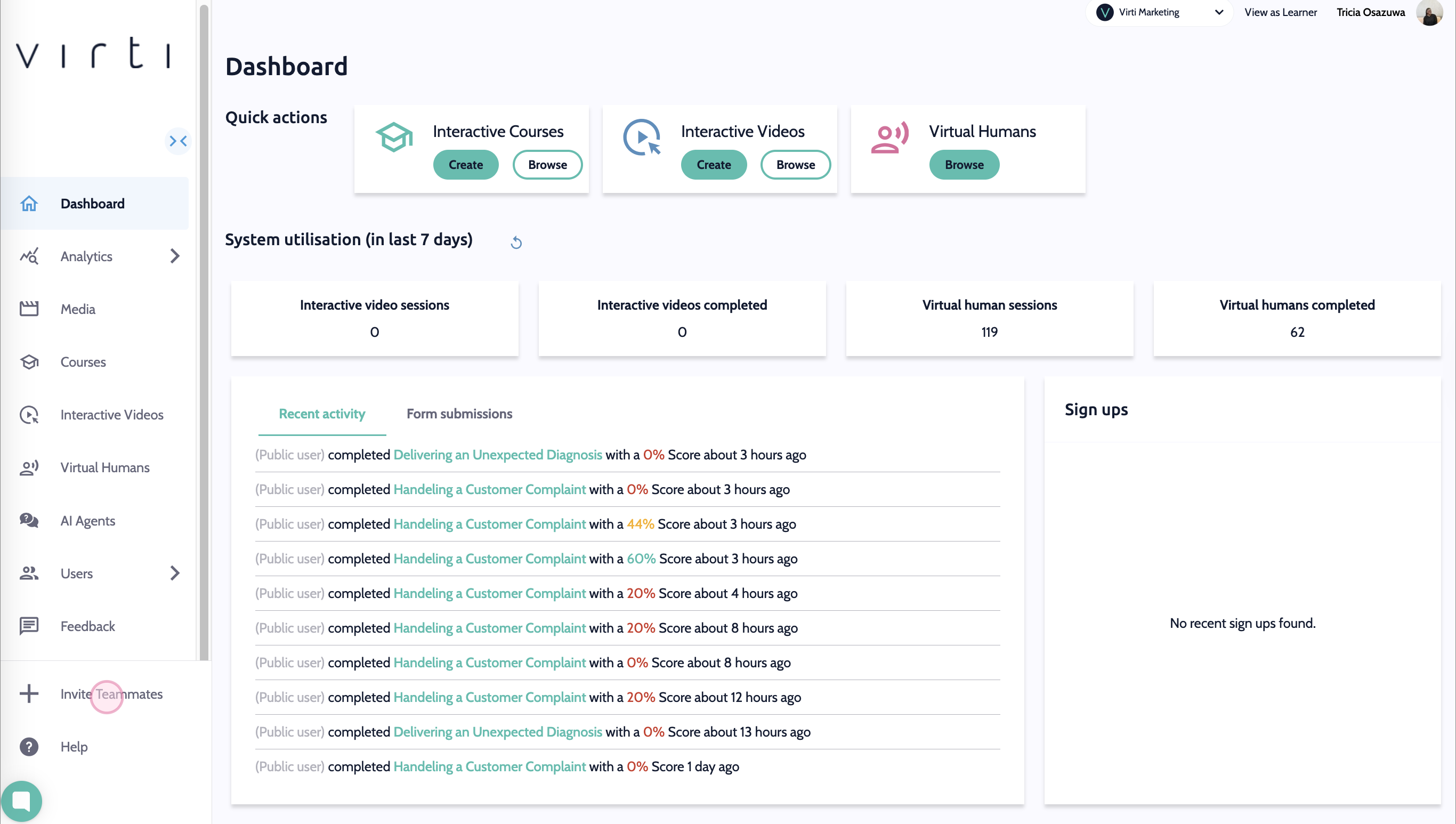
Click on Invite Teammates
Add your users via e-mail
Enter in the e-mail address of the teammates you would like to invite. You can add multiple at once, as well as copy and paste from a list.
Select the user type that will be set for all of the users you have entered
Select the user group that will be set for all of the users that you have entered
Decide if you want to send users a welcome email, which will allow them to set up their account. You may want to turn this off, if you are pre-registering users and don't want them to sign up until you have reviewed Virti with them.
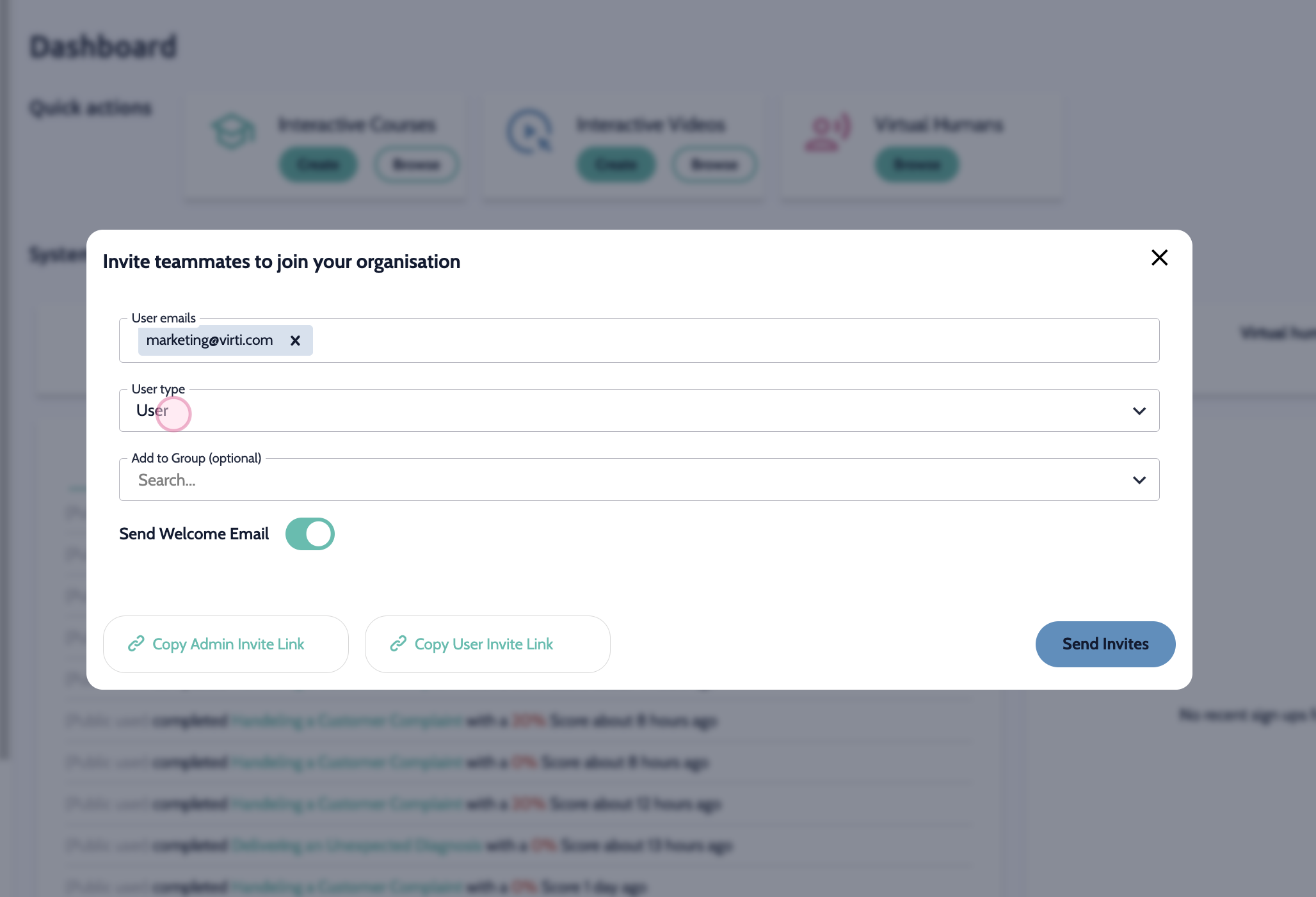
Add your users via a sign-in link
Choose either the Admin or User invite link:
Admin Invite Link: For creating another admin with permissions to manage users and create courses/simulations.
User Invite Link: For creating a user who will have permission for simulation participation.
Provide the Invite Link
Once you copy the link, you can provide it to your colleague or user. When they click the link they will be prompted to enter their email and set up a password.
You can also invite users from the User Management area.
Navigate to the Users section
From the main navigation, select the "Users" tab.
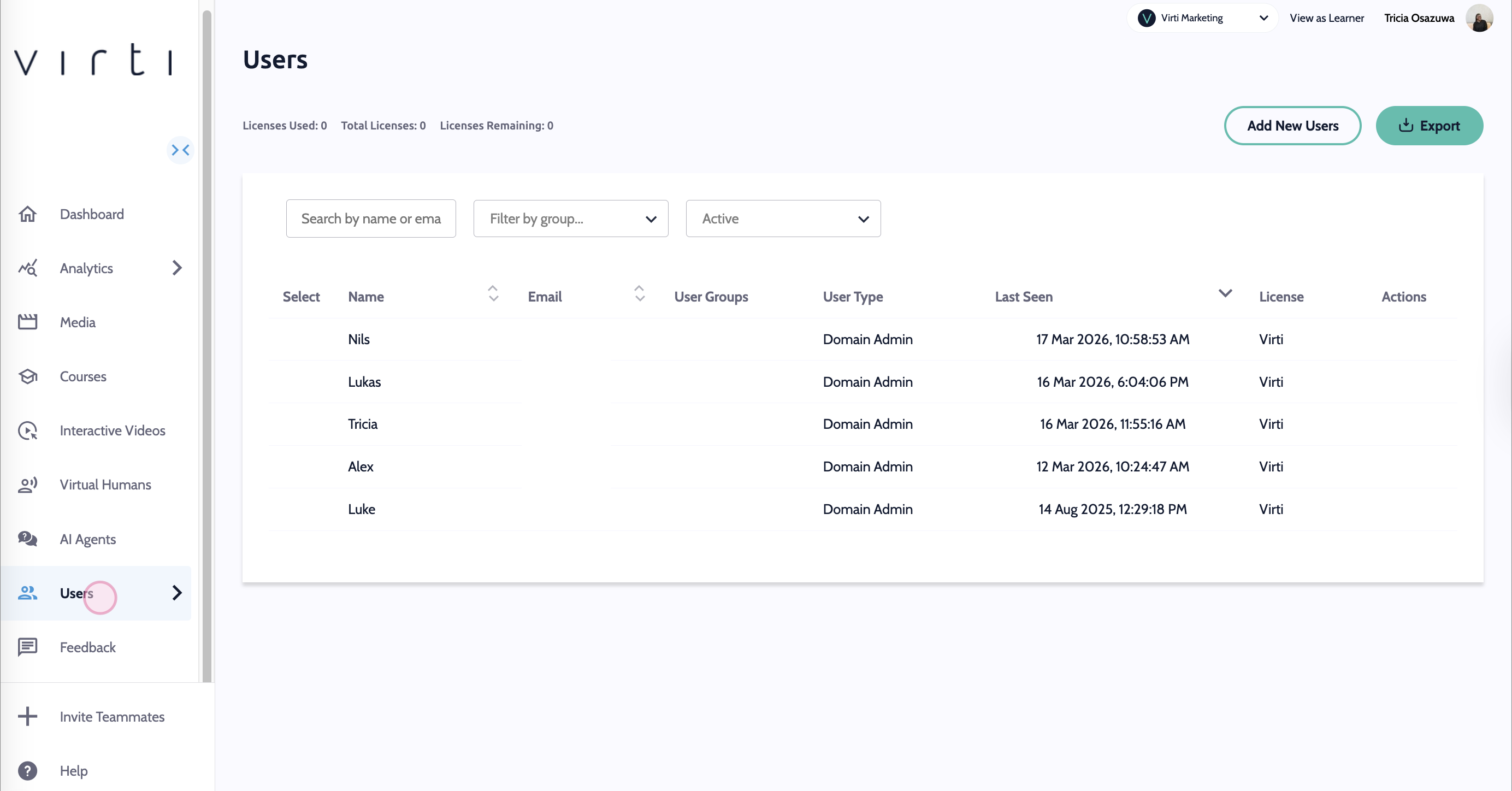
Click on "Add New Users" in the top right corner
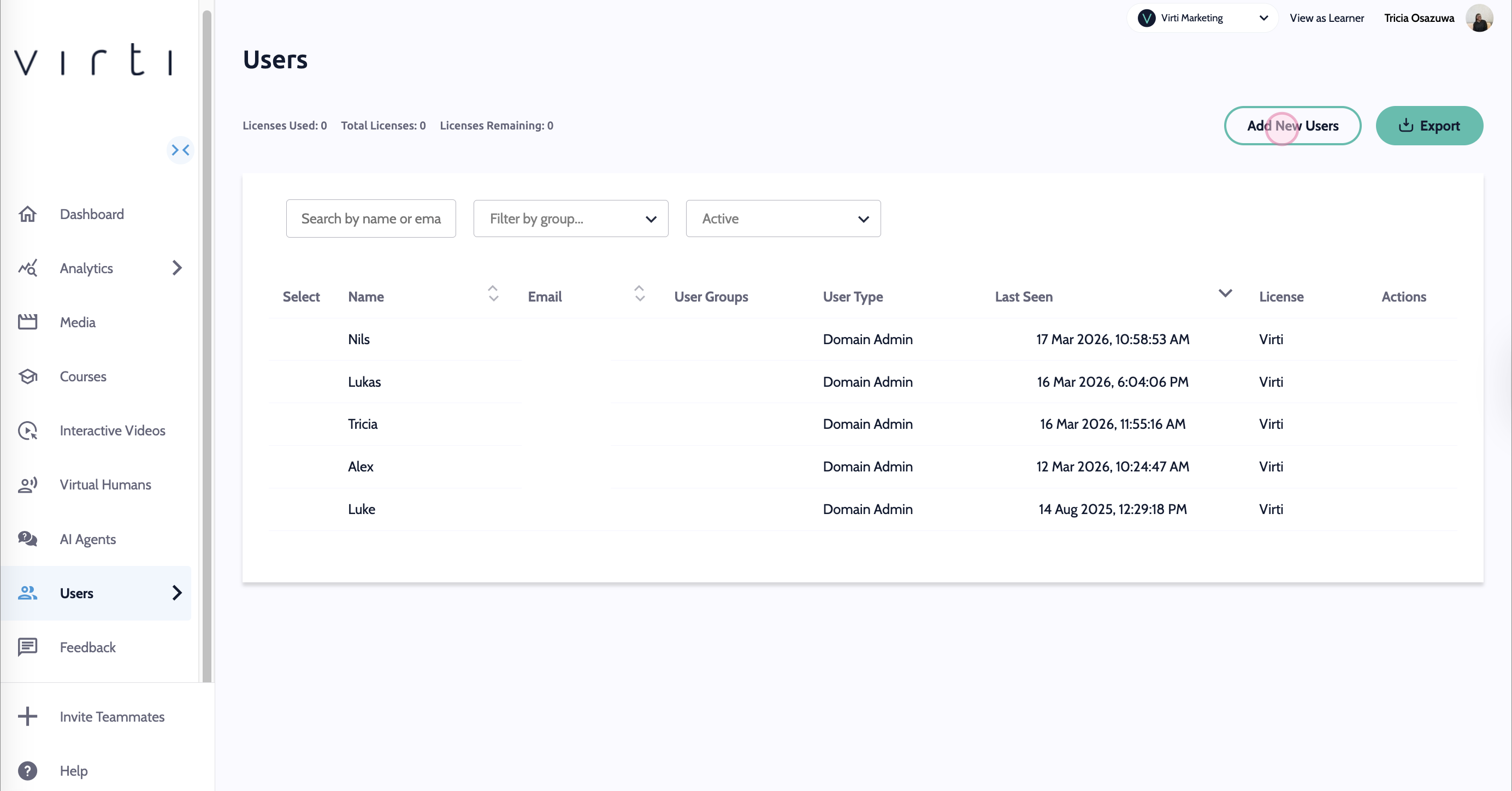
Add your users via e-mail
Enter in the e-mail address of the teammates you would like to invite. You can add multiple at once, as well as copy and paste from a list.
Select the user type that will be set for all of the users you have entered
Select the user group that will be set for all of the users that you have entered
Decide if you want to send users a welcome email, which will allow them to set up their account. You may want to turn this off, if you are pre-registering users and don't want them to sign up until you have reviewed Virti with them.
Add your users via a sign-in link
Choose either the Admin or User invite link:
Admin Invite Link: For creating another admin with permissions to manage users and create courses/simulations.
User Invite Link: For creating a user who will have permission for simulation participation.
Provide the Invite Link
Once you copy the link, you can provide it to your colleague or user. When they click the link they will be prompted to enter their email and set up a password.
Need more help? Get support from our Virti Support Team via [email protected]
