This feature is a powerful tool for continuous product improvement.
Start by clicking on Feedback. This action opens a page where form details can be filled in.
Step 1: Click on Feedback.
Step 2: Fill in the form details. For instance, give the form a title and add an admin title if necessary. Provide a description for the form.
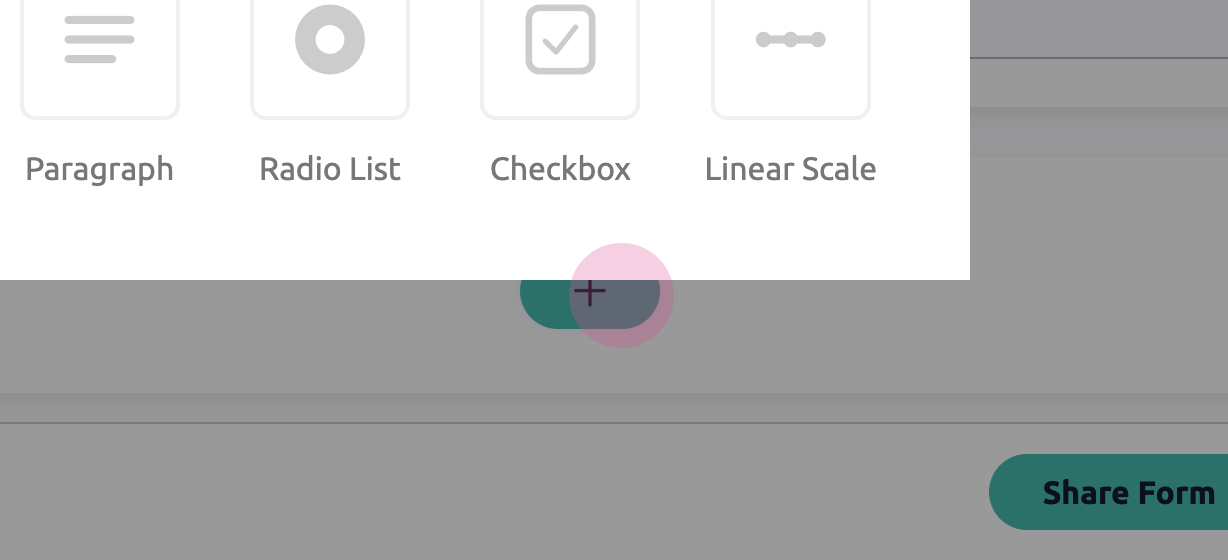
Next, add a new page to the form by clicking the plus button.
Step 3: Click the plus button to add a new page to the form.
Step 4: Give the new page a title.
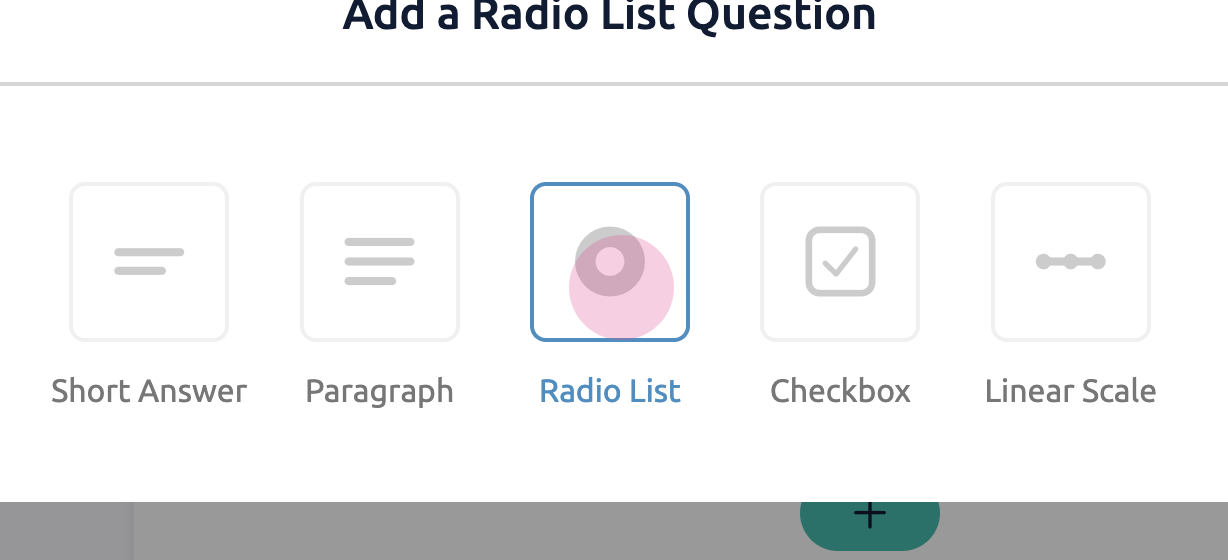
Now, it's time to add different types of questions to the form.
Step 5: Add a short answer question, allowing users to provide brief information.
Step 6: Add a paragraph question for more detailed responses.
Step 7: Add a radio list question, enabling users to choose from different options.
Step 8: Add a checkbox question to assess if users feel the objectives are being met.
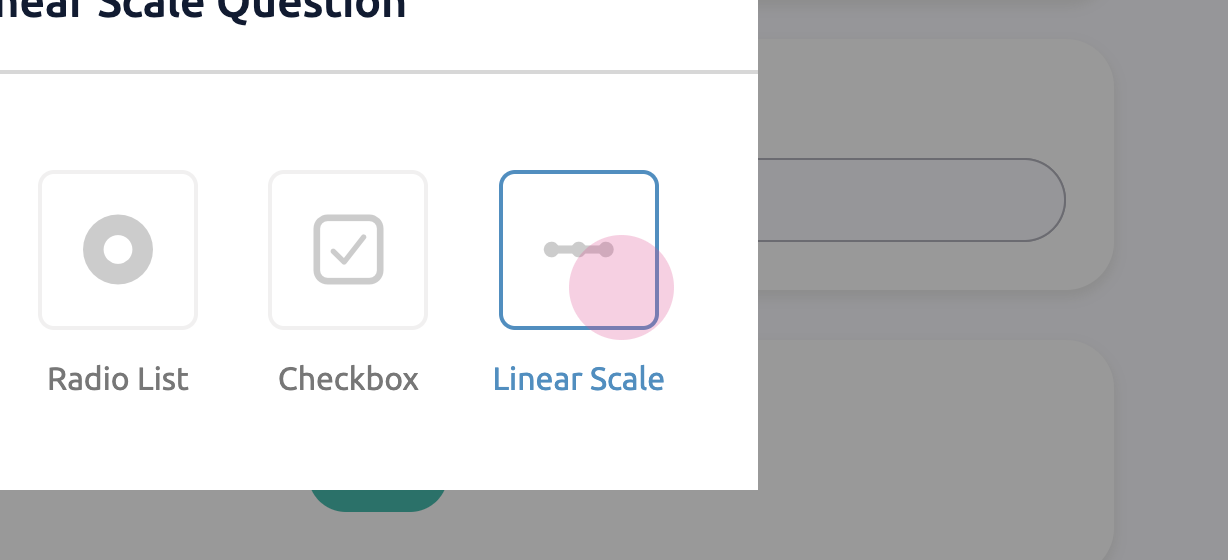
Step 9: Add a linear scale question, asking users to rate something on a scale of one to seven.
Step 10: Fill in the question text, add options, and decide if the question is required or optional.
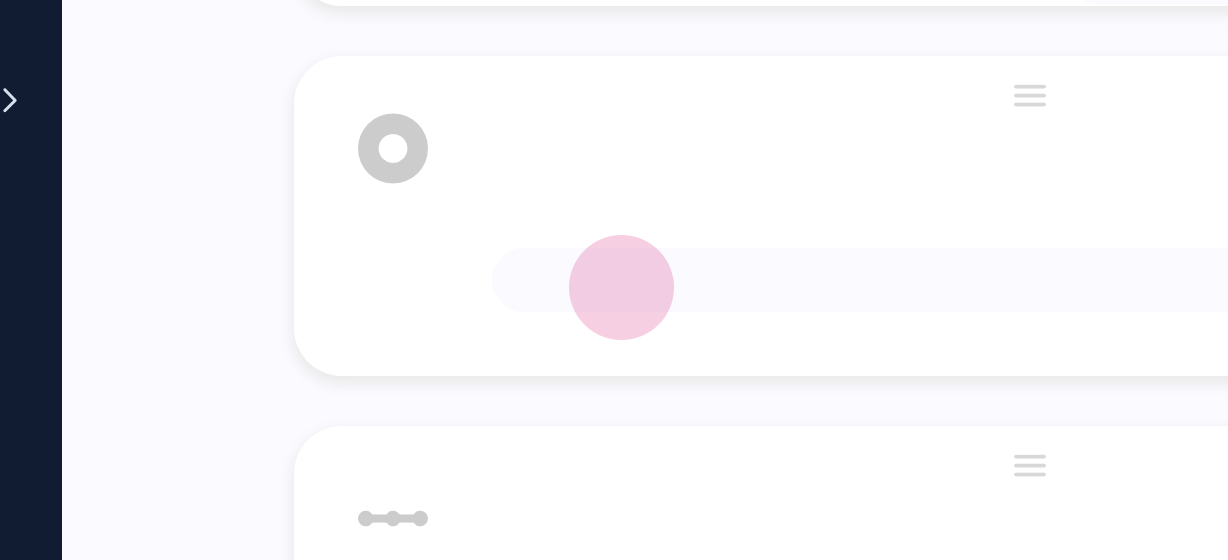
Continue building the form by adding more questions as needed. Once the form is complete, share it.
Step 11: Click Share Form once the form is complete.
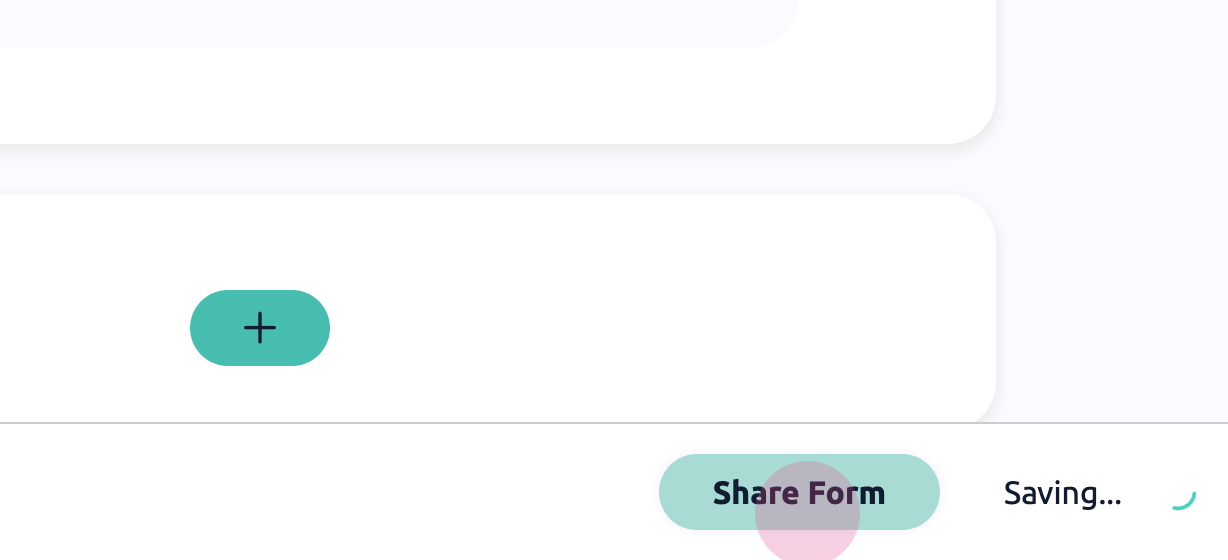
Decide when users should see the form.
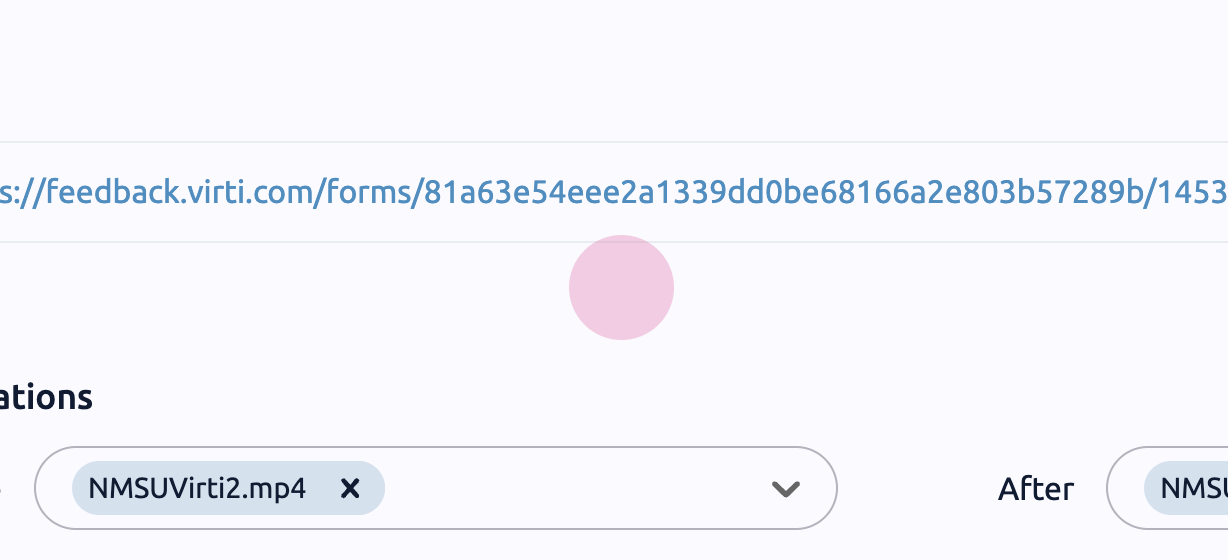
Step 12: Choose when the form should be displayed, such as between simulations, virtual humans, or courses.
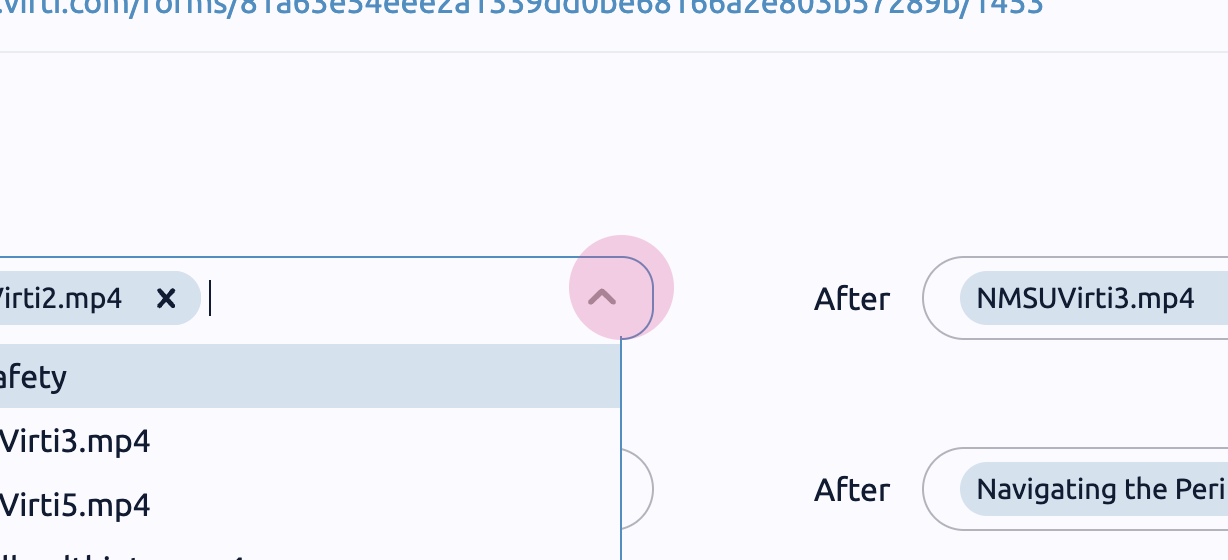
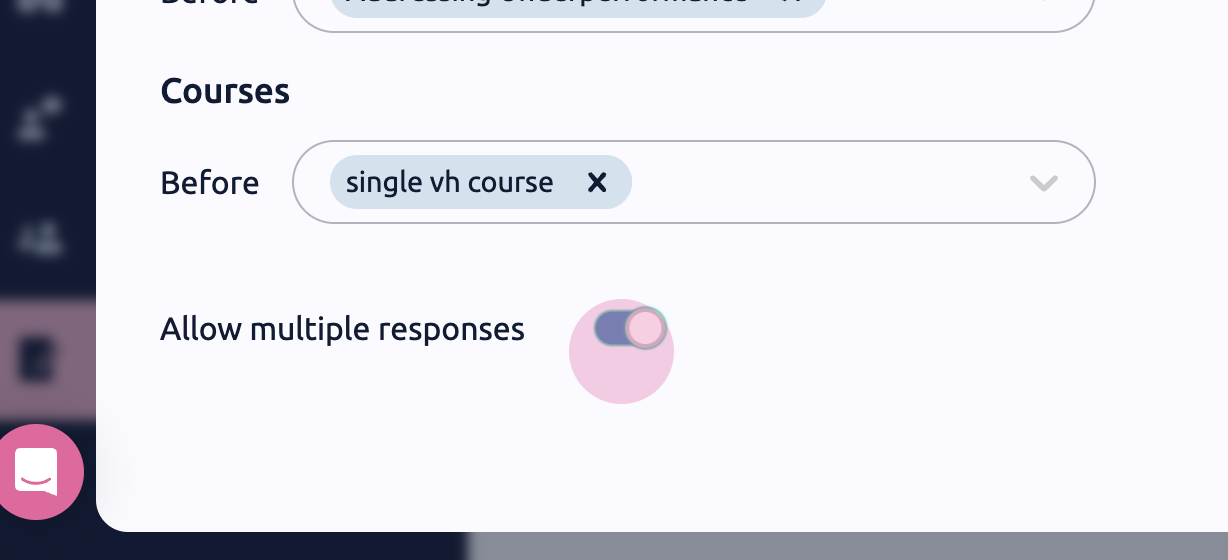
Step 13: Decide if multiple responses should be allowed.
Creating and using feedback forms on Virti is an effective way to gather user feedback and continuously improve the product.
