When you've first created your simulation, you will only have one video. To create a branching narrative, you will need to add more videos to your simulation.
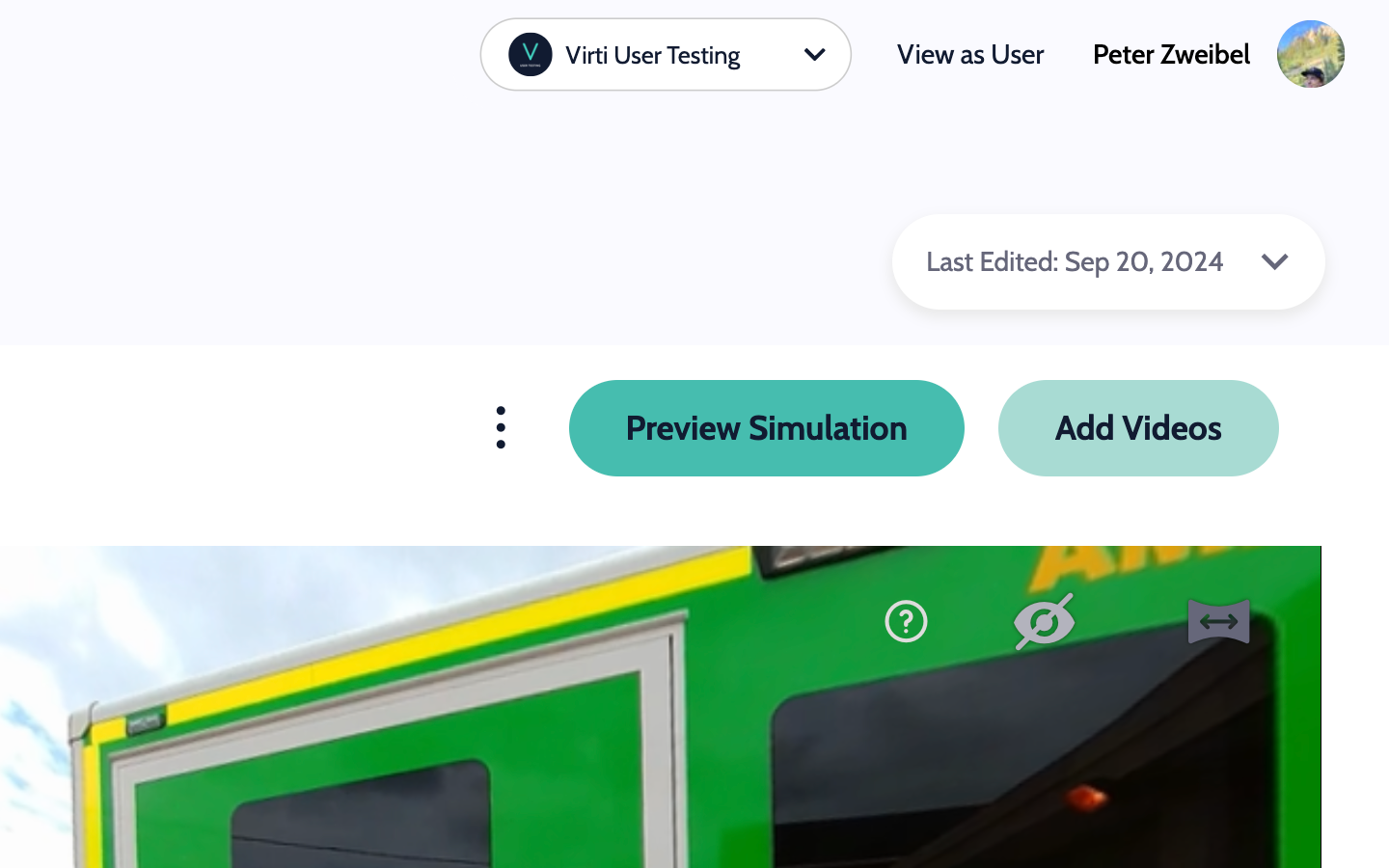
Step 1: Click on Add Videos to incorporate more videos into your simulation.
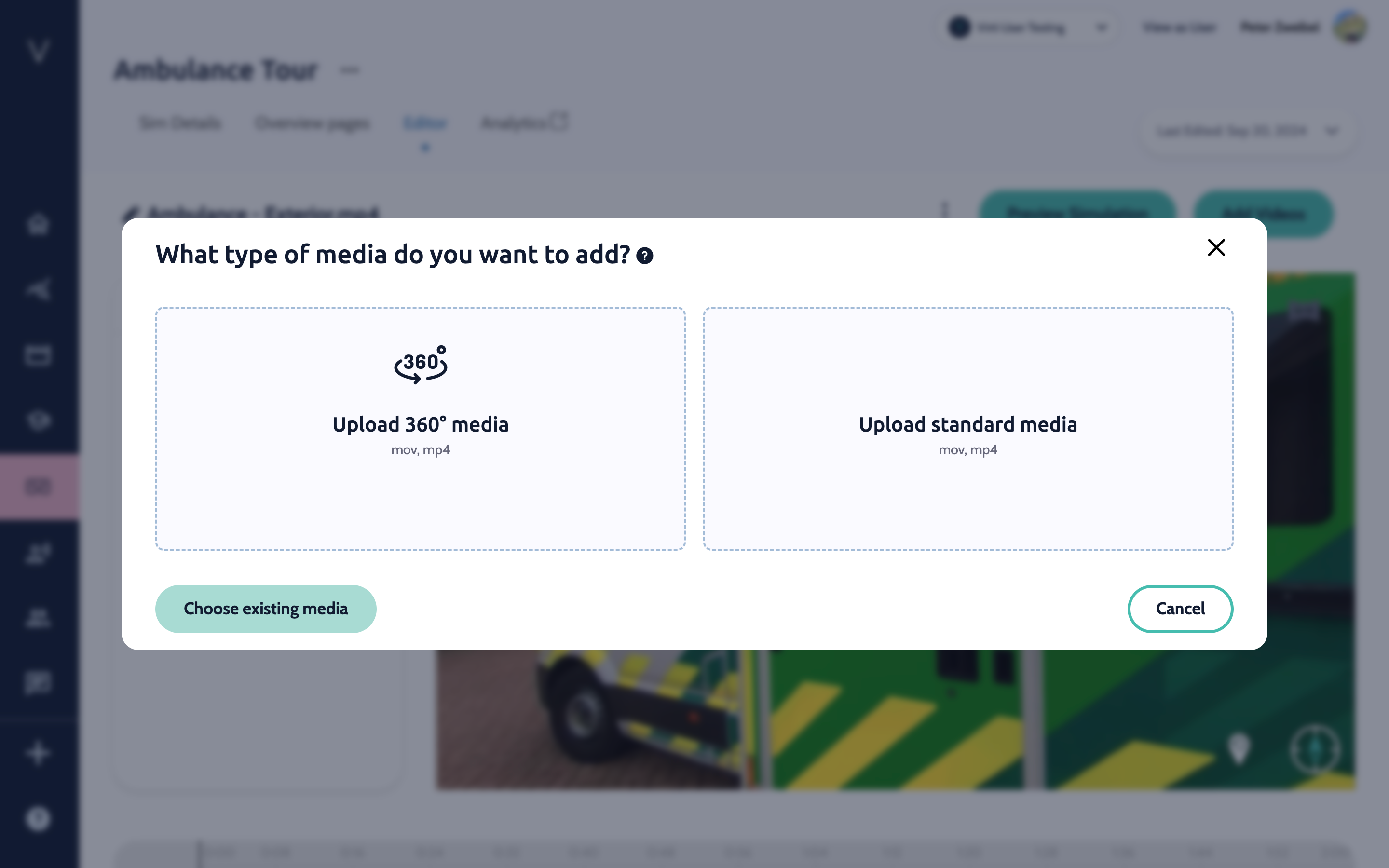
Step 2: If the video hasn't been uploaded yet, click Upload and add your new video. If the video is already uploaded, select Choose existing videos from library.
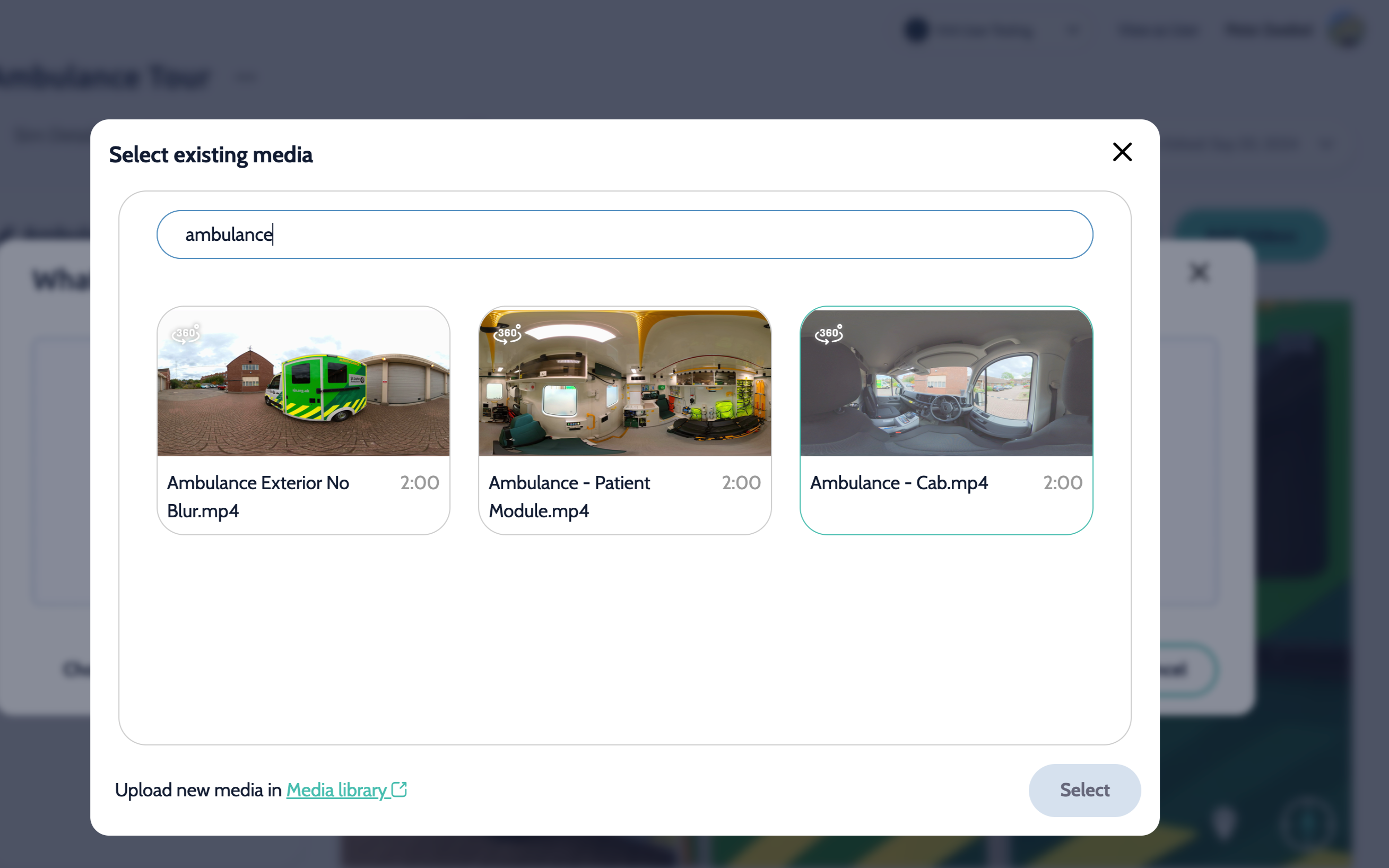
Step 3: Select your videos and click Add Videos.
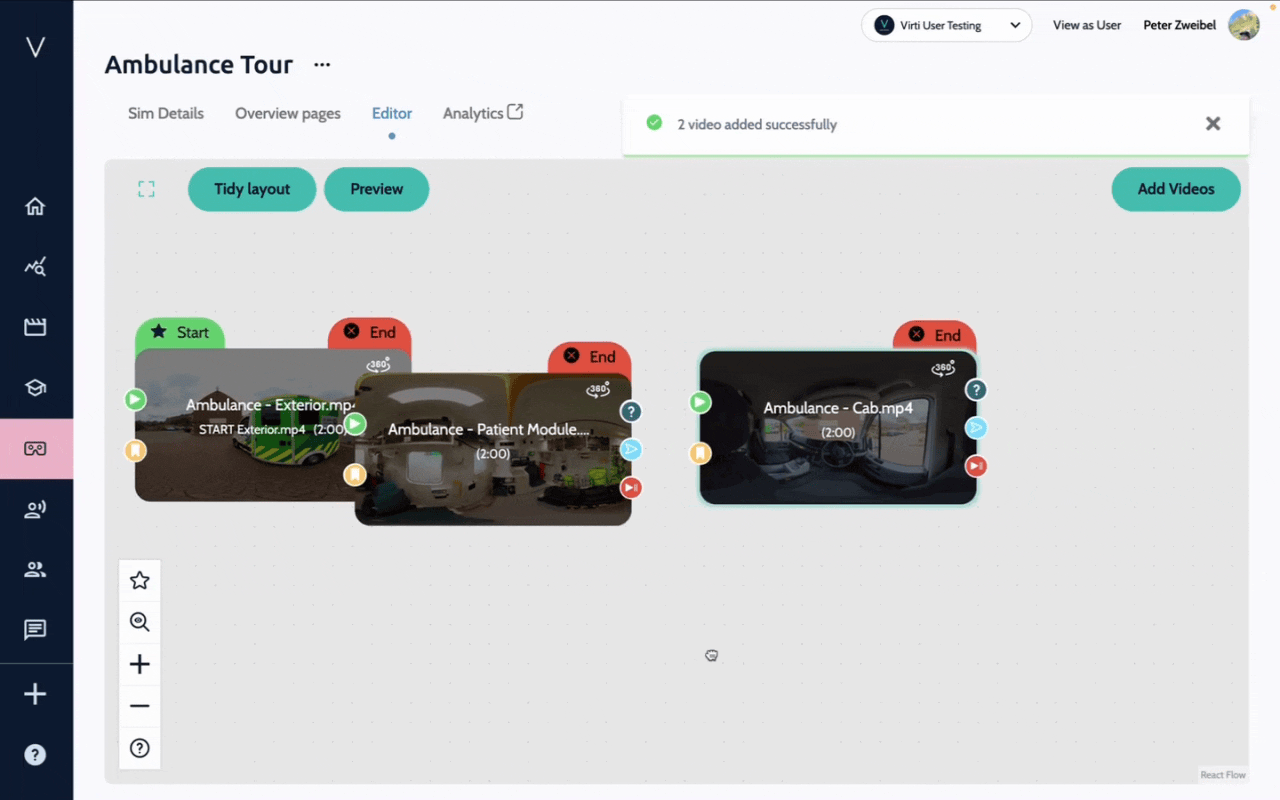
All videos appear in the map view of the editor as thumbnails. These thumbnails have icons and labels indicating the flow of your simulation.
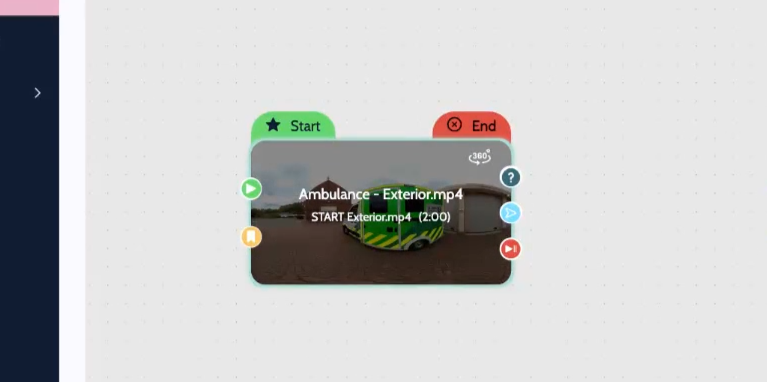
The Green Start Label indicates the first video in your simulation.
The Red End Label shows that the simulation will end if this video finishes.
The Green Arrow Icon indicates if another video is connected to the beginning of this video.
The Yellow Bookmark Icon shows if another video is linked to a bookmark within this video.
The Dark Blue Question Mark Icon indicates whether this video connects to any other videos via a question.
The Light Blue Redirect Icon shows whether this video connects to any other videos via a redirect hotspot.
The Red End Icon shows whether the end of this video connects to any other videos.
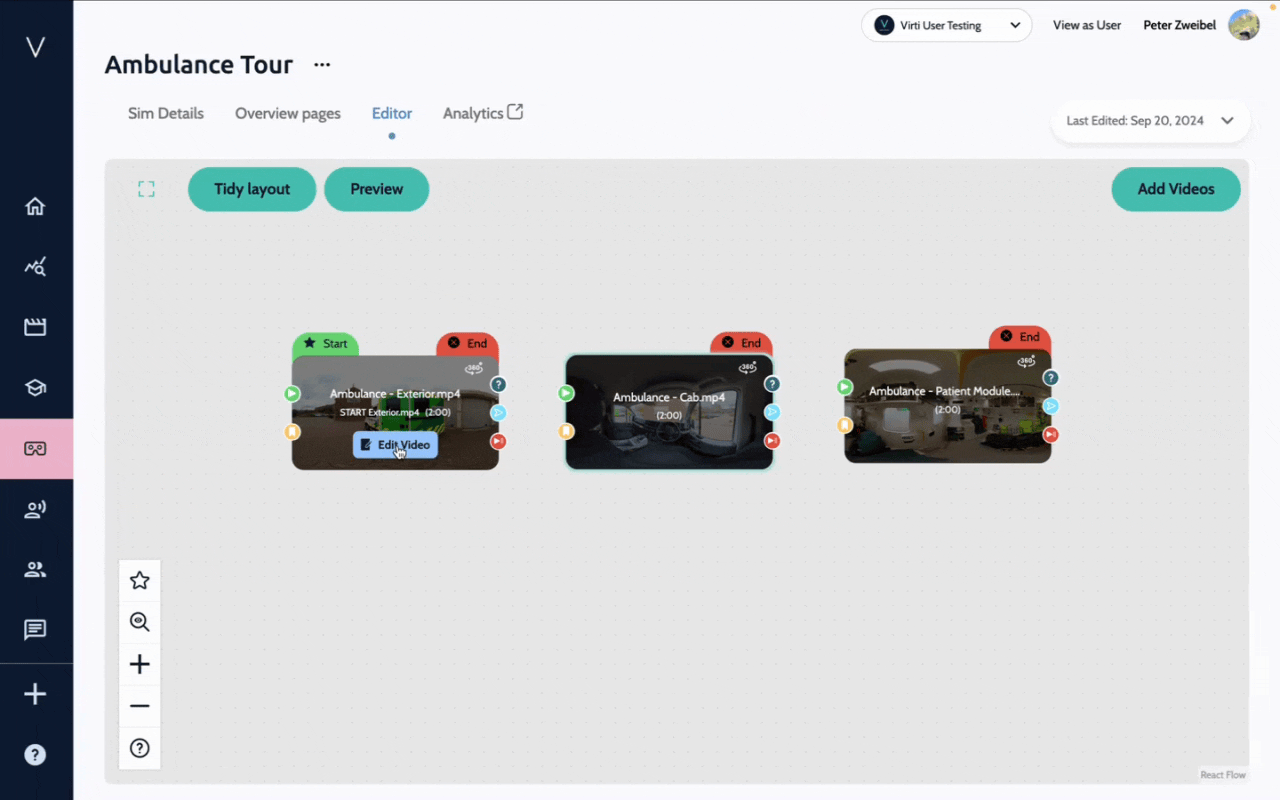
Arrange the thumbnails visually in the order you want them to appear by clicking and dragging them.
Follow these steps to create a linear narrative path, where the end of one video triggers the next video.
Step 1: Connect two videos to play sequentially by hitting edit on the first video, scrolling down, and change End Video Action to Play another video and select the correct video.
Follow these steps to create a branching narrative path, where user answers a question to decide the next scene of the simulation.
Tip: Branching narratives gives the learner more autonomy and makes the experience more interactive.
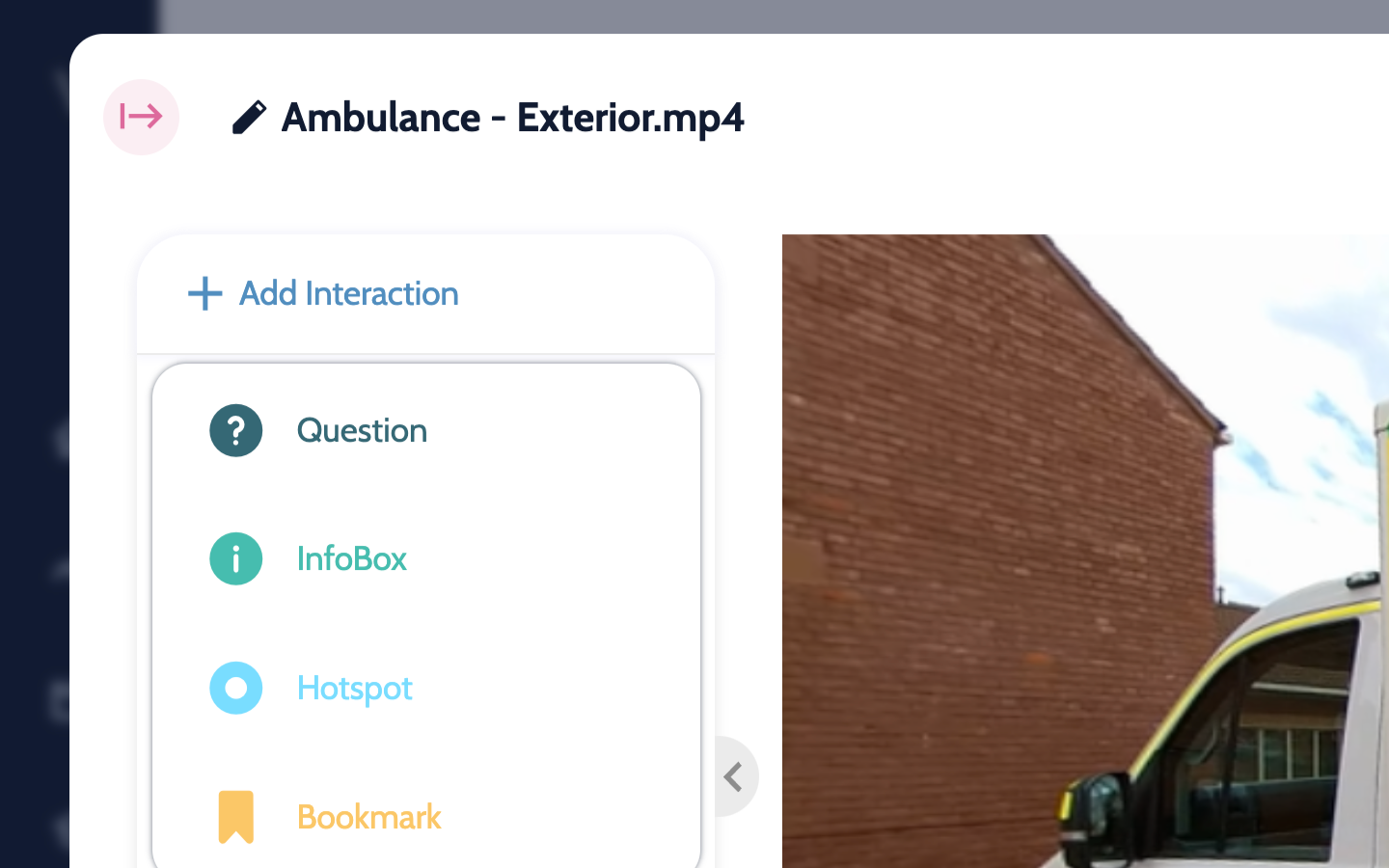
Step 1: Hit Add Interaction to add a Question
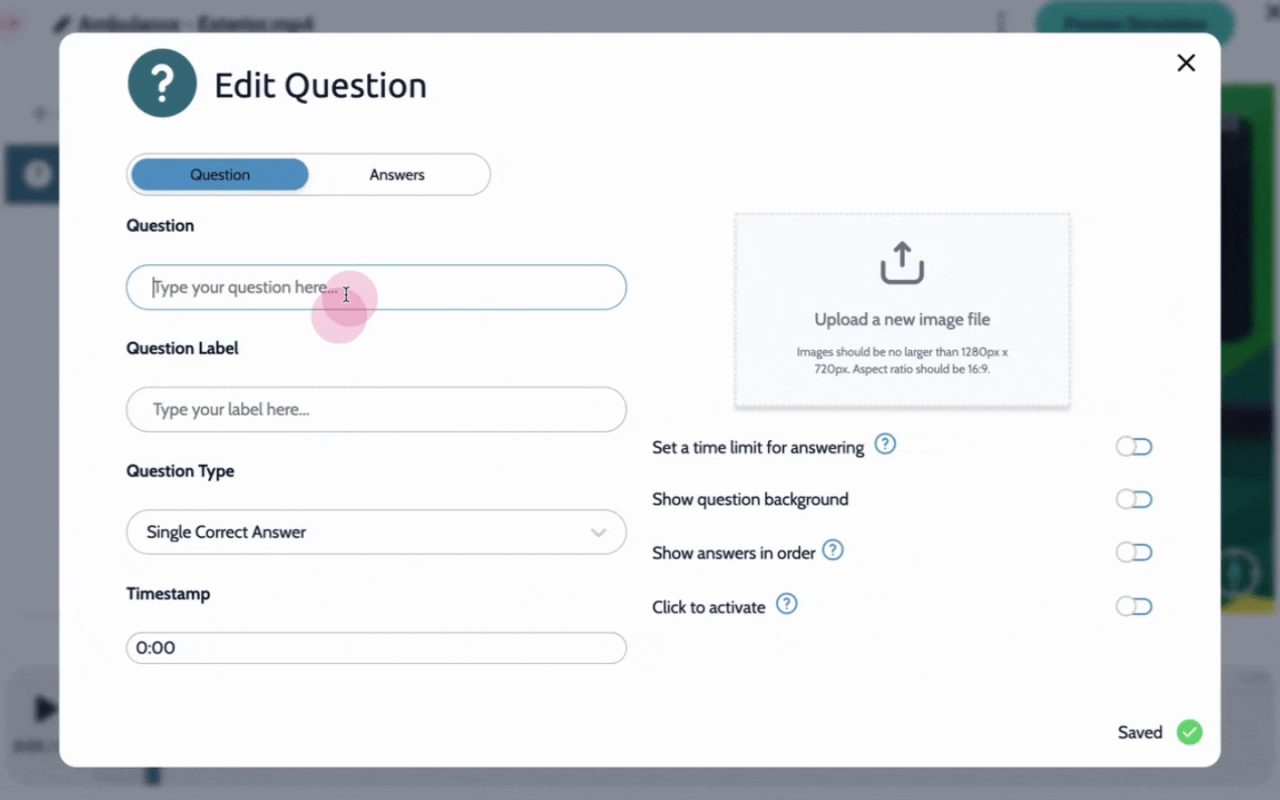
Step 2: Add your question, a label, your question type, and a timestamp.
Step 3: Hit Add Answer to add your choices.
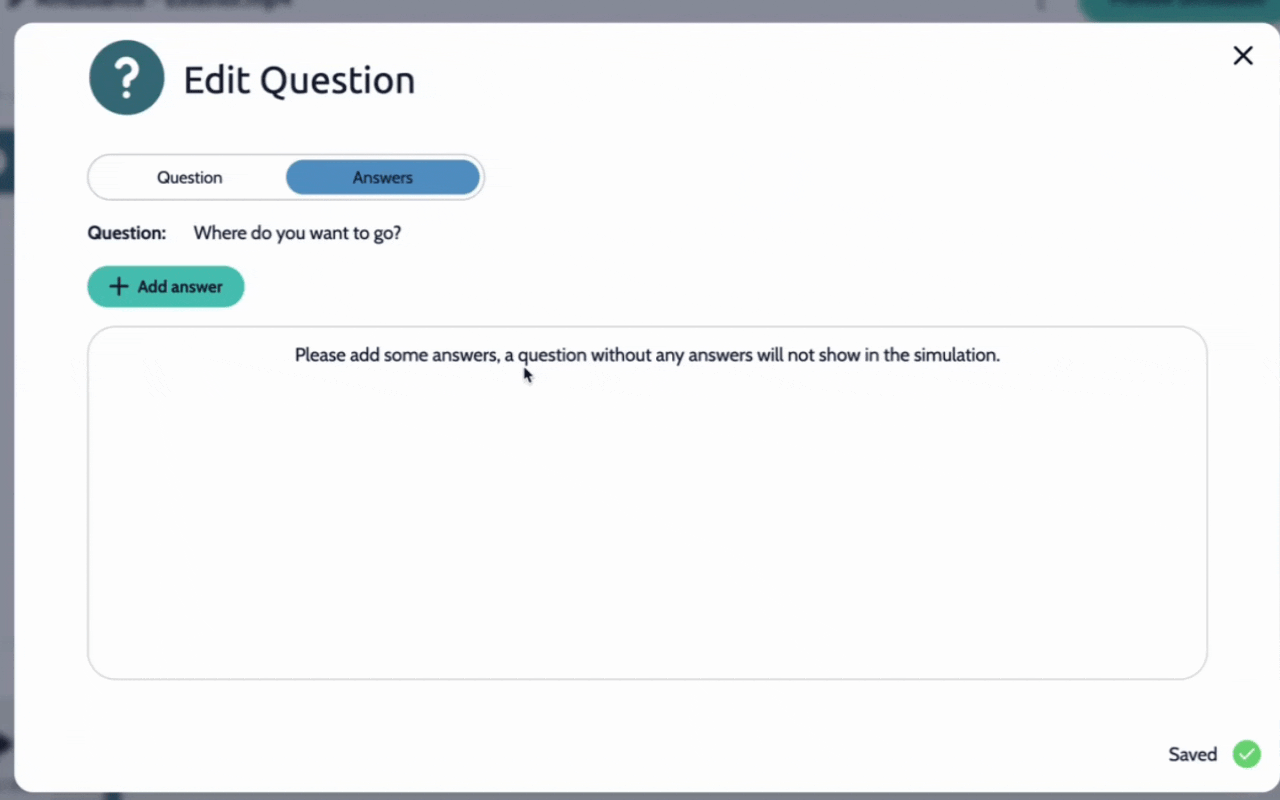
Step 4: Hit the down arrow, select Redirect from the Action menu, and the correct video. Repeat with all of your choices.
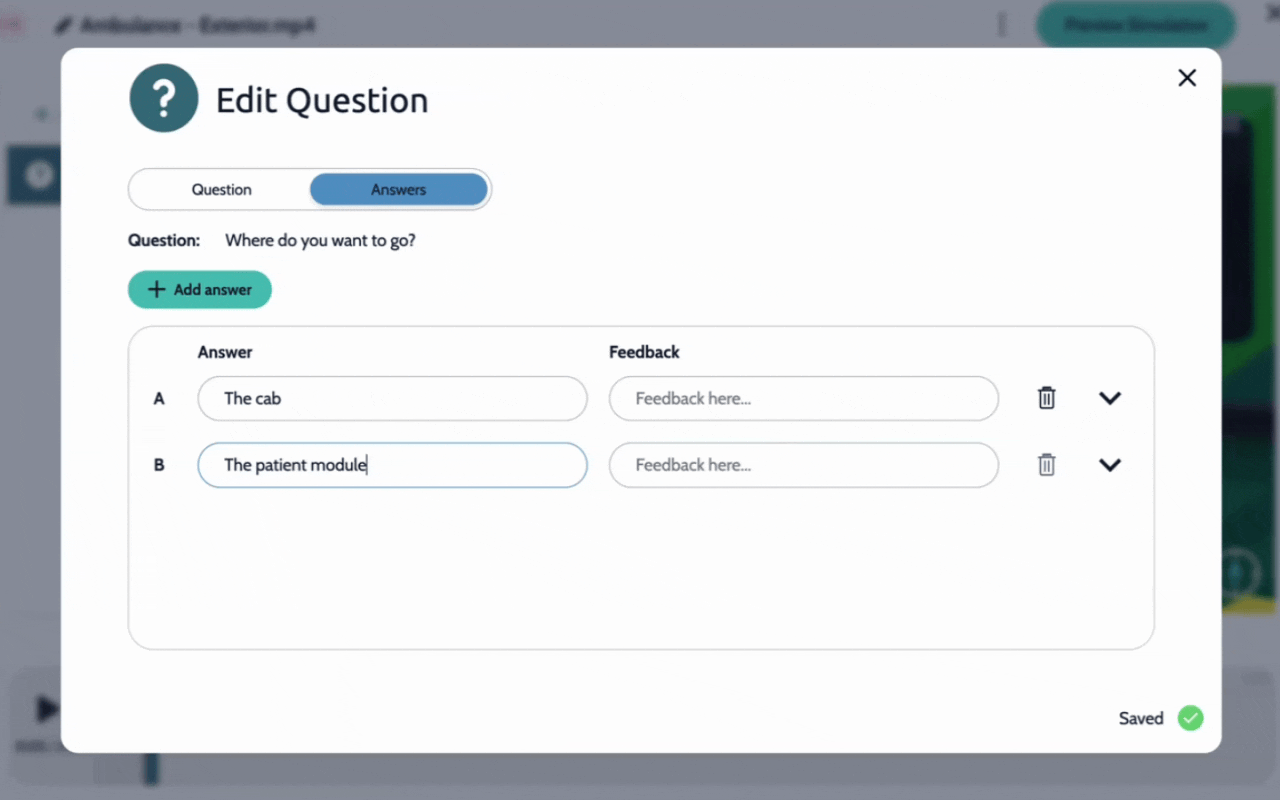
Step 4: Hit the down arrow, select Redirect from the Action menu, and the correct video. Repeat with all of your choices.
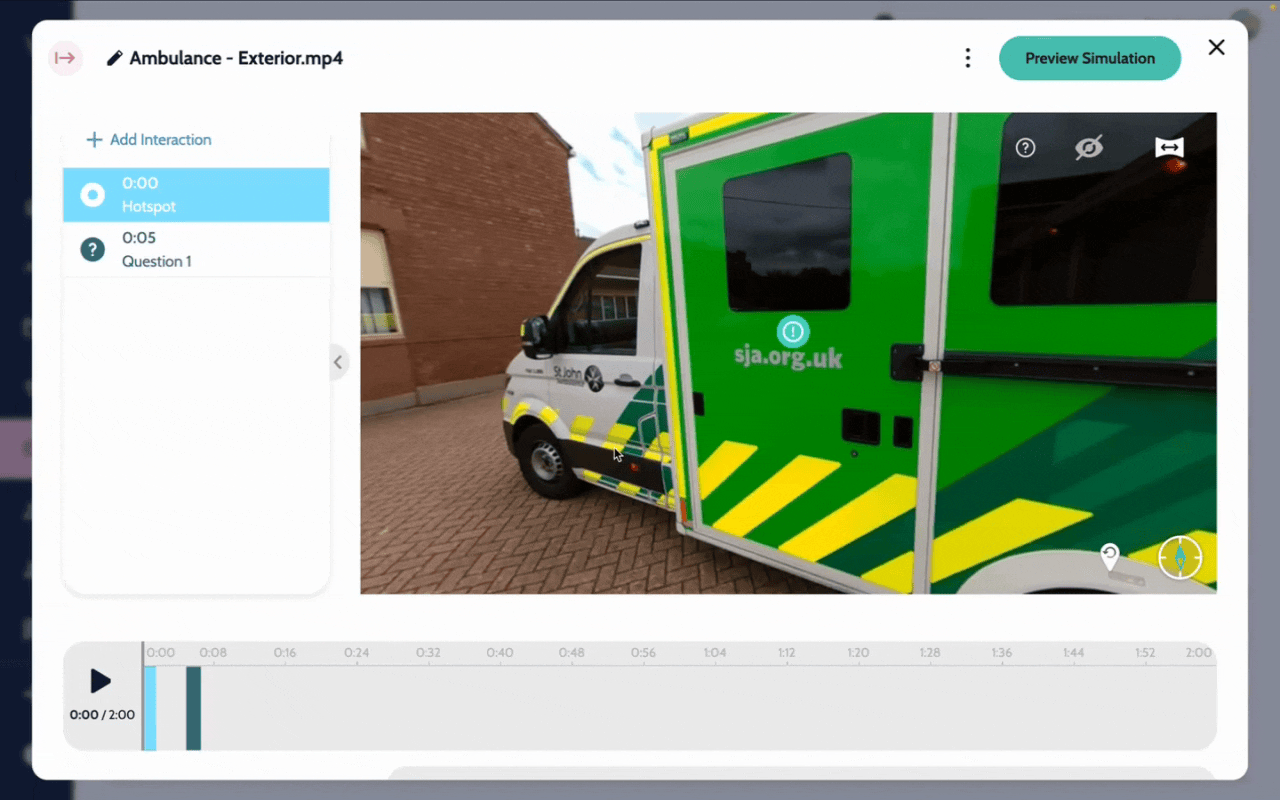
Follow these steps to create a branching narrative path, where users click a hotspot to navigate to a different scene of the simulation.
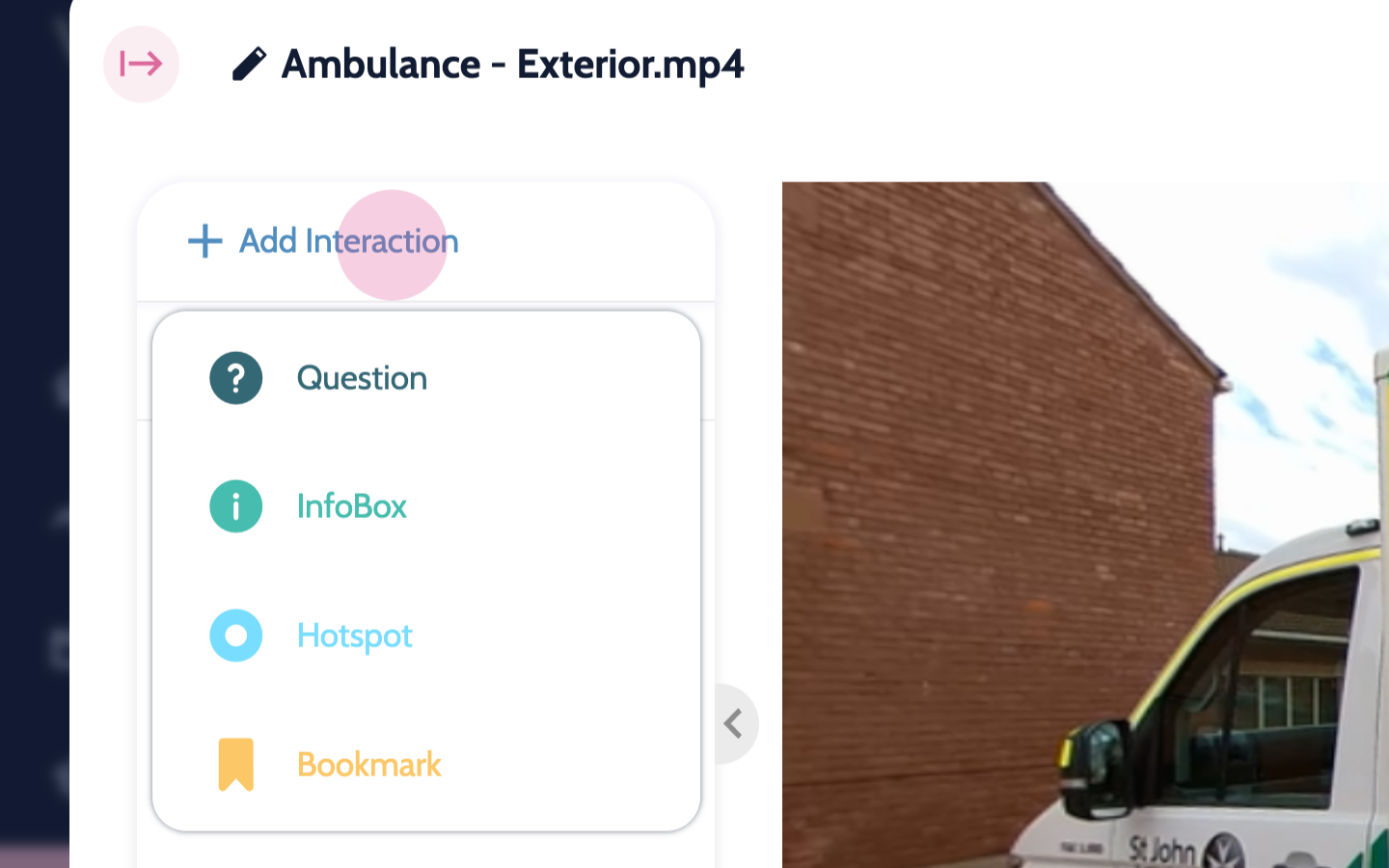
Step 1: Hit Add interaction to add a Hotspot
Step 2: Click and drag the hotspot to place it on the desired location, here we'll place it on the door to the cab.
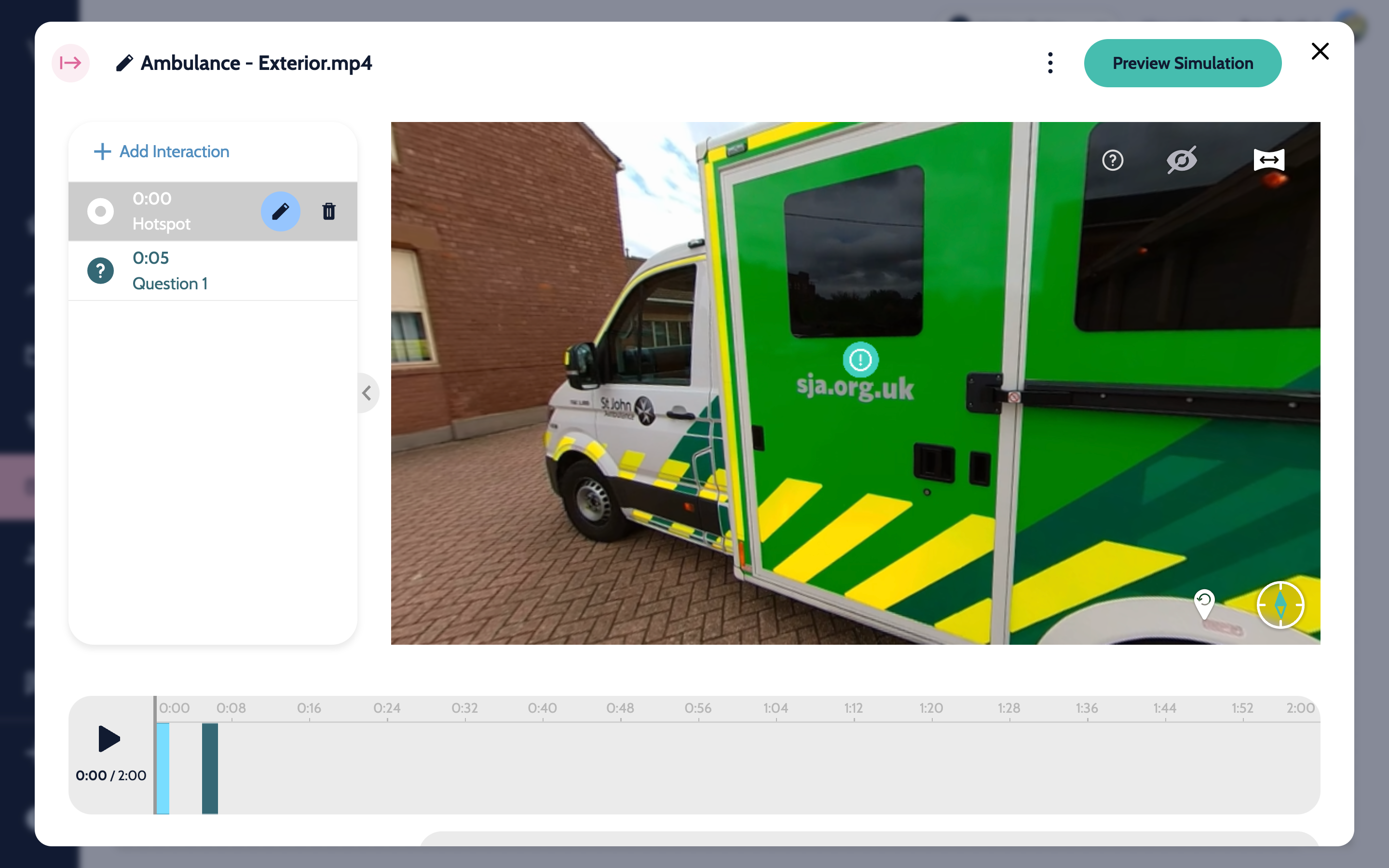
Step 3: Hit the pencil to edit and change the Hotspot Type to Redirect
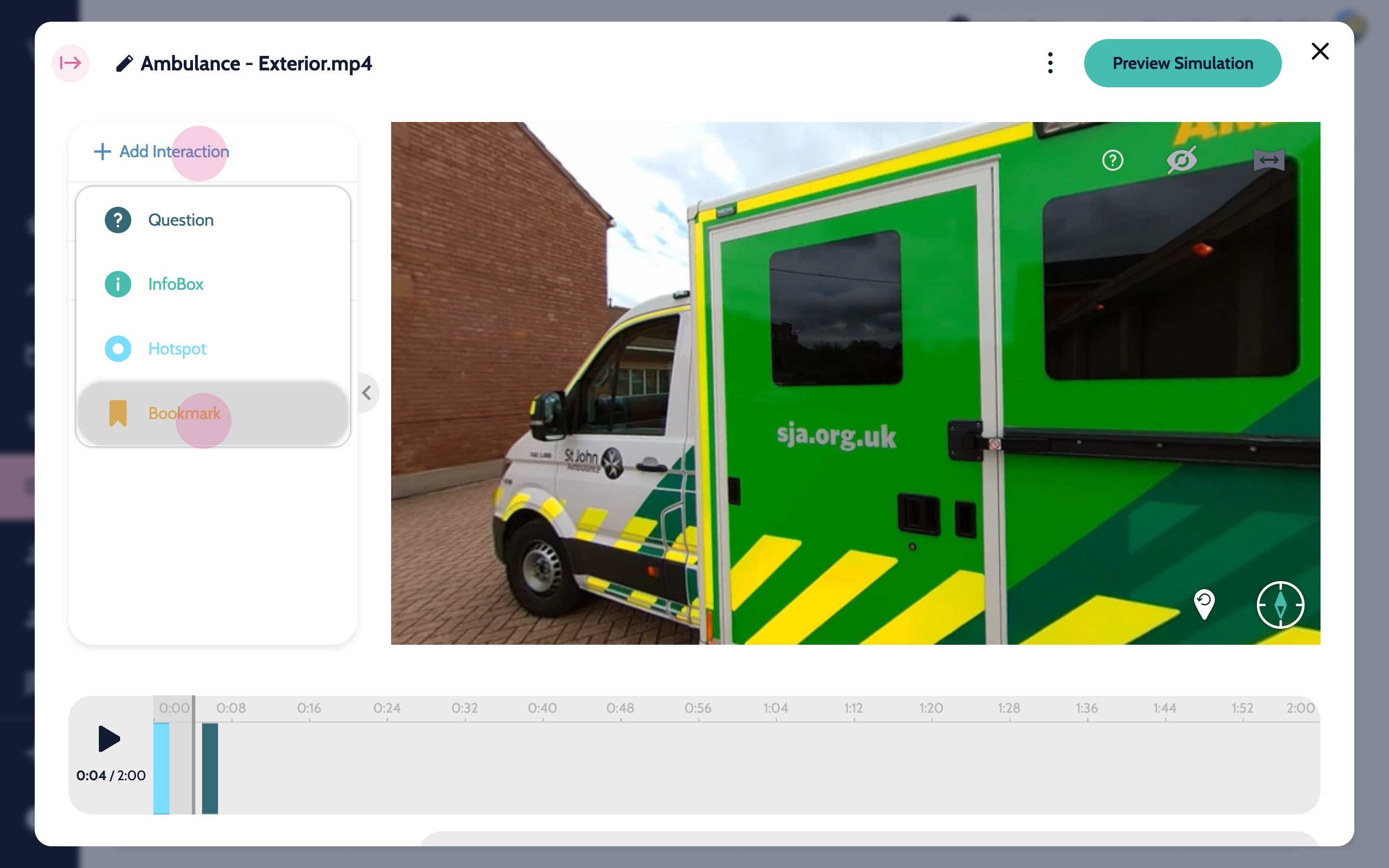
Follow these steps to create a bookmark which allows you to direct learners from a question or hotspot in one video to a specific time stamp of a video.
Step 1: On the timeline navigate to the timestamp where you want the learner to land, and hit Add interaction to add a Bookmark
Step 2: Go to the video where you want to add the hotspot, and add a hotspot.
Step 3: Hit the pencil to edit the hotspot, change the type to redirect, and in the Redirect to section, select the correct video, and then select the bookmark.
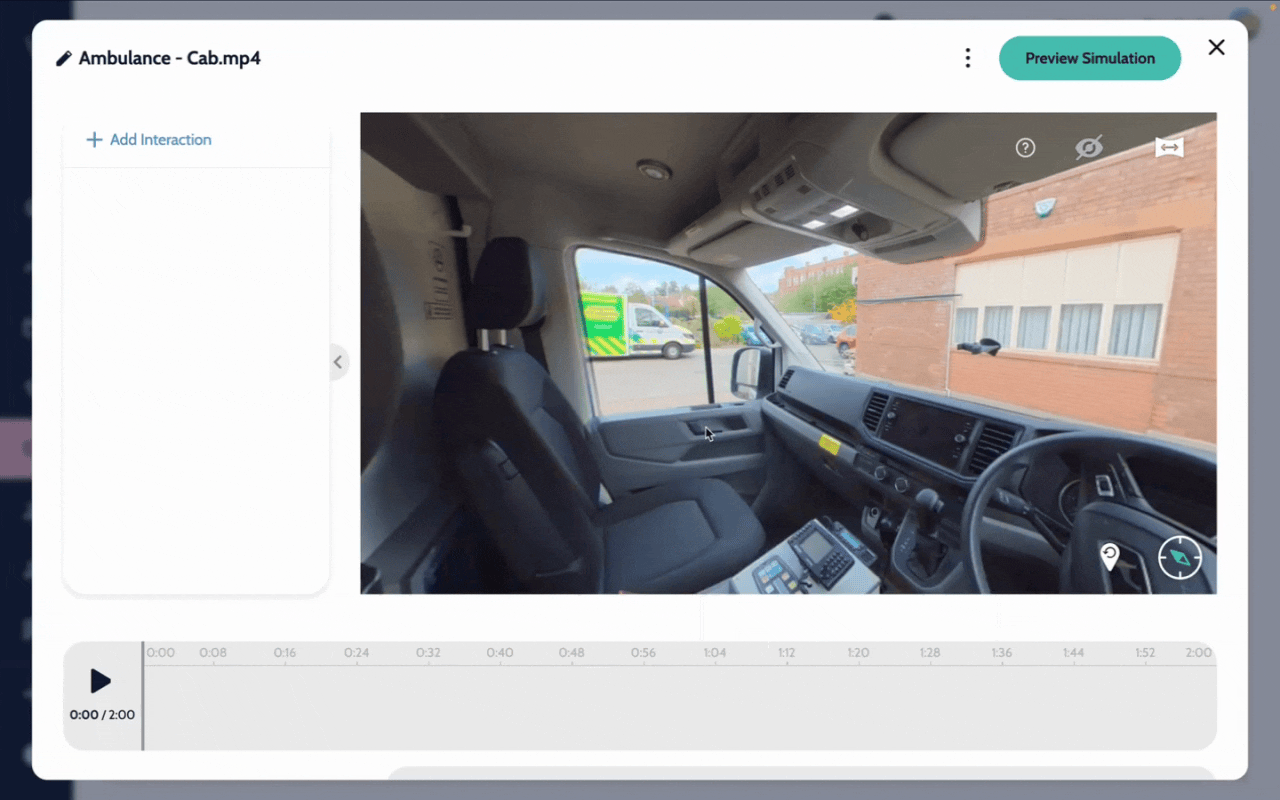
Step 4: This will make it so when the learner hits the hotspot, they will jump to the book mark directly before the question in the first video.
For additional assistance, reach out to us at [email protected].
