
The Virti application needs a Wi-Fi connection to work on a VR device. If it is not connected, some features of the Virti app won't load or update.
Tip: You can quickly check if you're already connected by looking for the 'Wi-Fi' symbol on the top left of the toolbar. If the highlighted icon glows, then it is connected.
To connect your VR device to Wi-Fi, follow these steps:
Connecting a Meta/Quest device to Wi-Fi
First, turn on your device and set up the boundaries.
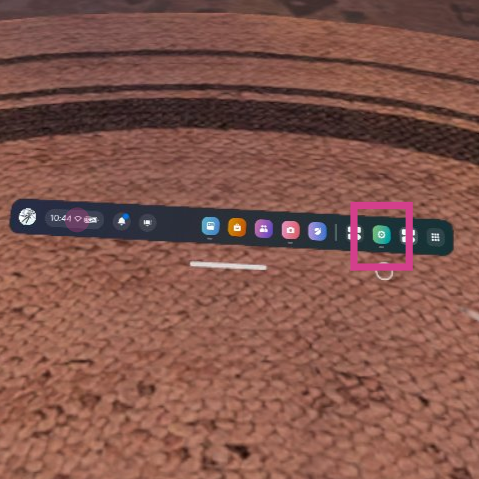
Next, select Settings from the toolbar menu - Displayed as a cog icon
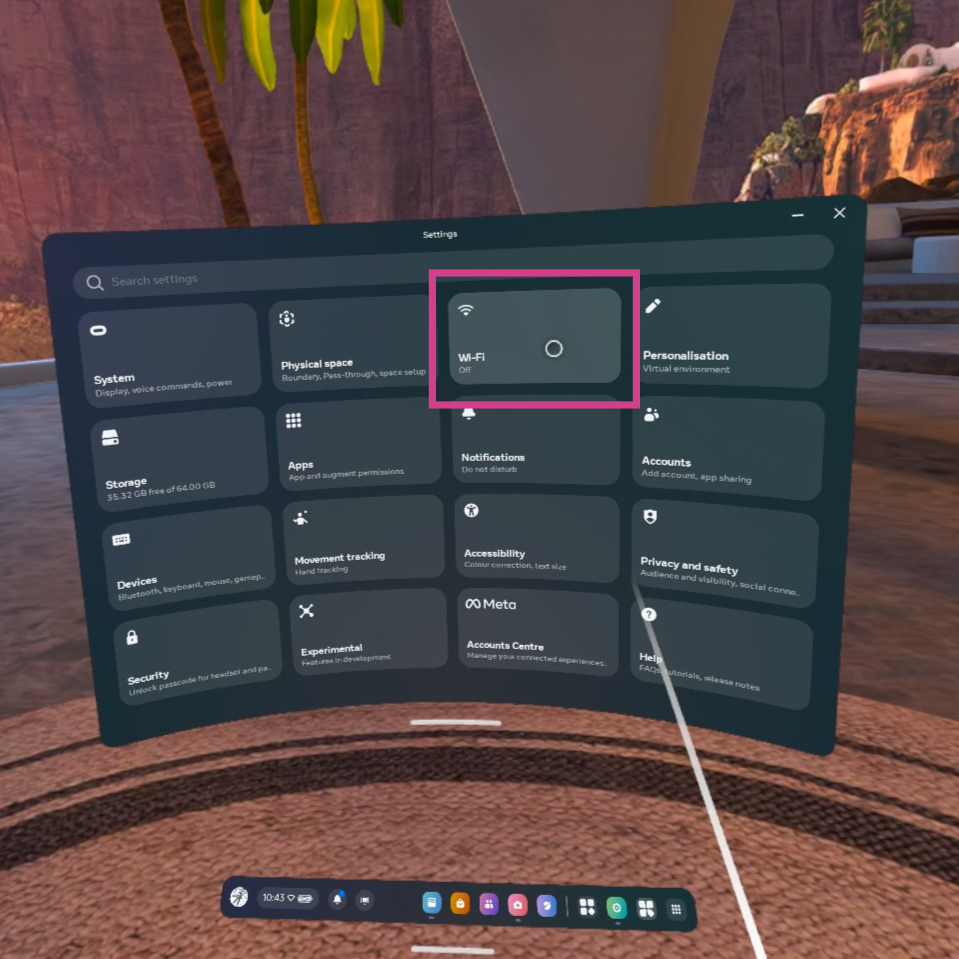
Then, go to Wi-Fi under the Settings board
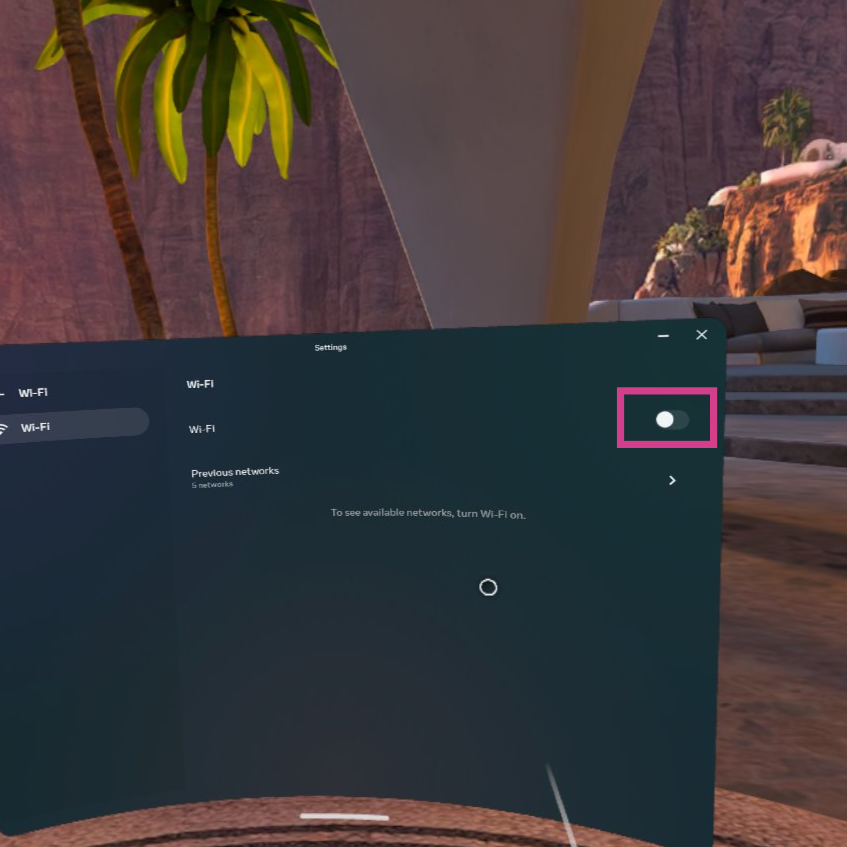
Turn the Wi-Fi toggle on.
Note: Wi-Fi is turned on when the toggle icon is blue.
Here, you will see a list of Wi-Fi connections available, select the one you want and enter the password (if required).
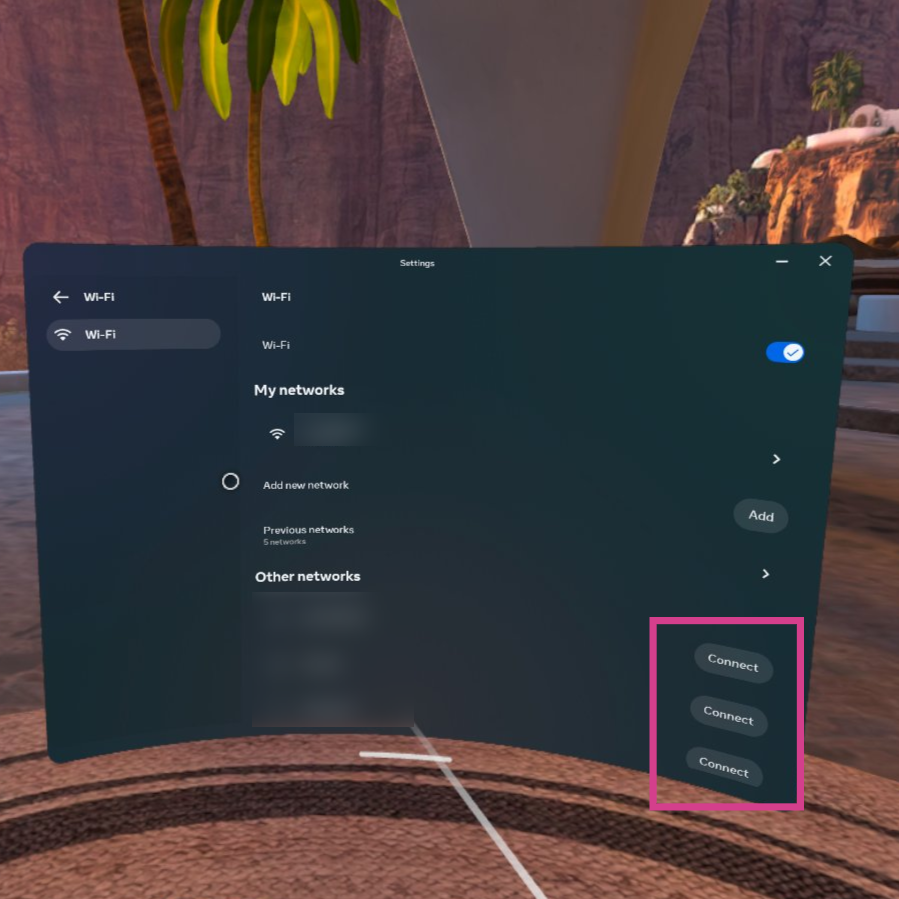
When the chosen Wi-Fi has connected you will see the Wi-Fi status change to Connected.
Still having trouble?
If the VR device isn’t connecting to Wi-Fi, contact our support team via [email protected] and we’ll be happy to help.
💡Tip
Need more help? Get support from our Virti Support Team via [email protected]